CO2-FE

1. Introduction
1.1 What is CO2-FE NB-IoT/LTE-M Indoor CO2 Sensor
The Dragino CO2-FE are NB-IoT/LTE-M Indoor CO2 Sensor for Internet of Things solution. It is designed to measure the surrounding environment parameters include: CO2, Temperature , Relative Air Humidity and Air pressure, and then upload to IoT server via NB-IoT or CAT-M1 network.
CO2-FE supports different uplink methods include MQTT, MQTTs, TCP or UDP for different application requirement. and Support Uplinks to various IoT Servers.
CO2-FE is powered by 2×ER18505 8000mAh battery , It is designed for long term use up to several years. (Real-world battery life depends on the use environment, update period and uplink method.
CO2-FE supports BLE configure and wireless OTA update which make user easy to use.
CO2-FE supports CO2 Alarm and Temperature Alarm features , users can get an alarm for instant notice.
CO2-FE supports Datalog feature , User can retrieve the sensor data from various IoT Servers.
-
CO2 Alarm and temperature Alarm will decrease a lot the battery life.
-
make sure you have NB-IoT or CAT-M1 coverage locally.
1.2 Features
- NB-IoT Bands: B1/B2/B3/B4/B5/B8/B12/B13/B17/B19/B20/B25/B26/B28/B65/B66/B85/B106
- CAT-M1 / LTE-M Bands: B1/B2/B3/B4/B5/B8/B12/B13/B18/B19/B20/B25/B26/B28/B66/B85/B106
- Ultra-low power consumption
- Monitor CO2/Temperature/Relative Humidity/Pressure
- Support CO2 alarm
- Support Datalog Feature
- Uplink via MQTT, MQTTs, TCP or UDP
- Support Bluetooth v5.1 remote configure and update firmware
- Uplink on periodically
- Downlink to change configure
- 2×ER18505 8000mAh batteries powered
- Nano SIM card slot for NB-IoT SIM
1.3 Specification
Common DC Characteristics:
- Supply Voltage: built in 8000mAh Li-SOCI2 battery , 3.0v ~ 3.6v
- Operating Temperature: -20 ~ 65°C
CO2 Sensor:
- Sensor: Senseair Sunrise Article No. 006-1-0100
- Target gas: Carbon dioxide(CO2)
- Operating principle: Non-dispersiveinfrared(NDIR)
- Operating range: 0-50°C, 0-85% RH(non-condensing)
- Measurement range: 400ppm to 5000 ppm(Extended range up to 10000 ppm)
- Accuracy:Typ ±(50 ppm +3% of reading)
- Pressure Compensation
Temperature Sensor:
- Sensor: sht41
- Range: -40 ~ 80 °C
- Accuracy: ±0.2°C @ 0~90°C
- Resolution: 0.1°C
Humidity Sensor:
- Sensor: sht41
- Range: 0 ~ 99.9% RH
- Accurancy: ± 2%RH(0~100%RH)
- Resolution: 0.1% RH
- Long Term Shift: <0.25%RH/yr
Air Pressure:
- Sensor: SPA06-003
- Range: 300~1100hPa
- Accuracy: ± 0.3 hPa (0-65 °C)
- Resolution: 0.06Pa
- Long term stability: ±1.0 hPa/yr
NB-IoT Spec:
NB-IoT Module: NRF9151-NGFF
Support Bands:
- B1 @H-FDD: 2100MHz
- B2 @H-FDD: 1900MHz
- B3 @H-FDD: 1800MHz
- B4 @H-FDD: 2100MHz
- B5 @H-FDD: 860MHz
- B8 @H-FDD: 900MHz
- B12 @H-FDD: 720MHz
- B13 @H-FDD: 740MHz
- B17 @H-FDD: 730MHz
- B18 @H-FDD: 870MHz
- B19 @H-FDD: 870MHz
- B20 @H-FDD: 790MHz
- B25 @H-FDD: 1900MHz
- B28 @H-FDD: 750MHz
- B66 @H-FDD: 2000MHz
- B70 @H-FDD: 2000MHz
- B85 @H-FDD: 700MHz
Battery:
- Li/SOCI2 un-chargeable battery
- Capacity: 8000mAh
- Self-Discharge: <1% / Year @ 25°C
Power Consumption:
- Sleep Mode: 6uA @ 3.3v
- LoRa Transmit Mode: 125mA @ 20dBm, 82mA @ 14dBm
1.4 Applications
- Smart Buildings & Home Automation
- Logistics and Supply Chain Management
- Smart Metering
- Smart Agriculture
- Smart Cities
- Smart Factory
1.5 Sleep mode and working mode
Deep Sleep Mode: Sensor doesn't have any NB-IoT/CAT-M1 activate. This mode is used for storage and shipping to save battery life.
Working Mode: In this mode, Sensor will work as NB-IoT Sensor to Join NB-IoT network and send out sensor data to server. Between each sampling/tx/rx periodically, sensor will be in IDLE mode), in IDLE mode, sensor has the same power consumption as Deep Sleep mode.
1.6 Button & LEDs
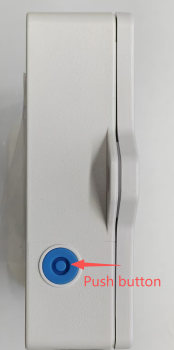
| Behavior on ACT | Function | Action |
|---|---|---|
 1~3s 1~3s | Send an uplink | If sensor has already attached to NB-IoT/CAT-M1 network, sensor will send an uplink packet, blue led will blink once. Meanwhile, BLE module will be active and user can connect via BLE to configure device. |
| >3s | Active Device | Green led will fast blink 5 times, device will enter OTA mode for 12 seconds. And then start to attach NB-IoT/CAT-M1 network. Green led will solidly turn on for 5 seconds after joined in network. Once sensor is active, BLE module will be active and user can connect via BLE to configure device, no matter if device attach NB-IoT/CAT-M1 network or not. |
 x5 x5 | Deactivate Device | Red led will solid on for 5 seconds. Means device is in Deep Sleep Mode. |
Note: When the device is executing a program, the buttons may become invalid. It is best to press the buttons after the device has completed the program execution.
1.7 BLE connection
CO2-FE support BLE remote configure and firmware update.
BLE can be used to configure the parameter of sensor or see the console output from sensor. BLE will be only activate on below case:
- Press button to send an uplink
- Press button to active device.
- Device Power on or reset.
If there is no activity connection on BLE in 60 seconds, sensor will shut down BLE module to enter low power mode.
1.8 Pin Definitions , Switch & SIM Direction

1.8.1 Jumper JP2
Power on Device when put this jumper.
Power off device when take out this jumper
1.8.2 BOOT MODE
Connect the BOOT pin to a high voltage (3.3 V), and the device will automatically enter BOOT mode after it restarts.
1.8.3 ACT Button
1.8.4 SIM Card Direction
See this link. How to insert SIM Card.
2. Use CO2-FE to communicate with IoT Server
2.1 Send data to IoT server via NB-IoT/CAT-M1 network
The CO2-FE is equipped with a NB-IoT module, the pre-loaded firmware in CO2-FE will get environment data from sensors and send the value to local NB-IoT network via the NB-IoT module. The NB-IoT network will forward this value to IoT server via the protocol defined by CO2-FE.
Below shows the network structure:

There are two version: -GE and -1T version of CO2-FE. GE Version: This version doesn't include SIM card or point to any IoT server. User needs to use AT Commands to configure below two steps to set CO2-FE send data to IoT server.
-
Install NB-IoT SIM card and configure APN. See instruction of Attach Network.
-
Set up sensor to point to IoT Server. See instruction of Configure to Connect Different Servers.
Below shows result of different server as a glance.
| Servers | Dash Board | Comments |
|---|---|---|
| Node-Red | 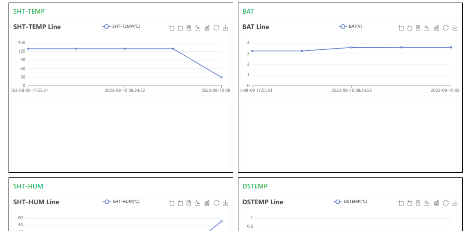 | |
| DataCake | 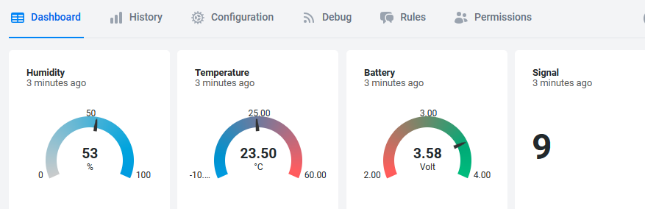 | |
| Tago.IO | ||
| General UDP | Raw Payload. Need Developer to design Dash Board | |
| General MQTT | Raw Payload. Need Developer to design Dash Board | |
| ThingSpeak |  | |
| ThingsBoard | -3e2ca121f312acb69e7224fd3318d42c.png) |
1T Version: This version has 1NCE SIM card pre-installed and configure to send value to ThingsEye. User Just need to select the sensor type in ThingsEyeand Activate CO2-FE and user will be able to see data in ThingsEye. See here for ThingsEye Config Instruction.
2.2 Payload Types
CO2-FE supports JSON payloads only. Use AT+PRO to select the connection protocol with the corresponding parameters:
AT+PRO=2,0// UDP connection with JSON payloadAT+PRO=3,0// MQTT connection with JSON payloadAT+PRO=4,0// TCP connection with JSON payload
Firmware V1.0.7 introduces Clock Logging. The examples below describe the latest JSON payloads for two uplink modes: periodic uplinks and uplinks triggered when the configured number of records has been collected.
2.2.1 Periodic Uplinks
Example configuration:
AT+TDC=7200: Send a periodic uplink every 7200 seconds (2 hours). This is the default uplink interval.AT+ATDC=65535,1,8: Start the logging period after the node connects to the network and sends its first packet, sample every 1 minute, and include 8 stored records in each periodic uplink.
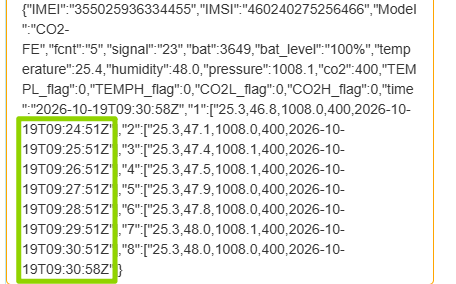
Note: The default clock logging configuration is AT+ATDC=65535,15,8. These examples use a 1-minute sampling interval instead of the default 15 minutes.
Each periodic uplink includes device information, battery information, alarm flags, the latest sensor readings taken at uplink time, and the latest 8 stored records.
Example payload:
{"IMEI":"355025936334455","IMSI":"460240275256466","Model":"CO2-FE","fcnt":"5","signal":"23","bat":3649,"bat_level":"100%","temperature":25.4,"humidity":48.0,"pressure":1008.1,"co2":400,"TEMPL_flag":0,"TEMPH_flag":0,"CO2L_flag":0,"CO2H_flag":0,"time":"2026-10-19T09:30:58Z","1":["25.3,46.8,1008.0,400,2026-10-19T09:24:51Z"],"2":["25.3,47.1,1008.0,400,2026-10-19T09:25:51Z"],"3":["25.3,47.4,1008.1,400,2026-10-19T09:26:51Z"],"4":["25.3,47.5,1008.1,400,2026-10-19T09:27:51Z"],"5":["25.3,47.9,1008.0,400,2026-10-19T09:28:51Z"],"6":["25.3,47.8,1008.0,400,2026-10-19T09:29:51Z"],"7":["25.3,48.0,1008.1,400,2026-10-19T09:30:51Z"],"8":["25.3,48.0,1008.0,400,2026-10-19T09:30:58Z"]}
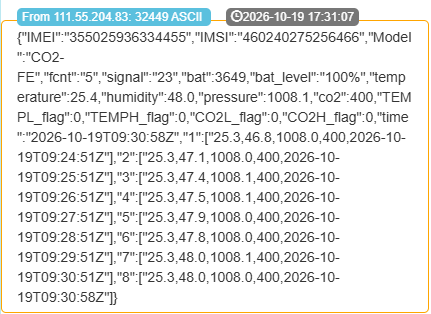
- The top-level
temperature,humidity,pressure, andco2fields contain the latest readings taken at uplink time. - Keys
"1"through"8"contain the stored sensor records. Each value is an array containing one comma-separated string in this order: temperature (°C), humidity (%RH), pressure (hPa), CO2 (ppm), timestamp (UTC). batis the battery voltage in mV, andbat_levelis the battery percentage.- The top-level
timeis the uplink timestamp; each stored record has its own sampling timestamp.
2.2.2 Uplinks After Collecting the Configured Number of Records
Example configuration:
AT+TDC=0: Send an uplink as soon as the configured number of records has been collected, instead of using a fixed uplink interval.AT+ATDC=65535,1,8: Start the logging period after the node connects to the network and sends its first packet, sample every 1 minute, and send an uplink after collecting 8 records.
With this configuration, the node collects and uploads data in batches of 8 records. The default clock logging configuration is AT+ATDC=65535,15,8; the example uses a 1-minute sampling interval.
Example payload:
{"IMEI":"355025936334455","IMSI":"460240275256466","Model":"CO2-FE","fcnt":"7","signal":"22","bat":3653,"bat_level":"100%","TEMPL_flag":0,"TEMPH_flag":0,"CO2L_flag":0,"CO2H_flag":0,"time":"2026-10-19T09:57:58Z","1":["25.4,48.5,1008.2,400,2026-10-19T09:50:51Z"],"2":["25.4,48.4,1008.3,400,2026-10-19T09:51:51Z"],"3":["25.3,48.3,1008.3,400,2026-10-19T09:52:51Z"],"4":["25.3,48.4,1008.3,400,2026-10-19T09:53:51Z"],"5":["25.3,48.4,1008.3,400,2026-10-19T09:54:51Z"],"6":["25.3,48.4,1008.3,400,2026-10-19T09:55:51Z"],"7":["25.3,48.4,1008.3,400,2026-10-19T09:56:51Z"],"8":["25.3,48.2,1008.3,400,2026-10-19T09:57:51Z"]}
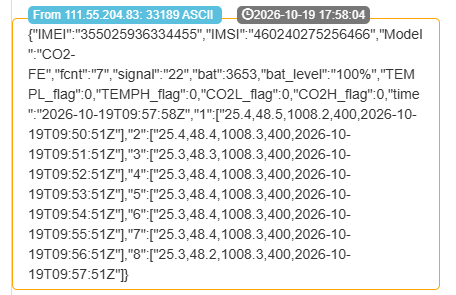
The numbered records use the same format as in Section 2.2.1. In this mode, the payload contains the 8 collected records without the additional top-level temperature, humidity, pressure, and co2 fields. Device information, battery information, alarm flags, and the uplink timestamp are still included.
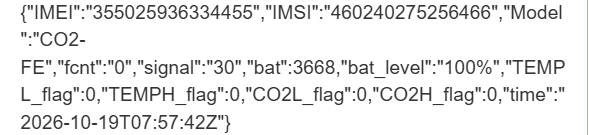
Do not use AT+TDC=0 together with AT+ATDC=65535,0,0 (disable clock logging). Otherwise, the node will upload invalid payloads containing no sensor data.
2.3 Calibrate CO2-FE
CO2-FE uses the non-dispersive infrared (NDIR) principle to measure CO2. The device must be calibrated before its first use.
After calibration, all subsequent CO2 measurements use the adjusted calibration parameters. Recalibration is also required after restoring the device to factory settings or replacing the battery, because the original calibration values will be lost.
2.3.1 Button CO2 calibration
The button calibration function is equivalent to AT+CALCMD=3 (Background Calibration). Follow these steps:
-
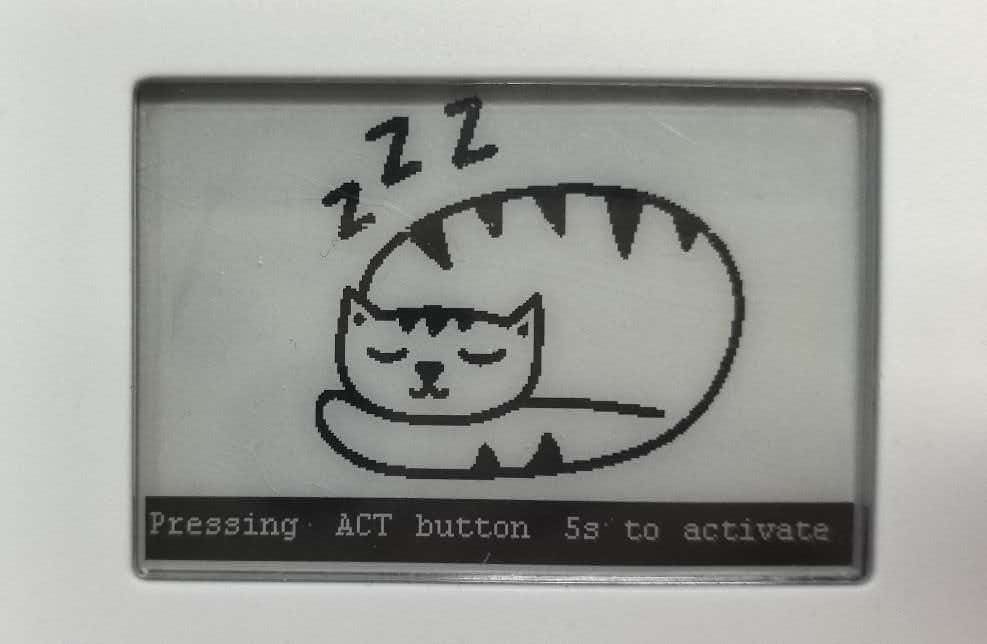
Enter sleep mode. Quickly press the button five times. The device display will show the sleep interface.
-
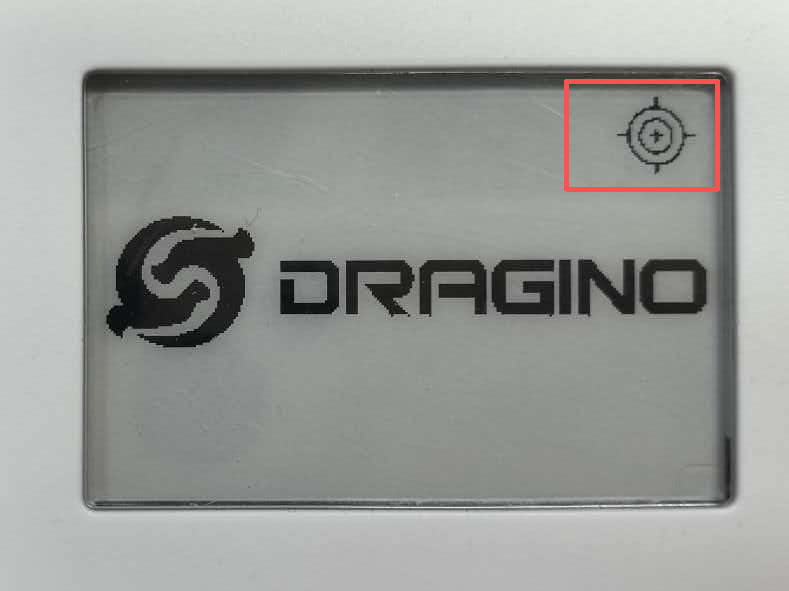
Prepare a fresh-air environment. Place the device outdoors or in another environment without combustion sources or people. Leave it there for a few minutes, then quickly press the button three times. When calibration is complete, the device will display the calibration-completed interface.
-
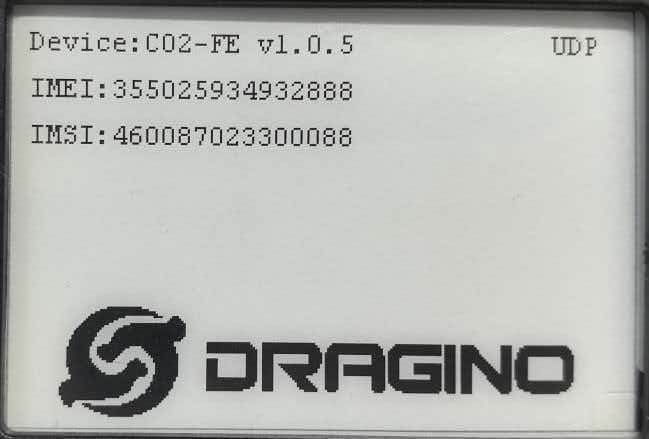
Reset the device. Reset the device. Press and hold the button until the display shows the device status screen.
For more calibration methods, please refer to 3.4 Calibration command and 3.5 Calibration mode.
3. Configure CO2-FE
3.1 Configure Methods
CO2-FE supports below configure method:
-
AT Command via Bluetooth Connection (Recommended): BLE Configure Instruction.
-
AT Command via UART Connection : See UART Connection.
3.2 Serial Access Password
After the Bluetooth or UART connection is successful, use the Serial Access Password to enter the AT command window.
1. After connecting the device via serial port or Bluetooth, press the ACT button on the device to activate its serial port functionality. Otherwise, even if the connection is successful, the serial port function will remain unavailable.
2. Each configuration requires pressing the ACT button once to disable the serial port function; otherwise, the device will remain in a power-consuming state.
3. The serial port function will automatically deactivate during each upload. To reactivate it when needed, press the ACT button once.
Using the serial port as an example:

The label on the box of the node will print the initial password: AT+PIN=xxxxxx, and directly use the six-digit password to access the AT instruction window. Note: You must add two carriage returns after the command for the device to recognize it.

If you need to change the password, use AT+PWORD=xxxxxx (6 characters), -F nodes only support lowercase letters.

Note: Users must configure Serial Assistant to automatically add a line break when sending commands. Without this line break, the AT commands you send will be invalid. (Using Serial Assistant as an example)

3.3 AT Commands Set
AT+<CMD>? : Help on <CMD>
AT+<CMD> : Run <CMD>
AT+<CMD>=<value> : Set the value
AT+<CMD>=? : Get the value
AT+MODEL : Get module information
AT+CFGMOD : Working mode selection
AT+DEUI : Get or set the Device ID
AT+CFG : Print all settings
AT+SERVADDR: Get or Set the Server address
AT+TDC : Get or set the application data transmission interval in s
AT+APN : Get or set the APN
AT+5VT : Get or Set extend the time of 5V power
AT+PRO : Get or Set usage agreement (2:UDP,3:MQTT,4:TCP)
AT+RXDL : Get or Set the receiving time
AT+EXT : Get or Set Count value
AT+SHTEMP:Get or Set alarm of shtemp
AT+SHHUM:Get or Set alarm of shthum
AT+GETSENSORVALUE : Returns the current sensor measurement
AT+DNSCFG : Get or Set DNS Server
AT+CSQTIME : Get or Set the time to join the network
AT+GDNS : Get or Set the DNS
AT+SLEEP : Get or Set the sleep mode
AT+IPTYPE : Set the IPv4 or IPv6
AT+QSW : Power on and power off BG95 module
AT+CLOCKLOG: Get or set SHT record time
AT+QBAND: Get or set Frequency Band
AT+IOTMOD: Configure Network Category to be Searched for under LTE RAT
AT+DOWNTE: Get or set the conversion between the standard version and 1T version downlinks
AT+REDPT: Get or Set the function of reconnecting the network to send data
AT+DEBUG: Get or Set the debug mode
MQTT Management
AT+CLIENT : Get or Set the MQTT clientID
AT+UNAME : Get or Set the MQTT Username
AT+PWD : Get or Set the MQTT password
AT+PUBTOPIC: Get or set MQTT publishing topic
AT+SUBTOPIC: Get or set MQTT subscription topic
AT+MQOS : Set the QoS level of MQTT
AT+TLSMOD : Get or Set the TLS mode
Information
AT+FDR1 : Reset parameters to factory default values except for passwords
AT+FDR : Reset Parameters to Factory Default
AT+PWORD : Get or set the System password
AT+LDATA : Get the last upload data
AT+CDP : Read or Clear cached data
AT+PDTA: Print the sector data from start page to stop page
AT+PLDTA: Print the last few sets of data
AT+CLRDTA: Clear the storage, record position back to 1st
AT+GETLOG : Print serial port logs
ATZ : Trig a reset of the MCU
AT+UDPMOD: Get or set UDP working mode
AT+SFNT: Get or set search for network time
AT+CALMOD: Set the calibration mode(0:Disable ABC calibration;1:Enable ABC calibration mode)
AT+CALCMD: Set calibration command
AT+TEMPALARM: Get or Set alarm of bme280temp
AT+CO2ALARM: Get or Set alarm of co2
AT+ATDC: Get or set the application minimum alarm interval in min
3.4 Test Uplink and Change Update Interval
Feature: Set the node's uplink interval in seconds. The default is 7200 seconds (2 hours).
AT Command: AT+TDC
| Command Example | Function |
|---|---|
AT+TDC=? | Show the current uplink interval. |
AT+TDC=600 | Set the uplink interval to 600 seconds (10 minutes). |
AT+TDC=0 | Send an uplink as soon as the number of records specified by parameter c of AT+ATDC has been collected, instead of using a fixed interval. Available in V1.0.7 and later. |
For periodic uplinks, use AT+TDC=<seconds> with a non-zero interval.
Downlink Command: 0x01
Format: Command code 0x01 followed by the interval in seconds, encoded as 3 bytes.
01000258// Same asAT+TDC=600: send a periodic uplink every 10 minutes.01000000// Same asAT+TDC=0: send an uplink after collecting the configured number of records.
Note: Enter the downlink payload without spaces between bytes.
Users can also press the ACT button for 1–3 seconds to trigger an uplink.
3.5 Set the receiving time
Feature: Extend the receiving time
AT Command: AT+RXDL
Example: AT+RXDL=1000 // Set the receiving time delay to 1000ms
Downlink Commands: 0x03
Format: Command Code (0x03) followed by 3 bytes.
Example: Downlink Payload: 03 00 03 E8// AT+RXDL=1000
3.6 Reset
Feature: Trig a reset of the MCU.
AT Command: ATZ
Downlink Commands: 0x04FF
3.7 +5V
Feature: Set extend the time of 5V power.
AT Command: AT+5VT
Example: AT+5VT=2000 // Set extend the time of 5V power to 2000 ms
Downlink Commands: 0x05
Format: Command Code (0x05) followed by 3 bytes.
Example: Downlink Payload: 05 00 07 D0// AT+5VT=2000
3.8 Set the QoS level
This command is used to set the QoS level of MQTT.
AT command:
- AT+MQOS=xx// 0~2
Downlink command: 0x07
Format: Command Code (0x07) followed by 1 byte.
Ex1: Downlink payload: 0x0700 // AT+MQOS=0
Ex2: Downlink payload: 0x0701 // AT+MQOS=1
3.9 Set the TLS mode
Refer to this link (MQTT Connection to send data)to use the TLS mode.
AT Command: AT+TLSMOD
Example 1: AT+TLSMOD=0,0 // Disable TLS Mode.
Example 2: AT+TLSMOD=1,0 // No authentication
AT+TLSMOD=1,1 // Perform server authentication
AT+TLSMOD=1,2 // Perform server and client authentication if requested by the remote server
Downlink command: 0x09
Format: Command Code (0x09) followed by 2 bytes.
Example1: Downlink Payload: 09 00 00// AT+TLSMOD=0,0
Example2: Downlink Payload: 09 01 02// AT+TLSMOD=1,2
3.10 Set Temperature Alarm Threshold
- AT Command:
AT+TEMPALARM=min,max (Among them, 100 is an invalid value, which means not set)
- When min=100, and max≠100, Alarm higher than max
- When min≠100, and max=100, Alarm lower than min
- When min≠100 and max≠100, Alarm higher than max or lower than min
Example:
AT+TEMPALARM=100,30 // Alarm when temperature higher than 30.
- Downlink Payload:
0x(0C 01 64 1E) // Set AT+TEMPALARM=100,30
(note: 3rd byte= 0x64 for low limit(not set), 4th byte = 0x1E for high limit: 30)
3.11 Set CO2 Alarm Threshold
The CO2 alarm function detects CO2 once every minute, so it consumes more power.
- AT Command:
AT+CO2ALARM=min,max (Among them, 0 is an invalid value, which means not set)
- When min=0, and max≠0, Alarm higher than max
- When min≠0, and max=0, Alarm lower than min
- When min≠0 and max≠0, Alarm higher than max or lower than min
Example:
AT+CO2ALARM=400,0 // Alarm when humidity lower than 400.
- Downlink Payload:
0x(0C 02 01 90 00 00) // Set AT+CO2ALARM=400,0
(note: 3rd byte+4rd byte= 0x0190 for low limit (400ppm), 5th byte+6rd byte = 0x00 for high limit (not set))
3.12 Clock Logging and Alarm Sampling Interval
Available in firmware V1.0.7 and later.
In earlier firmware versions, AT+ATDC only set the minimum interval between two alarm uplinks. Starting from firmware V1.0.7, this command configures the first sampling time, the sampling interval, and the number of stored records included in each periodic uplink.
This feature allows the node to sample and store sensor data at a scheduled start time and a specified sampling interval, then upload multiple stored records in a single periodic uplink. The node also checks the configured alarm thresholds at each sampling time.
AT Command: AT+ATDC=a,b,c
| Parameter | Description |
|---|---|
| a | First sampling start second within each hour. Range: 0–3599, or 65535. If a=65535, the logging period starts after the node connects to the network and sends its first packet. |
| b | Sampling interval, in minutes. Range: 0–255. To disable clock logging, use AT+ATDC=65535,0,0. |
| c | Number of stored historical records included in each periodic TDC uplink. Maximum: 32. This count does not include the latest sample taken at uplink time. |
Downlink Command: 0x16
Format: 16 aa aa bb cc — parameter a uses 2 bytes; parameters b and c use 1 byte each.
Example:
16FFFF0F08// Same asAT+ATDC=65535,15,8.1600000108// Same asAT+ATDC=0,1,8.
- Default configuration: AT+ATDC=65535,15,8
- The sampling interval is set by parameter b, while the periodic uplink interval is set by
AT+TDC. - Time synchronization: Synchronize the node's time with the server before configuring this command. If the server time has not been synchronized before configuration, the command takes effect only after the node is reset.
- Restart after re-enabling clock logging: After disabling clock logging with
AT+ATDC=65535,0,0, restart the node after re-enabling it withAT+ATDC. Otherwise, the node will not sample data correctly at the configured interval.
Each periodic TDC uplink includes battery information + the latest c stored historical records (sensor data and timestamps) + the latest sample taken at uplink time.
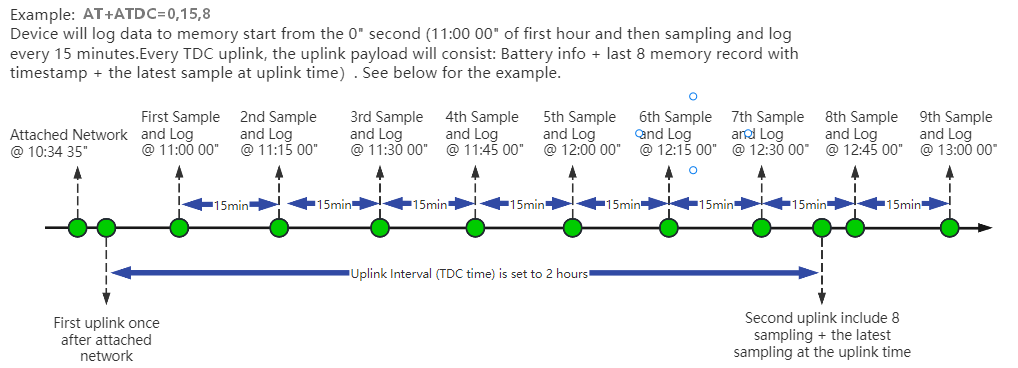
- Example 1: Sample every 15 minutes starting on the hour
AT+ATDC=0,15,8
The node starts logging at the 0th second of the hour and then records sensor data every 15 minutes. Each periodic TDC uplink includes battery information + the latest 8 stored historical records and their timestamps + the latest sample taken at uplink time.
In the example below, the node connects to the network at 10:34:35 and sends its first uplink. It starts logging at 11:00:00, followed by samples at 11:15:00, 11:30:00, and so on. With AT+TDC=7200 (2 hours), the next periodic uplink includes the latest 8 stored historical records and the latest sample taken at uplink time, together with battery information.
- Example 2: Start logging after the first uplink
AT+ATDC=65535,1,8
After the node connects to the network and sends its first packet, the logging period starts. The node records sensor data every 1 minute, without waiting for a specified second within the hour. Each periodic TDC uplink includes battery information + the latest 8 stored historical records and their timestamps + the latest sample taken at uplink time.
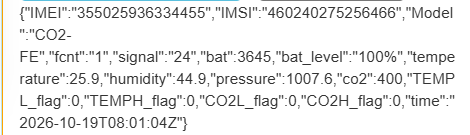
- Disable clock logging:
AT+ATDC=65535,0,0
Do not use AT+TDC=0 (uplink immediately after the configured number of records has been collected) together with AT+ATDC=65535,0,0 (disable clock logging). Otherwise, the device will upload invalid payloads containing no sensor data.
AT+ATDC=65535,0,0 & AT+TDC=0:
- Alarm behavior:
When an alarm threshold is configured, the node checks the sensor readings at each sampling time determined by parameter b:
- If a reading meets a configured alarm condition, the node sends an alarm uplink.
- At the next sampling time, the node checks the readings again. If an alarm condition is still met, it sends another alarm uplink. If no alarm condition is met, it does not send an alarm uplink for that sample.
For example, with AT+ATDC=65535,15,8, the node checks for alarm conditions every 15 minute. If a reading exceeds a configured upper alarm threshold, the node sends an alarm uplink. If the next reading returns to the normal range, no alarm uplink is sent for that sample.
Note: In firmware V1.0.7 and later, AT+ATDC is no longer simply a minimum alarm interval setting. Alarm uplinks are triggered by the readings obtained at each configured sampling time. A shorter sampling interval increases sampling frequency and may increase alarm uplink frequency, resulting in higher power consumption.
3.13 Configure Network Category to be Searched for under LTE RAT.
AT command:
AT+IOTMOD=a,b,c
a: 0: Disenable eMTC; 1: Enable eMTC
b: 0: Disenable NB-IoT ; 1. Enable NB-IOT
c:Priority: If two network categories are enabled simultaneously, the device will give priority to the configured category.
Ext1: AT+IOTMOD=1,1,2 ---->Indicates that both eMTC and NB-IoT are enabled, with priority given to the NB-IoT network type.
3.14 Factory data reset
Two different restore factory Settings configurations.
AT command:
- AT+FDR// Reset Parameters to Factory Default.
- AT+FDR1// Reset parameters to factory default values except for passwords.
3.15 Print last few data entries
Feature: Print the last few data entries
AT command: AT+PLDTA
| Command Example | Response |
|---|---|
| AT+PLDTA=5 Print last 5 entries | 0001 2026/8/31 01:29:47 3398 temp:26.4 hum:55.4 pres:994.3 co2:984 0002 2026/8/31 01:31:47 3398 temp:26.4 hum:54.2 pres:994.3 co2:983 0003 2026/8/31 01:33:47 3398 temp:26.4 hum:53.6 pres:994.3 co2:990 0004 2026/8/31 01:35:47 3394 temp:26.2 hum:53.4 pres:994.3 co2:982 0005 2026/8/31 01:37:48 3398 temp:26.3 hum:52.6 pres:994.3 co2:977 OK |
Downlink Command:
No downlink commands for feature
3.16 Print data entries base on page
Feature: Print the sector data from start page to stop page.
AT command: AT+PDTA
| Command Example | Response |
|---|---|
| AT+PDTA=1,1 Print page 1 to 1 | E8000 2026/8/29 13:31:33 3367 temp:27.2 hum:57.8 pres:995.5 co2:783 E8010 2026/8/29 13:33:33 3371 temp:27.2 hum:57.7 pres:995.5 co2:782 E8020 2026/8/29 13:35:33 3371 temp:27.2 hum:57.7 pres:995.6 co2:780 E8030 2026/8/29 13:37:33 3371 temp:27.2 hum:57.8 pres:995.6 co2:778 E8040 2026/8/29 13:39:34 3371 temp:27.2 hum:58.3 pres:995.6 co2:774 E8050 2026/8/29 13:41:34 3371 temp:27.3 hum:58.4 pres:995.7 co2:773 E8060 2026/8/29 13:43:34 3371 temp:27.3 hum:58.7 pres:995.7 co2:770 E8070 2026/8/29 13:45:34 3371 temp:27.3 hum:58.7 pres:995.7 co2:769 OK |
Downlink Command:
No downlink commands for feature
3.17 Clear Flash Record
Feature: Clear flash storage for data log feature.
AT command: AT+CLRDTA
| Command Example | Function | Response |
|---|---|---|
| AT+CLRDTA | Clear date record | Stop Tx events,Please wait for the erase to complete Clear all stored sensor data... Start Tx events OK |
Downlink Command: 0x32
- Example: 0x32 00 // Same as AT+CLRDTA
3.18 Working mode selection
Feature: Set default mode.
AT command: AT+CFGMOD
| Command Example | Function |
|---|---|
| AT+CFGMOD=1 | default mode |
Downlink Command: 0x02
- Downlink command: 02 01 // Equal to AT+CFGMOD=1
3.19 DataLog feature
Unix TimeStamp
CO2-FE uses Unix TimeStamp format based on

User can get this time from link: https://www.epochconverter.com/ :
Below is the converter example

So, 1725875962 means that the current time is Monday, September 9, 2024 at 9:59 AM.
Poll sensor value
User can poll sensor value based on timestamps from the server. Below is the downlink command.
| 1 byte | 4 bytes | 4 bytes |
|---|---|---|
| 31 | Timestamp start | Timestamp end |
Timestamp start and Timestamp end use Unix TimeStamp format as mentioned above. Devices will reply with all data log during this time period.
For example, downlink command 31 6A94 D8DC 6A94 DAF8
Is to check 2026/8/31 01:30:00 to 2026/8/31 01:38:00's data
Datalog Uplink payload
Function Description: This feature is only used when the clock logging feature is turned on. one uplink packet can send 64 groups of stored data totaling 512 bytes.
Example(For MQTT.fx):
If user sends below downlink command:
Where : Start time: 6A94D8DC= time 26/8/31 01:30:00
Stop time: 69718FA4= time 26/8/31 01:38:00
CO2-FE will uplink this payload.

{"1":"3.40,26.4,55.4,994.3,984,2026-8-31T01:29:47Z","2":"3.40,26.4,54.2,994.3,983,2026-8-31T01:31:47Z","3":"3.40,26.4,53.6,994.3,990,2026-8-31T01:33:47Z","4":"3.39,26.2,53.4,994.3,982,2026-8-31T01:35:47Z","5":"3.40,26.3,52.6,994.3,977,2026-8-31T01:37:48Z"}
3.20 Calibration command
Note: If the device is not calibrated for the first time, there will be a certain degree of drift.After the FDR is restored to factory settings or the device battery is replaced, the original calibration values will be lost and recalibration will be required.
After having performed the calibration,all following measurements will use the adjusted calibration parameters.
3.20.1 Restore factory Calibration (AT+CALCMD=0)
Restores calibration parameters factory calibration values.
Downlink Payload: 0x0F 00
3.20.2 Forced ABC Calibration (AT+CALCMD=1)
Sensor will perform an ABC calibration after receiving this command if sensor has valid ABC data.The command can be used if one for some reason wants to do an ABC adjustment before one ABC period has passed(when a normal ABC calibration is done).
Downlink Payload: 0x0F 01
3.20.3 Target Calibration (AT+CALCMD=2 Equivalent to AT+CALCMD=2,400)
Target concentration calibration assumes that sensor is put into a target environment with a known CO2 concentration. Such as outdoor fresh air 400ppm.
Downlink Payload: 0x0F 02 ==> AT+CALCMD=2
-
0x0F 02 01 90 ==> AT+CALCMD=2,400
-
0x0F 02 01 F4 ==> AT+CALCMD=2,500
3.20.4 Background Calibration (AT+CALCMD=3)
A "fresh air" baseline environment is by default 400 ppm at normal ambient atmospheric pressure by sea level. It can be referenced in a crude way by placing the sensor in direct proximity to outdoor air, free of combustion sources and human presence, preferably during either by open window or fresh air inlets or similar. Calibration gas by exactly 400ppm can be purchased and used. Background calibration and ABC calibration share the same target value (fresh air = 400ppm).
Downlink Payload: 0x0F 03
3.4.5 Zero Calibration (AT+CALCMD=4)
Zero-calibrations are the most accurate recalibration routine. A zero-ppm environment is most easily created by flushing the optical cell of the sensor module and filling up an encapsulating enclosure with nitrogen gas, N2, displacing all previous air volume concentrations. Another less reliable or accurate zero reference point can be created by scrubbing an airflow using e.g. Soda lime.
Downlink Payload: 0x0F 04
3.21 calibration mode
3.21.1 Enabled ABC Calibration (AT+CALMOD=1, default)
The Automatic Baseline Correction algorithm is a proprietary Senseair method for referencing to “fresh air” as the lowest, but required stable, CO2-equivalent internal signal the sensor has measured during a set time period. This time period by default is 180hrs as to catch low-occupancy and other lower-emission time periods and favourable outdoor wind-directions and similar which can plausibly and routinely expose the sensor to the most true fresh air environment. If such an environment can never be expected to occur, either by sensor locality or ever-presence of CO2 emission sources, or exposure to even lower concentrations than the natural fresh air baseline, then ABC recalibration can’t be used. In each new measurement period, the sensor will compare it to the stored one at the ABC parameters registers, and if new values show a lower CO2-equivalent raw signal while also in a stable environment, the reference is updated with these new values. The ABC algorithm also has a limit on how much it is allowed to change the baseline correction offset with, per each ABC cycle, meaning that self-calibrating to adjust to bigger drifts or signal changes may take more than one ABC cycle.
Downlink Payload: 0x0E 01
3.21.2 Disabled ABC Calibration (AT+CALMOD=0)
If the device is in a greenhouse or enclosed environment, it is recommended to turn off ABC calibration. And use Target Calibration for calibration.
Downlink Payload: 0x0E 00
3.21.3 Button CO2 calibration function (Equivalent to AT+CALCMD=3)
The first step is to put your device into sleep mode. Press the button five times quickly and the device will light up solid red for 5 seconds.
In the second step, take the device outside to an environment without combustion sources and people, let it sit for a few minutes, and then press the button three times quickly. The calibration is complete after the blue light stays on for 5 seconds.
The last step is to reset the device, press and hold the button until the green light flashes.
3.22 Display screen control
Feature: Enable or disable the sensor data display on the screen.
AT Command: AT+DISPLAY
AT+DISPLAY : Get or set the display screen off or on.
| Command Example | Function |
|---|---|
| AT+DISPLAY=? | Get the current display setting. |
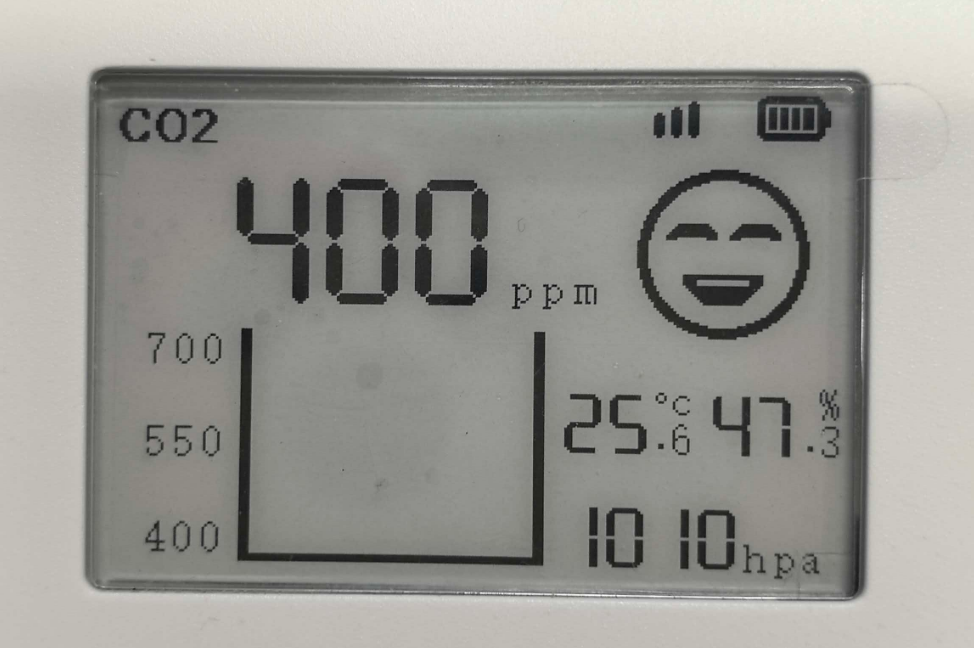
| AT+DISPLAY=0 | Enable the sensor data display (default). |
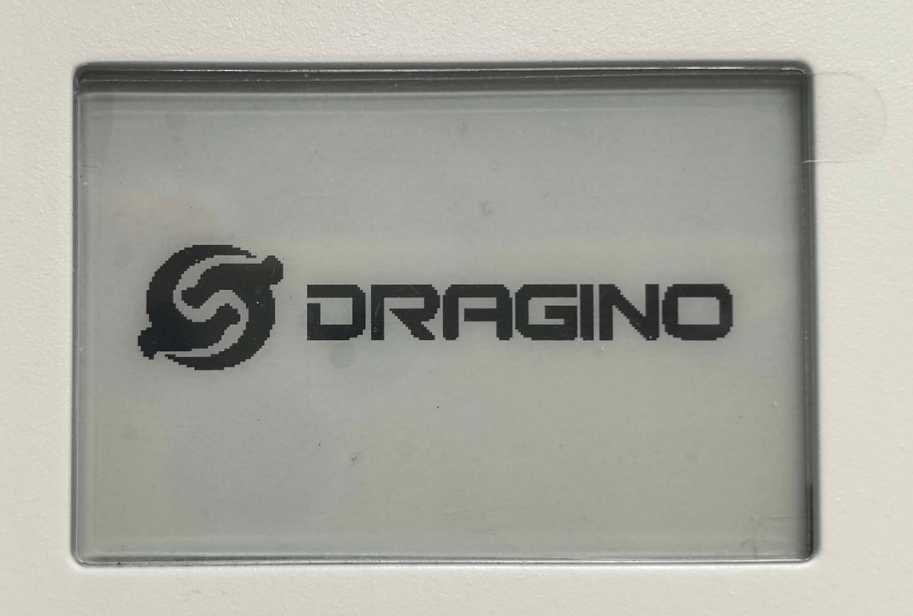
| AT+DISPLAY=1 | Disable the sensor data display. Show only the Dragino logo. |
When AT+DISPLAY=0, the screen updates and displays the latest sensor data after the device joins the network and sends an uplink packet.
When AT+DISPLAY=1, the screen shows only the Dragino logo.
Downlink Command: 0x19
- Example: 0x1900 // Same as AT+DISPLAY=0
- Example: 0x1901 // Same as AT+DISPLAY=1
3.23 Temperature display mode
Feature: Set the temperature unit displayed on the screen.
AT Command: AT+TEMPMODE
AT+TEMPMODE : Get or set the temperature display mode.
| Command Example | Function |
|---|---|
| AT+TEMPMODE=? | Get the current temperature display mode. |
| AT+TEMPMODE=0 | Display the latest temperature reading in Celsius (°C). |
| AT+TEMPMODE=1 | Display the latest temperature reading in Fahrenheit (°F). |
Downlink Command: 0x18
- Example: 0x1800 // Same as AT+TEMPMODE=0
- Example: 0x1801 // Same as AT+TEMPMODE=1
3.24 Failed Send Attempts Before Automatic Restart
Available in firmware V1.0.7 and later.
Feature: Get or set the number of consecutive failed send attempts that triggers an automatic restart.
AT Command: AT+FREB
The default is 15. The node automatically restarts after 15 consecutive failed send attempts.
| Command Example | Function |
|---|---|
AT+FREB=? | Show the current failed send attempt threshold. |
AT+FREB=15 | Set the node to restart automatically after 15 consecutive failed send attempts. |
Downlink Command: 0x33
- Example: 0x3302 // Same as AT+FREB=2
- Example: 0x330A // Same as AT+FREB=10
4. Meaning of E-Ink screen icons
Device mode icons
| Mode | Screen icon |
|---|---|
| Deep Sleep Mode |  |
| network Mode |  |
| CO2 calibration completed |  |
Emoji
| CO2 range | Emoji icon |
|---|---|
| 400-600ppm |  |
| 601-1000ppm |  |
| 1001-1500ppm |  |
| >1500ppm |  |
Signal strength
| Signal strength | Signal icon |
|---|---|
| RSSI greater than -55 |  |
| RSSI greater than -75 and less than or equal to -55 |  |
| RSSI greater than -90 and less than or equal to -75 |  |
| RSSI value less than or equal to -90 |  |
Battery percentage
| Battery percentage | Battery icon |
|---|---|
| Greater than 75% and less than or equal to 100% |  |
| Greater than 50% and less than or equal to 75% |  |
| Greater than 25% and less than or equal to 50% |  |
| Less than or equal to 25% |  |
5. Battery & Power Consumption
5.1 Battery Life
In a normal 20 minutes uplink situation , the battery life can last from 2 ~ 8 years depends on signal environment. The Alarm feature will reduce the battery life a lot .
See below link for detail information about the battery life calculation.
Battery Info & Power Consumption Analyze .
To be updated
5.2 Replace Battery
CO2-FE uses an 2×ER18505 battery. If the battery is running out, User can purchase an ER18505 battery and replace. Make sure don't mess the + & - position.

6. Firmware update
You can update the device firmware to add new features or fix bugs.
Download the firmware here: CO2-FE firmware (.bin).
The CO2-FE supports two firmware update methods:
- OTA update via HTTP (recommended): Update the firmware using a command sent through the serial port or a supported downlink command interface.
- UART TTL update: Update the firmware locally using a USB-TTL adapter.
Use firmware intended for the CO2-FE only.
6.1 Over-the-Air Firmware Update via HTTP
Send the following command through the serial port or a supported downlink command interface:
AT+UPGRADE=http://repo.dragino.com/release/NB/CO2-FE.bin
After receiving the command, the device will download and update the firmware automatically, as shown below:

For the complete procedure and upgrade precautions, refer to OTA Upgrade for -FB / -FS / -FE models.
Note: After the firmware download is complete, the device still needs time to process and validate the firmware. Do not reset or operate the device until the update process has finished. See the OTA upgrade guide for details.
6.2 Firmware Update through the UART TTL Interface
Download the firmware for the CO2-FE from the firmware download link above.
For the required tools, wiring, and update procedure, refer to UART Upgrade for -FB / -FS / -FE models. Follow the instructions for -FE models when entering programming mode and resetting the device.
7. FAQ
7.1 How can I access the NRF9151-NGFF AT Commands?
User can access to NRF9151-NGFF directly and send AT Commands.
See NRF9151-NGFF AT Command set
7.2 General Manual for -FE models
7.3 Do i need to calibrate the CO2 reading of CO2-FE?
CO2-FE uses the non-dispersive infrared (NDIR) principle to measure CO2. The device must be calibrated before its first use. For detailed calibration procedures, see Calibrate CO2-FE.
8. Order Info
Part Number: CO2-FE-XX
XX:
-
GE: General version ( Exclude SIM card)
-
1T: with 1NCE* 10 years 500MB SIM card and Pre-configure to ThingsEye server
9. Packing Info
Package Includes:
-
CO2-FE Indoor CO2 Sensor x 1
-
External antenna x 1
Dimension and weight:
-
Device Size: cm
-
Device Weight: g
-
Package Size / pcs : cm
-
Weight / pcs : g
10. Support
-
Support is provided Monday to Friday, from 09:00 to 18:00 GMT+8. Due to different timezones we cannot offer live support. However, your questions will be answered as soon as possible in the before-mentioned schedule.
-
Provide as much information as possible regarding your enquiry (product models, accurately describe your problem and steps to replicate it etc) and send a mail to Support@dragino.cc.