Data Cake
1. Introduction
Notes for using Dragino Devices with Datacake.
2. Create an API User on DataCake
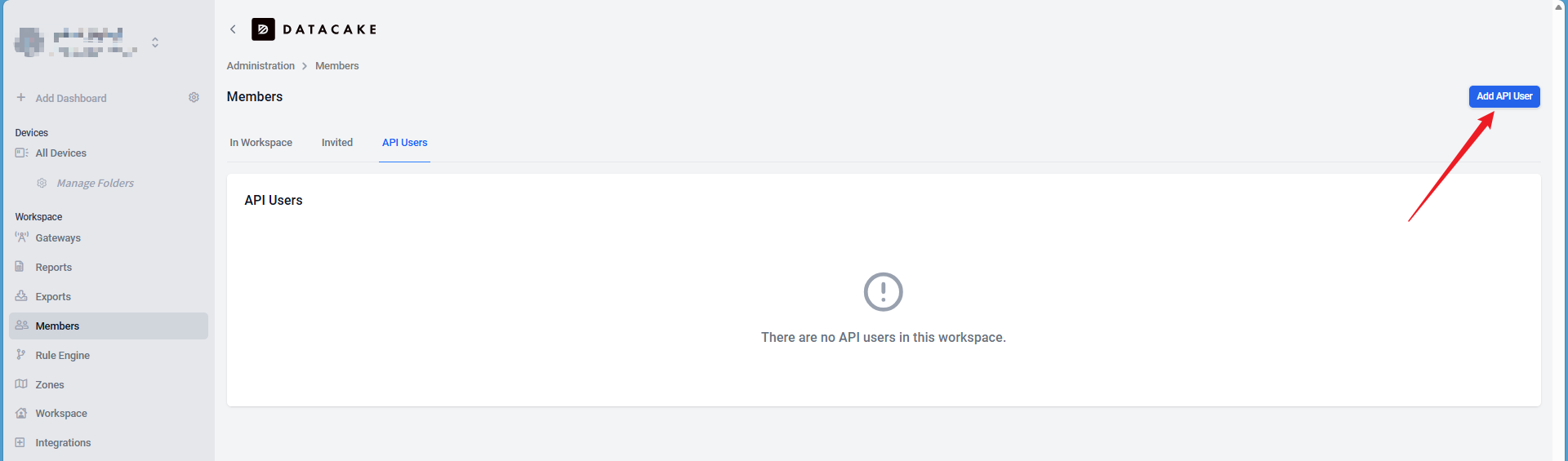
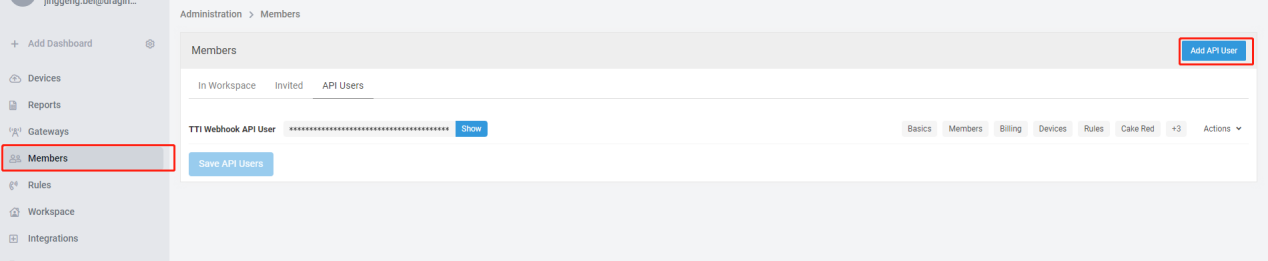
Log in to Datacake and enter your workspace, click Members on the left sidebar, then switch to the API Users tab at the top.
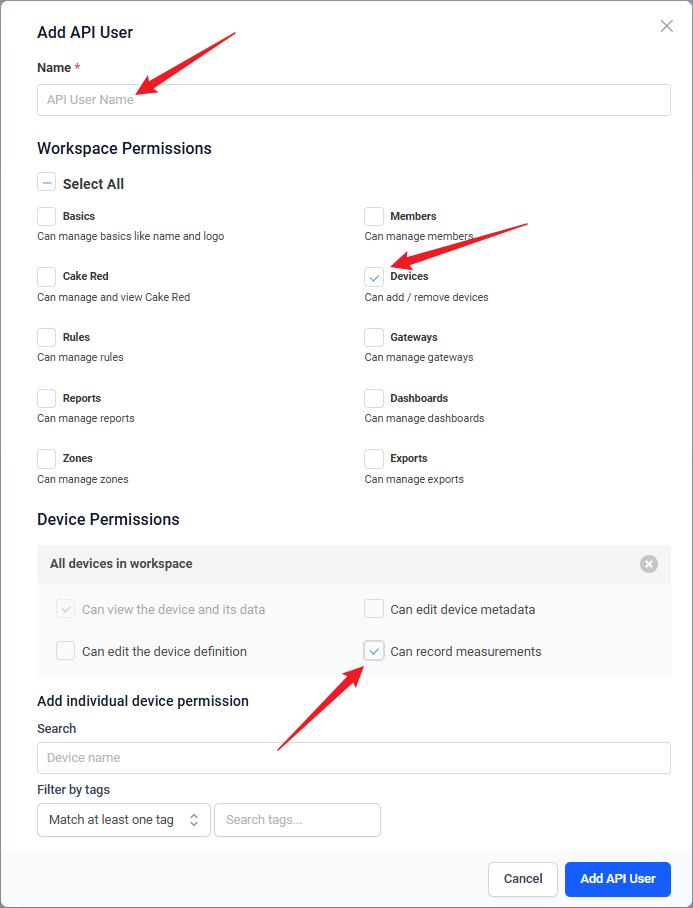
Enter a name, check the corresponding options as shown in the figure, then click Add API User.
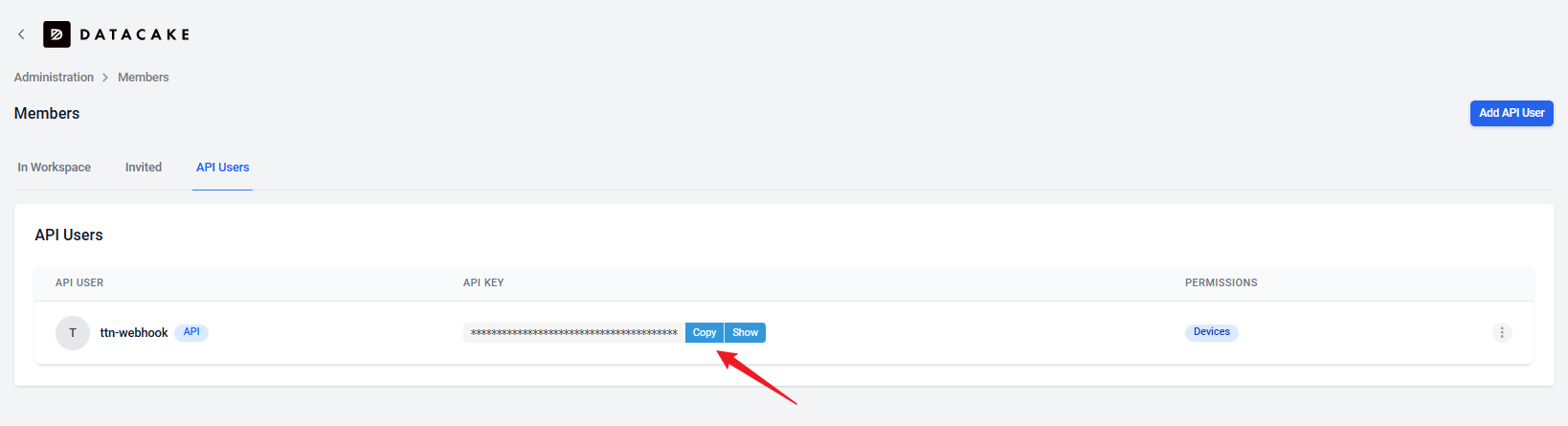
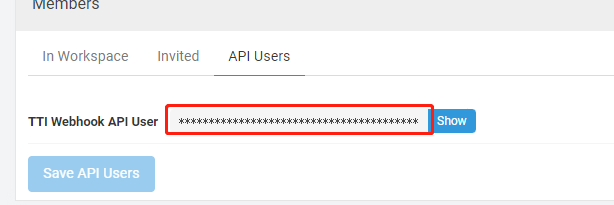
Copy the generated Token for later use.
3. Create a Datacake Webhook in the TTN Application
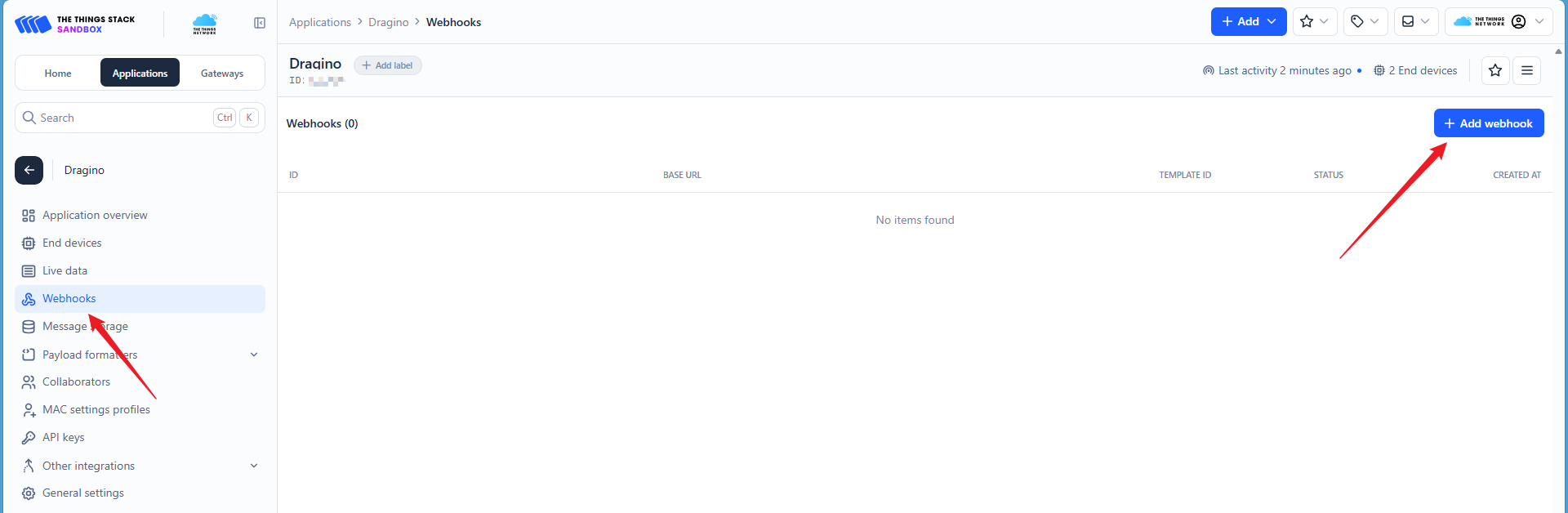
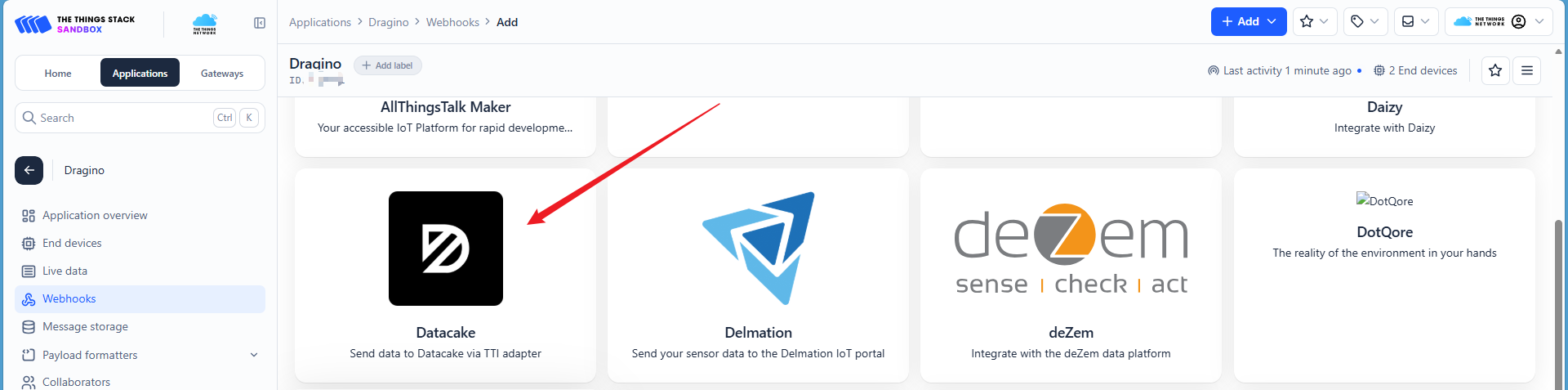
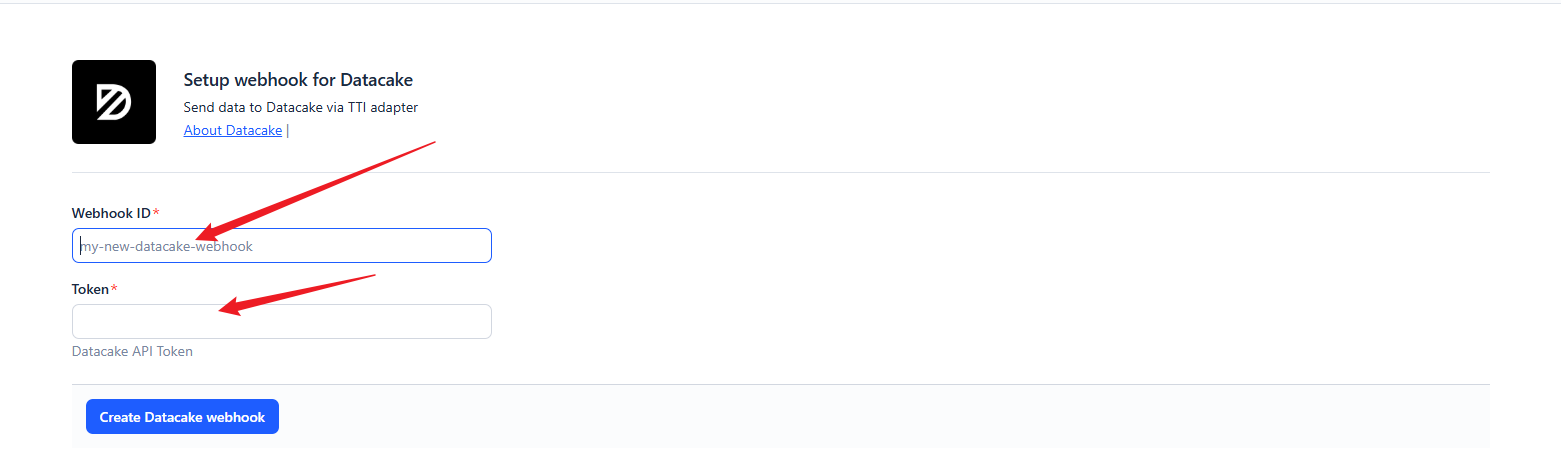
Enter a name, paste the previously copied Token into the Token input field, then click Create datacake webhook to complete the configuration.
4. Create device steps at Datacake
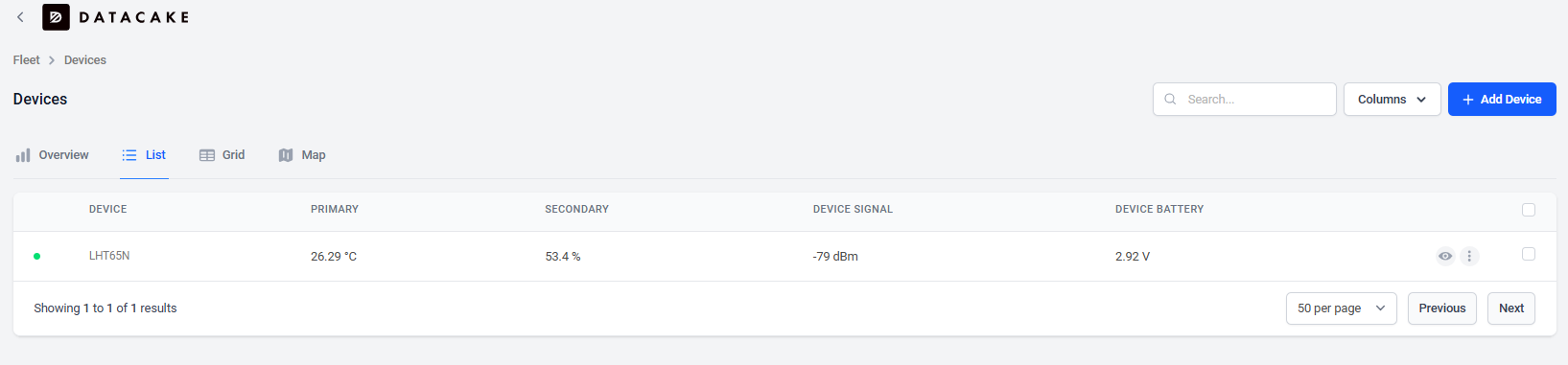
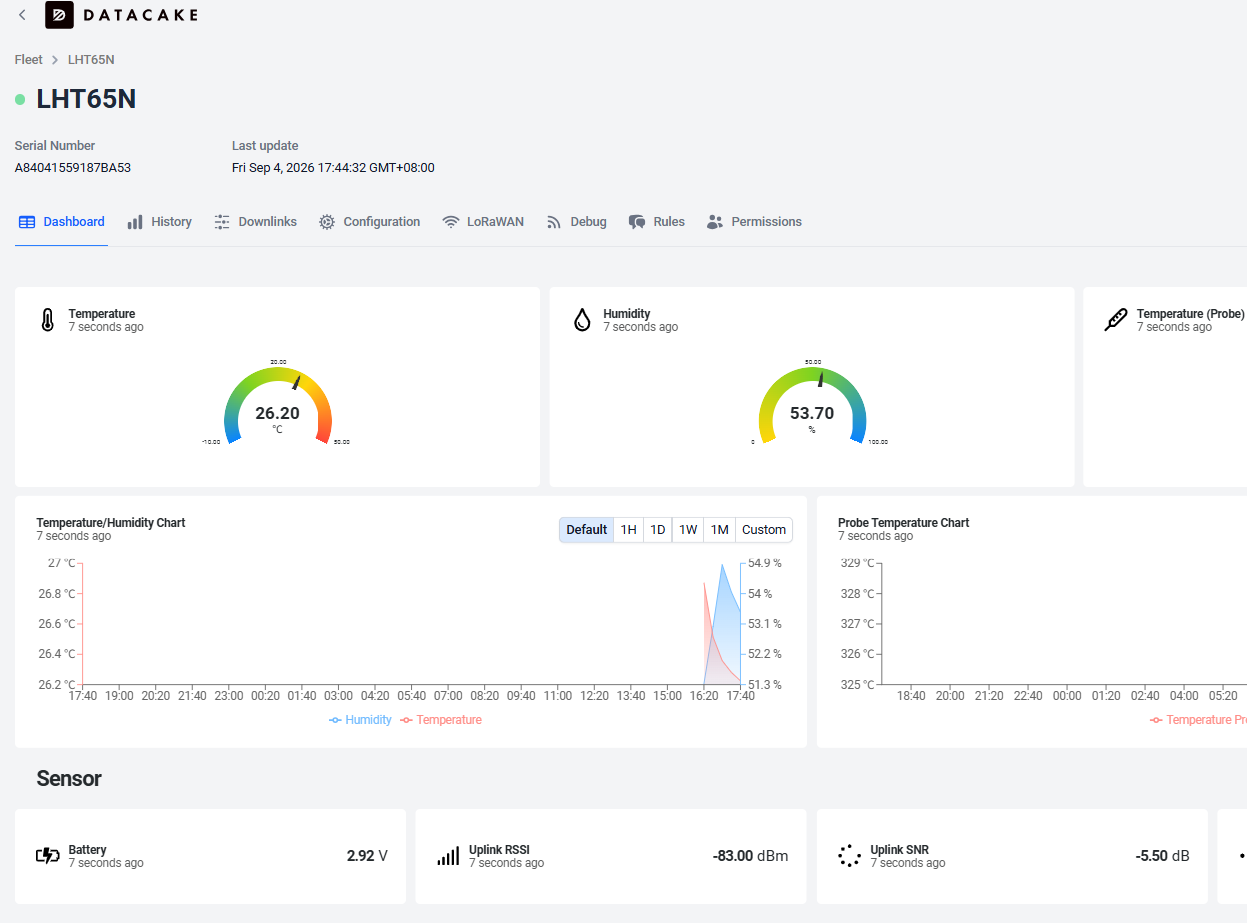
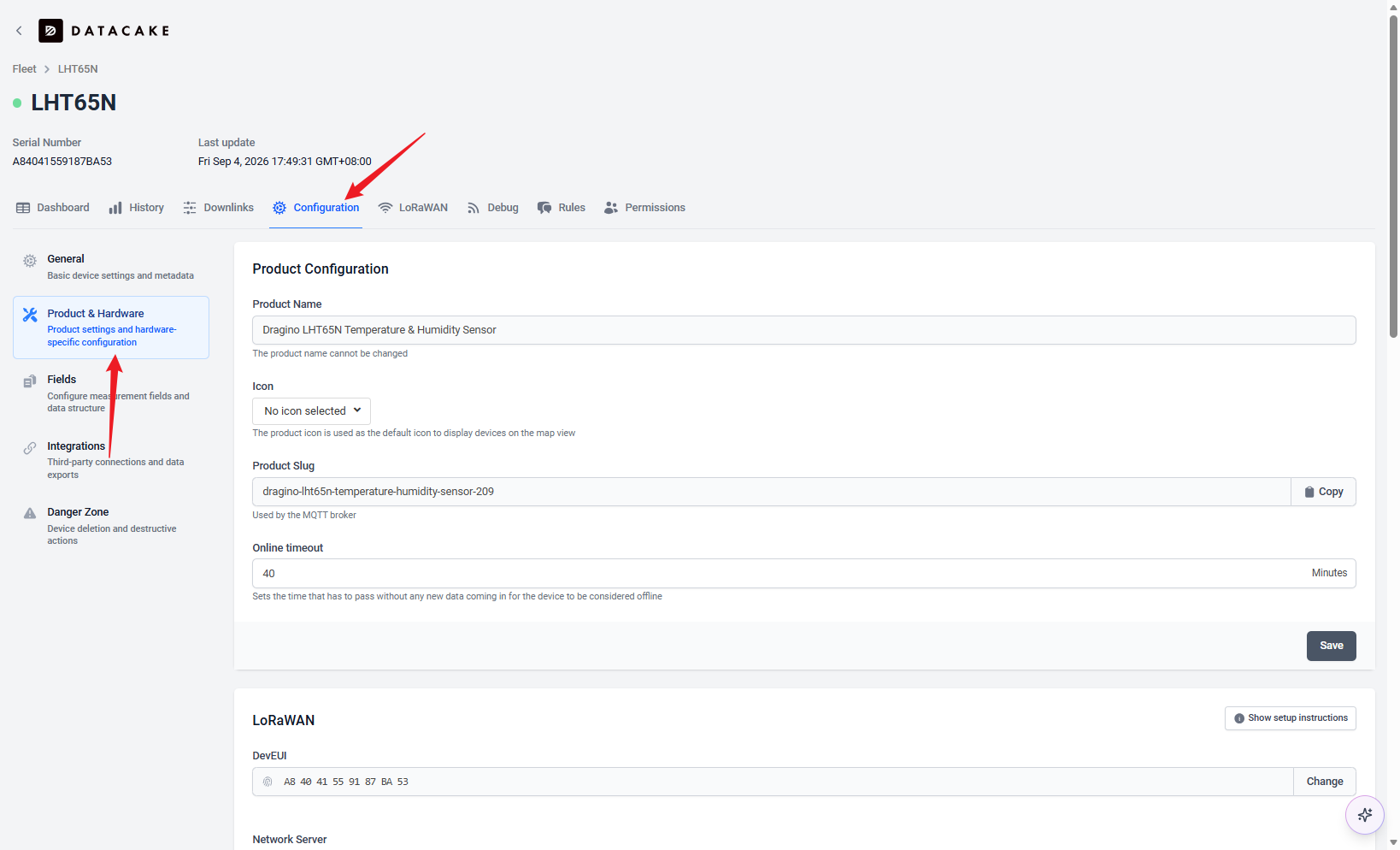
Take the creation of LHT65N as an example
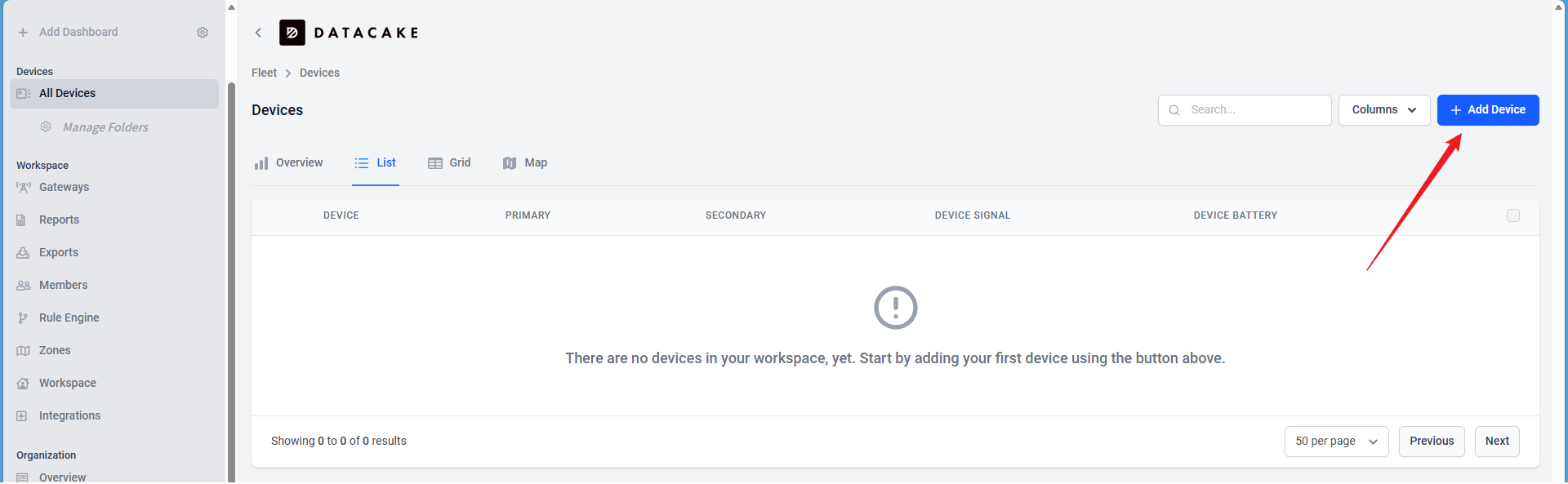
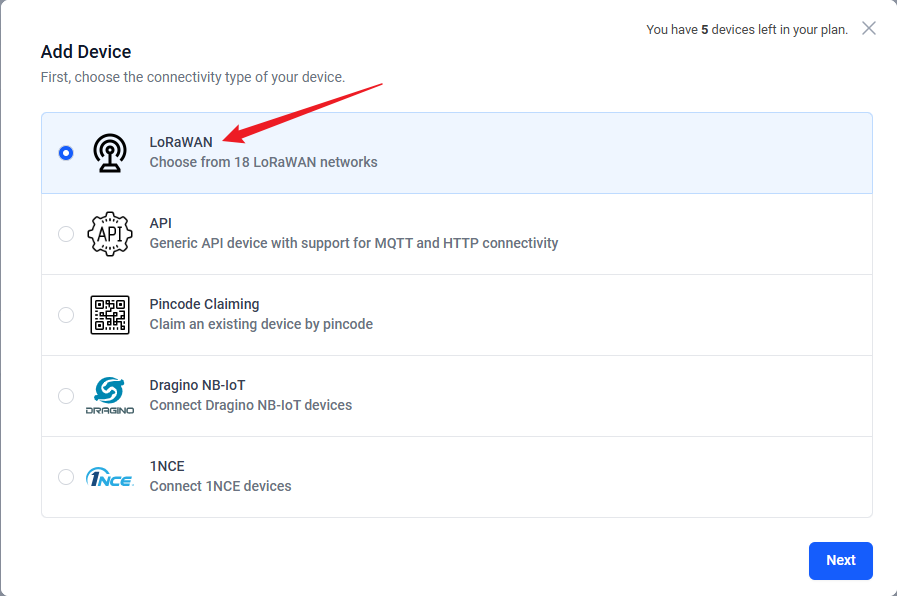
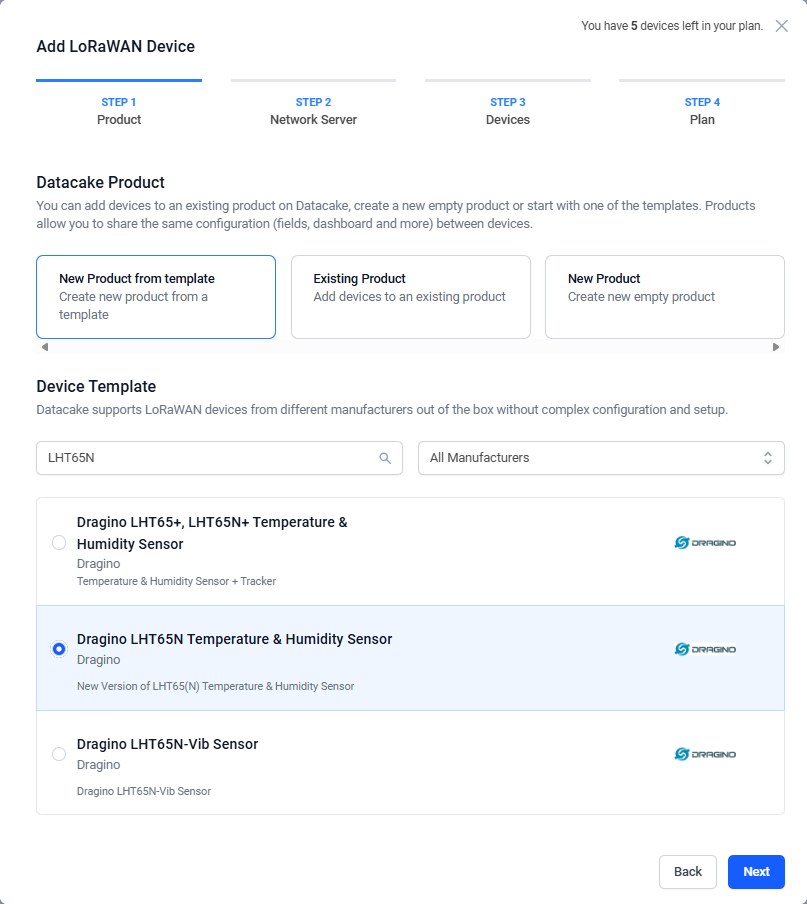
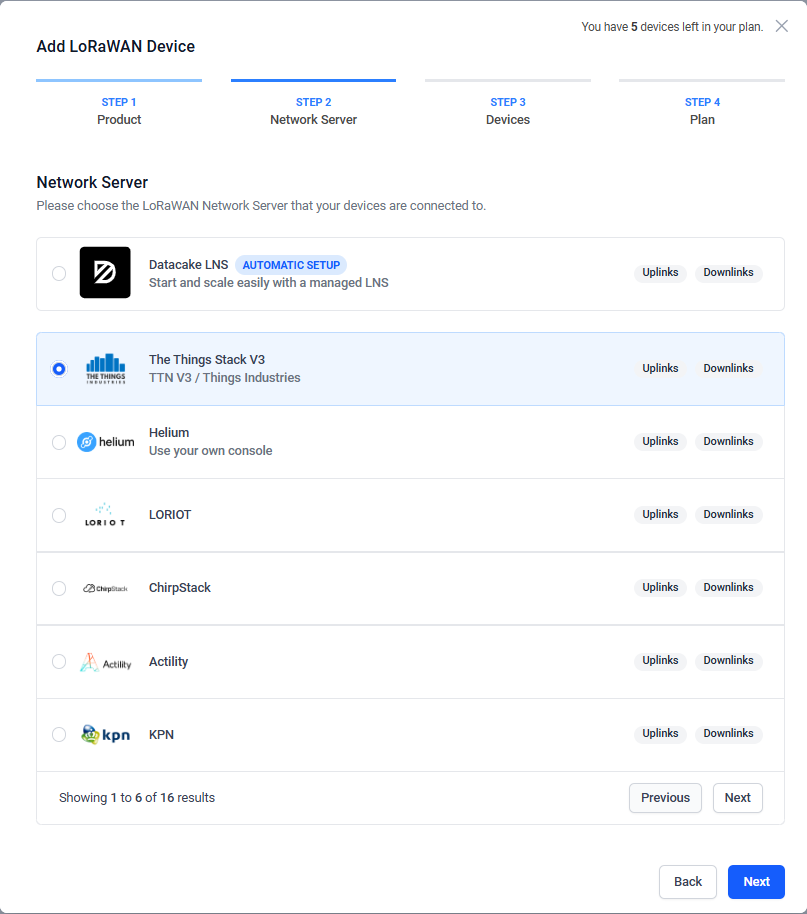
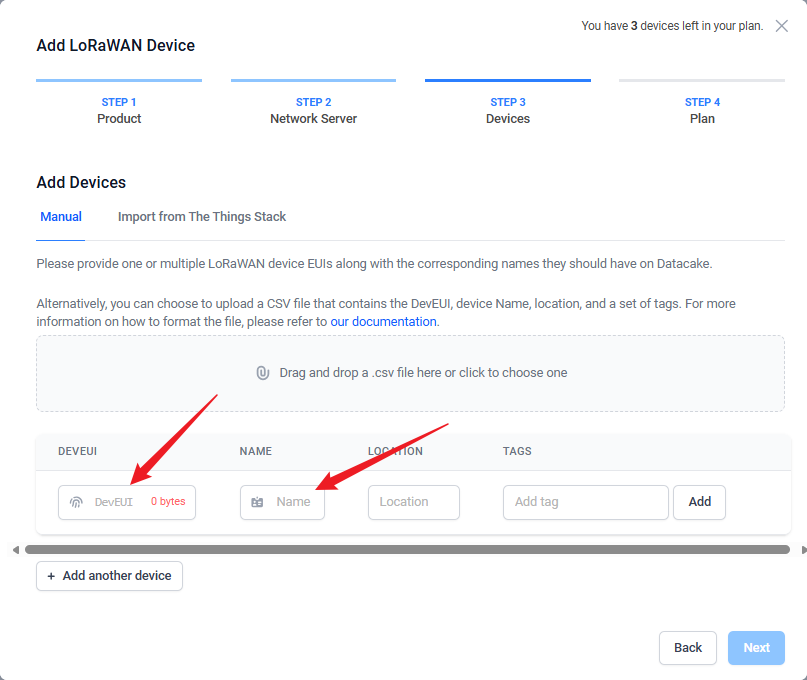
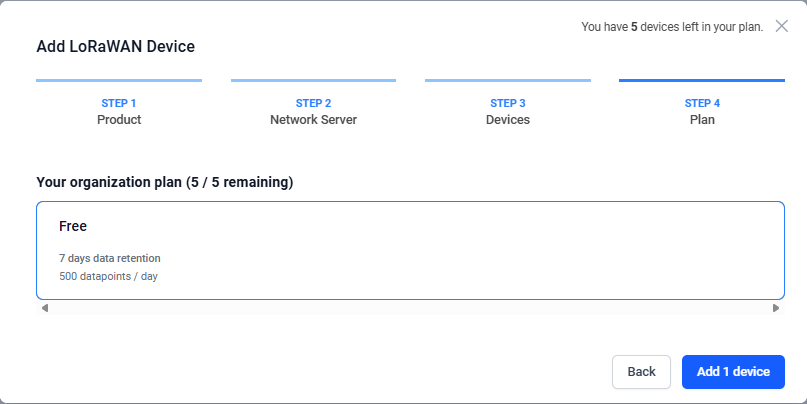
Fill in the device DevEUI and enter the device name as prompted on the page, then click Next.
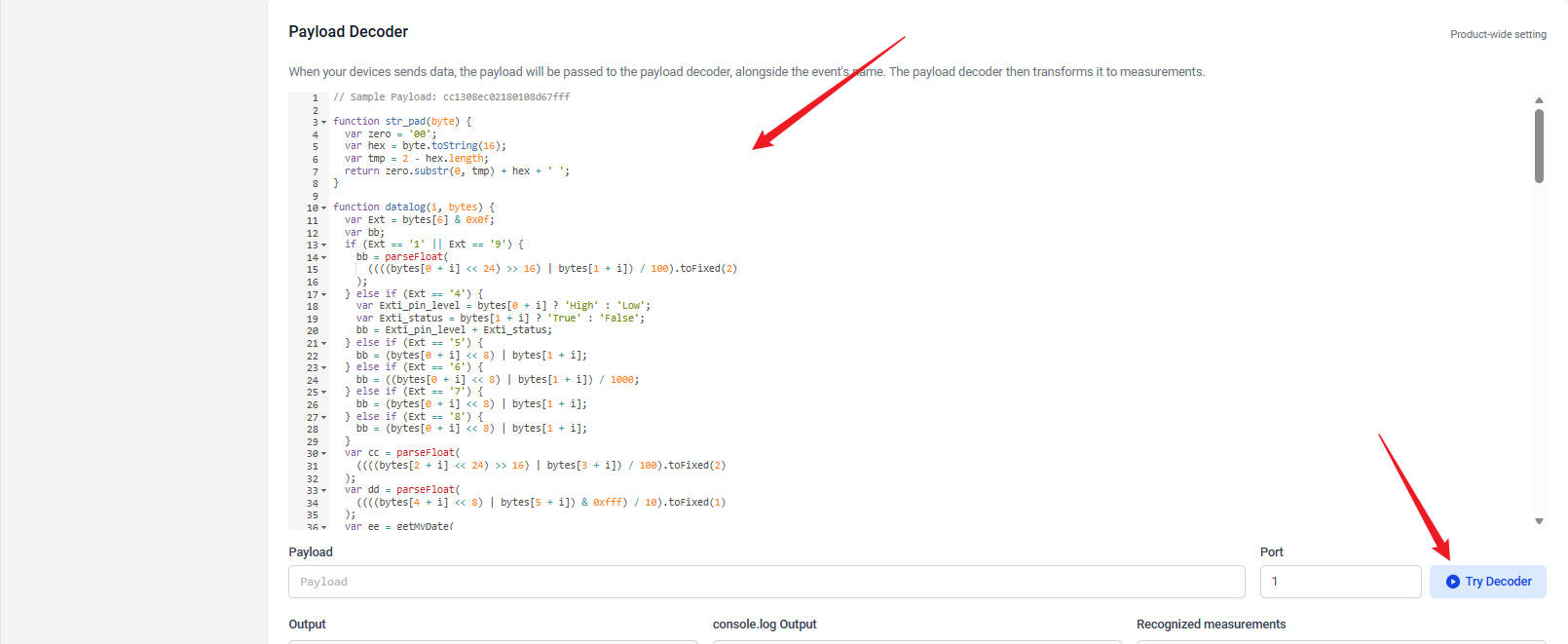
5. Debug and Payload decoder
Debug:
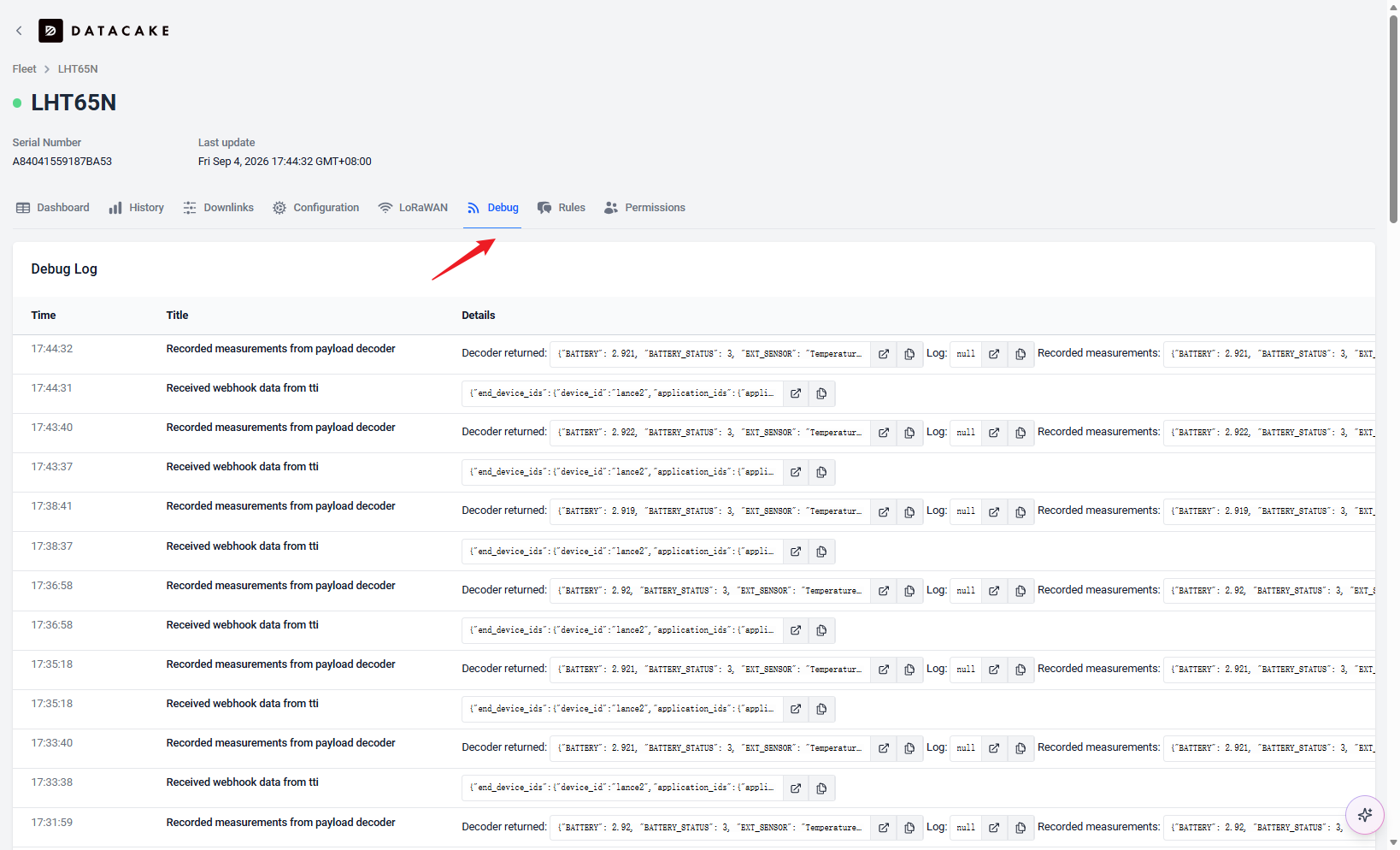
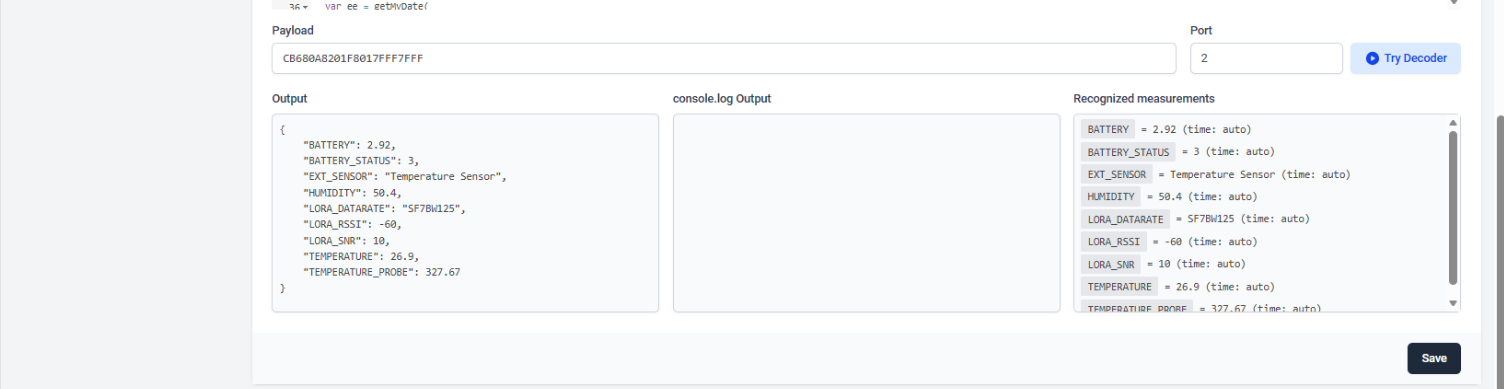
Here you can test the payload decoding:
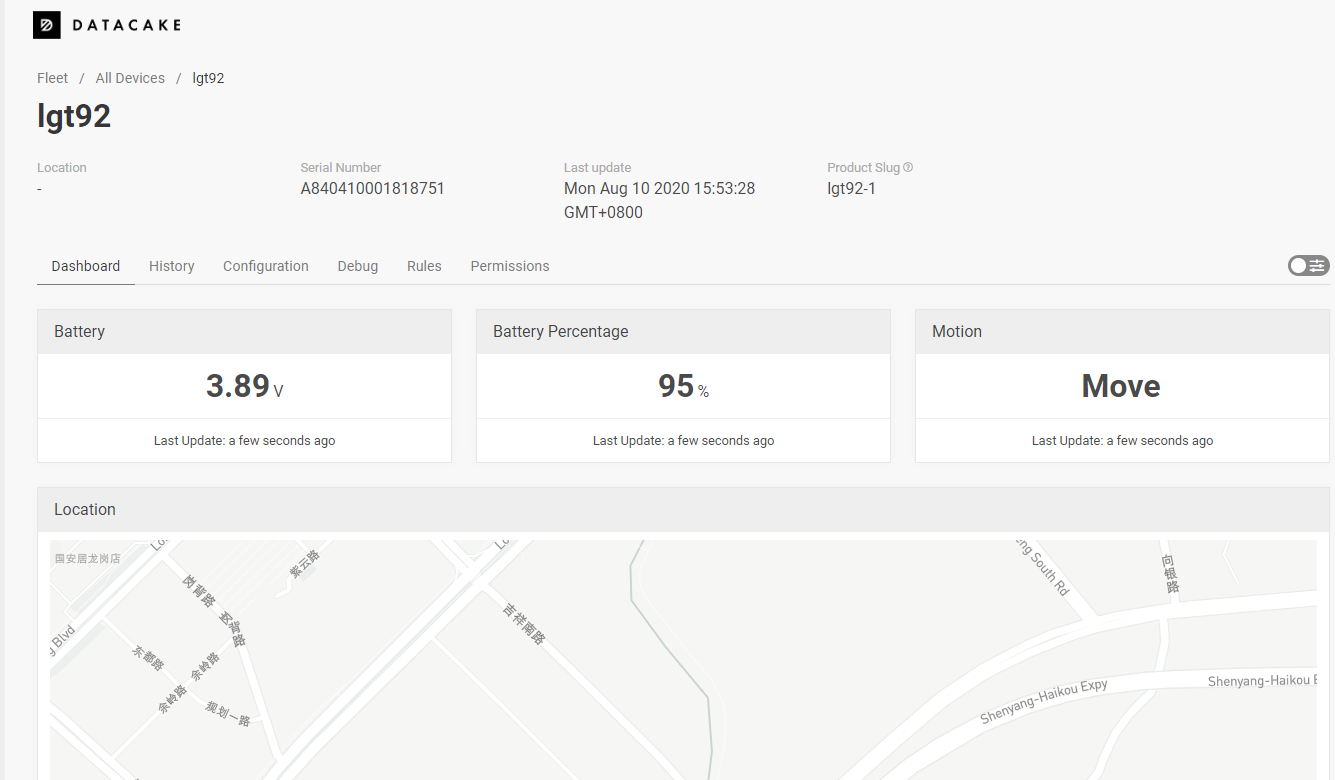
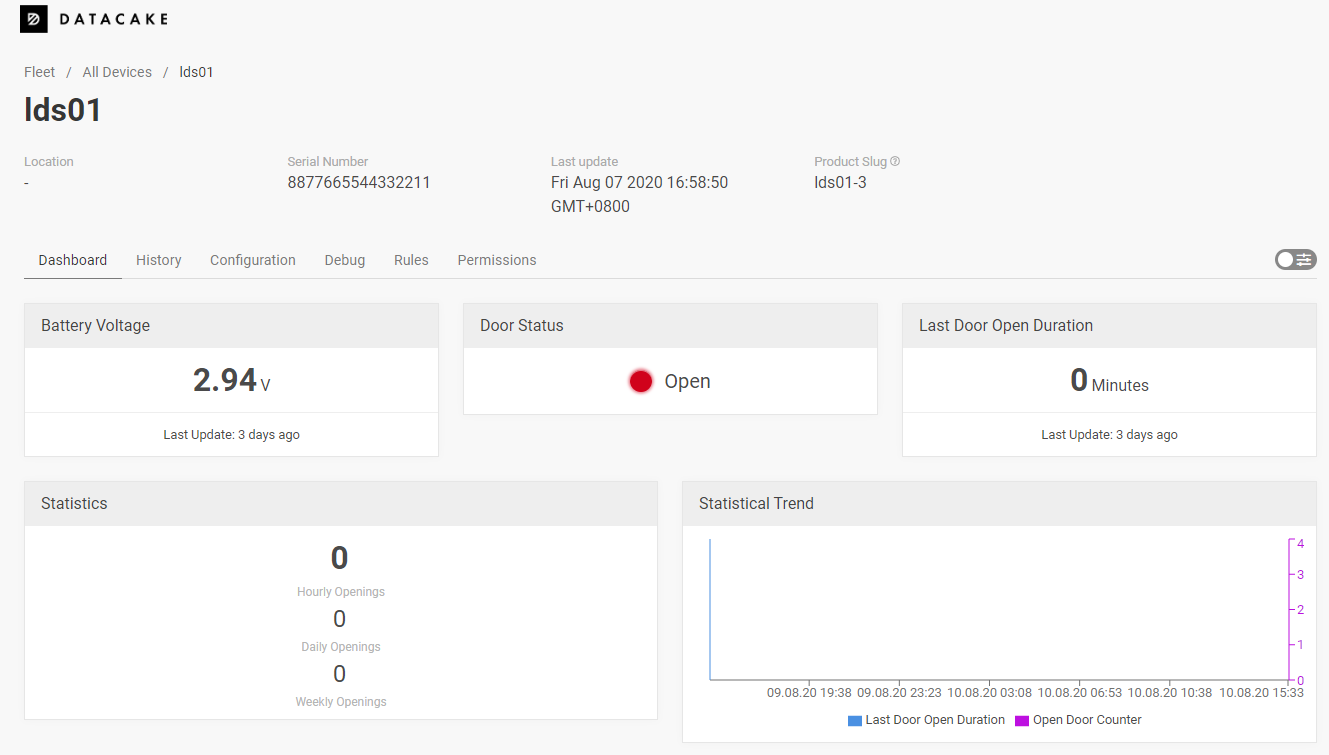
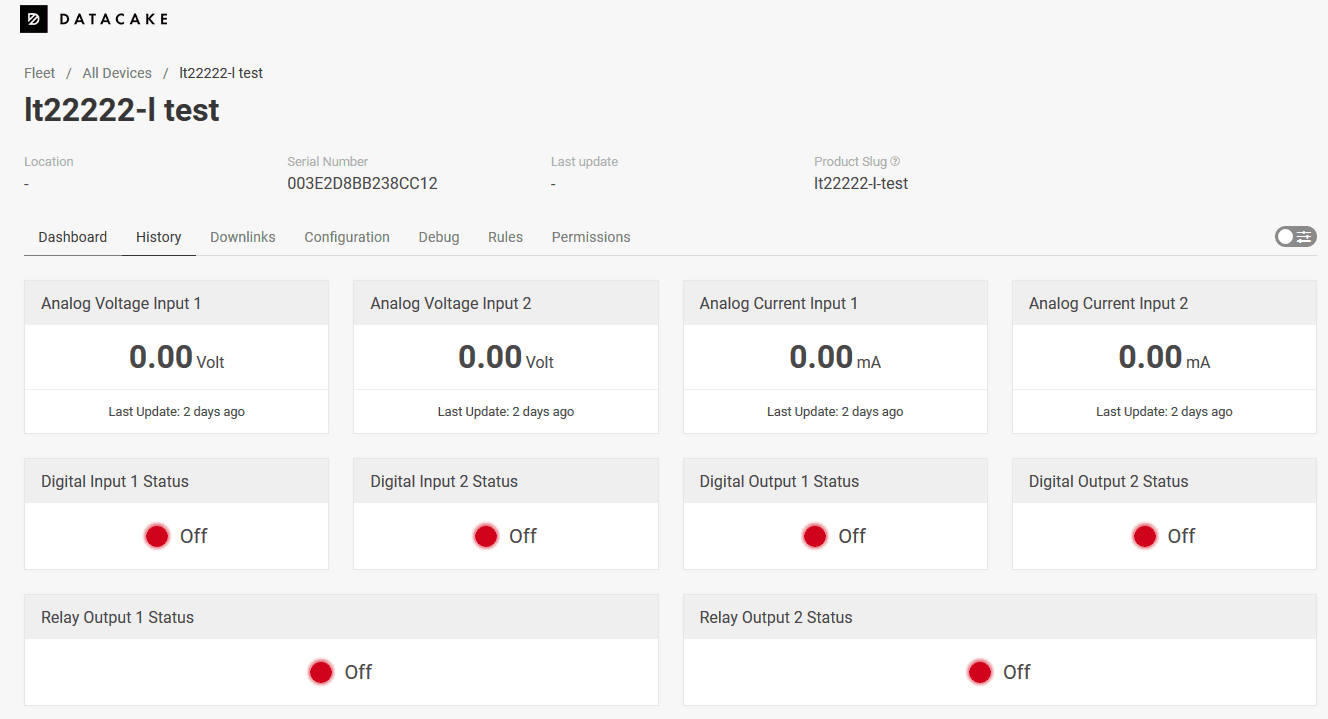
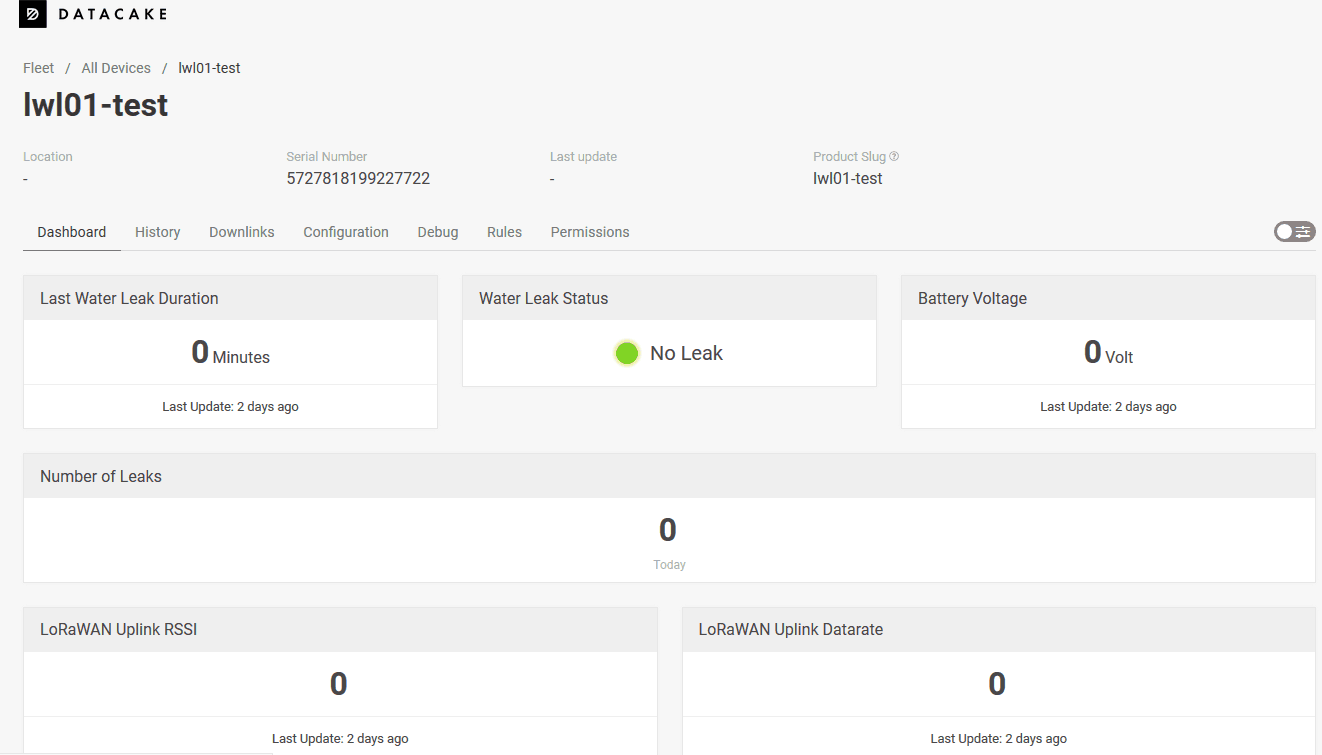
6. Dashboard of other models
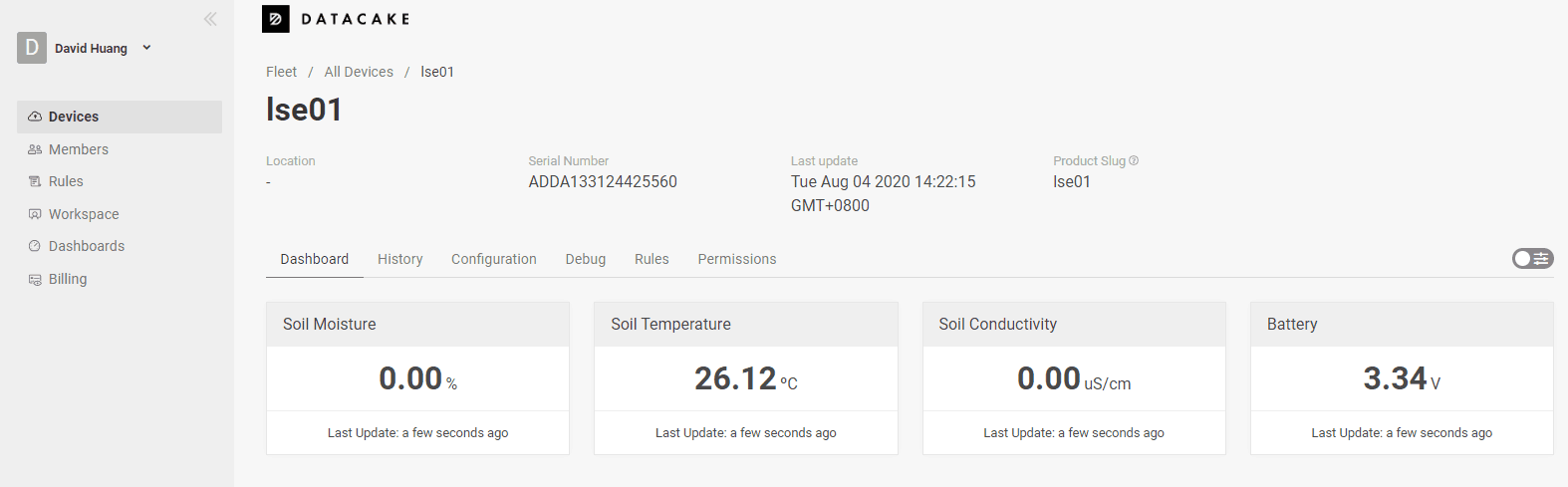
Other devices operate in the same way as above.
LSE01:
LGT92:
LDS01:
LT22222-L:
LWL01:
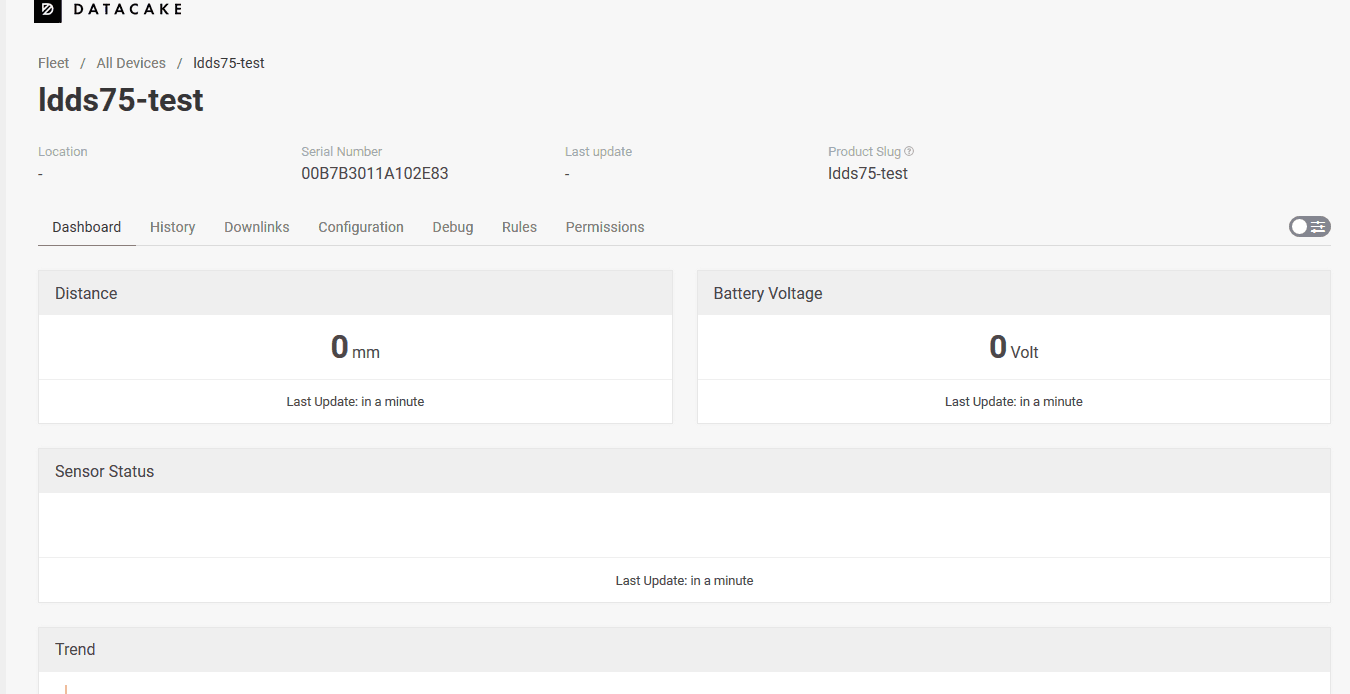
LDDS75:
7. Downlinks
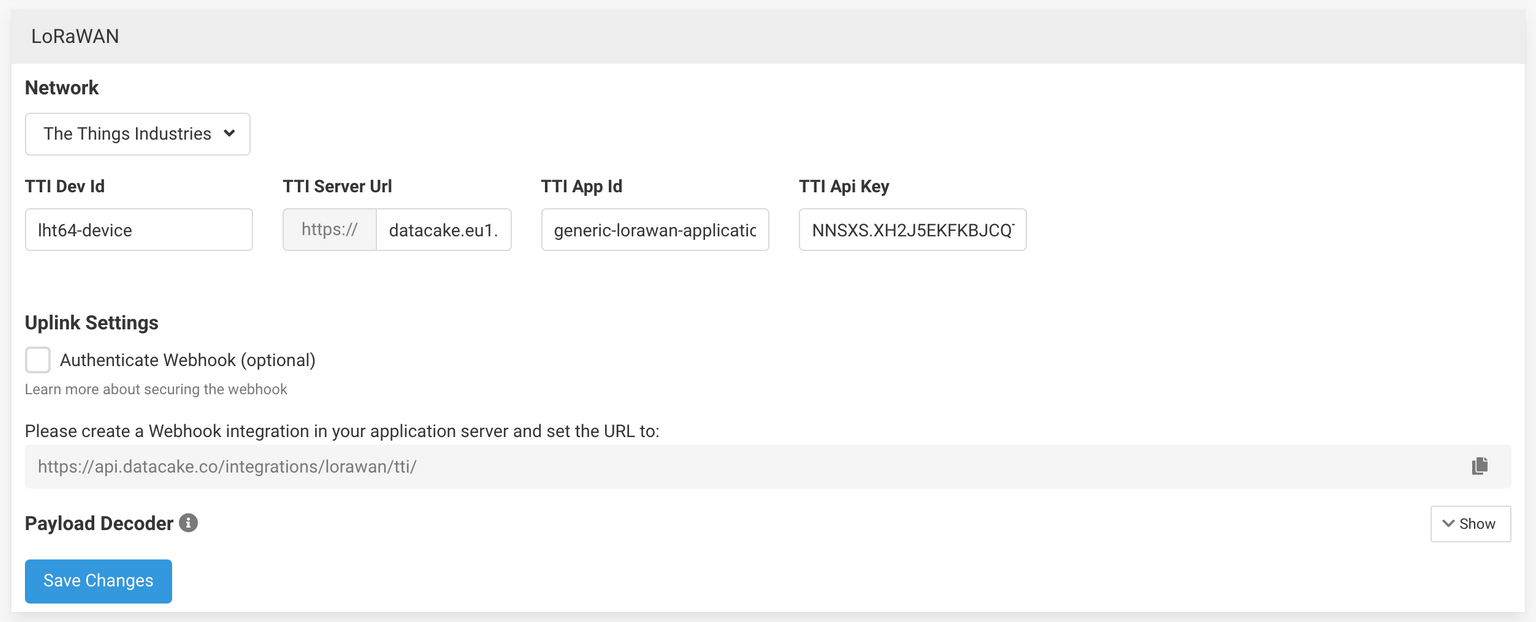
In order to be able to queue up Downlinks on your TTI Application you need to provide additional detail on your Datacake-Device. To set the configuration please move into the LoRaWAN settings on the corresponding device:
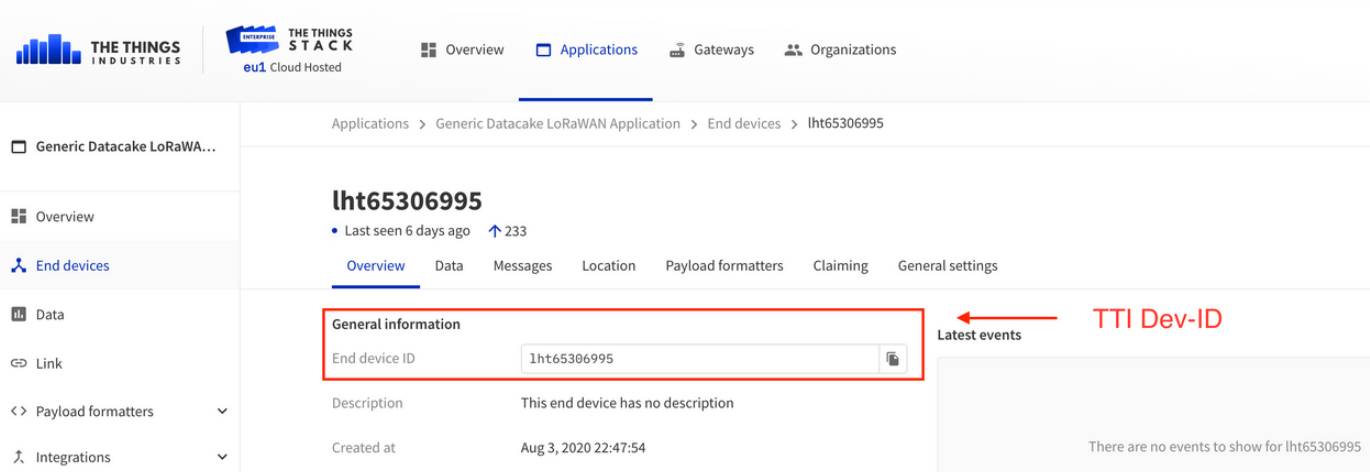
- Find the ID of your Device in your TTI Application:
-
Fill in the URL of your TTI Instance as available to the public.
-
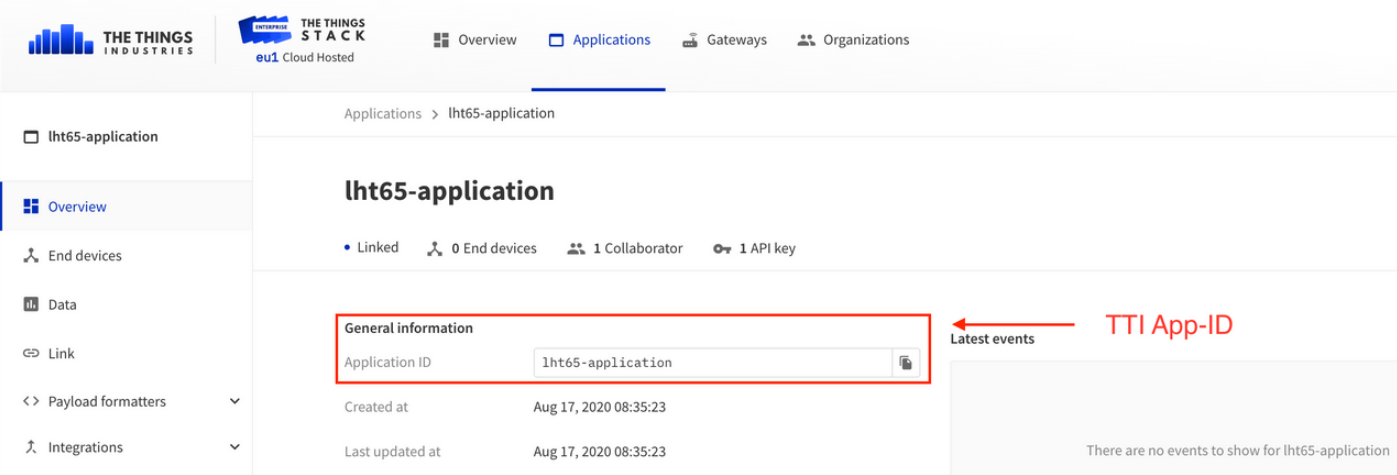
Find the ID of your Application on TTI:
- To create a new API Key on TTI head over to the "API keys" page using the left sidebar:
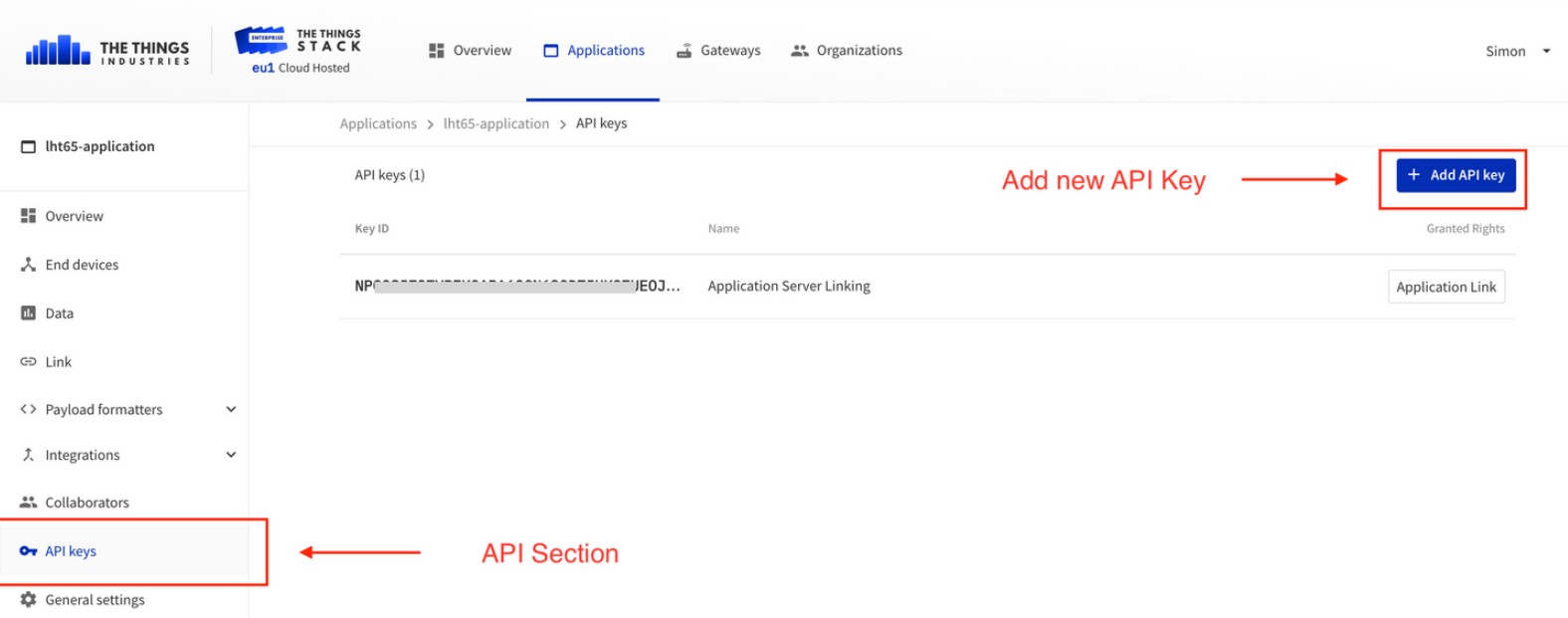
- Now click on "Add API Key".
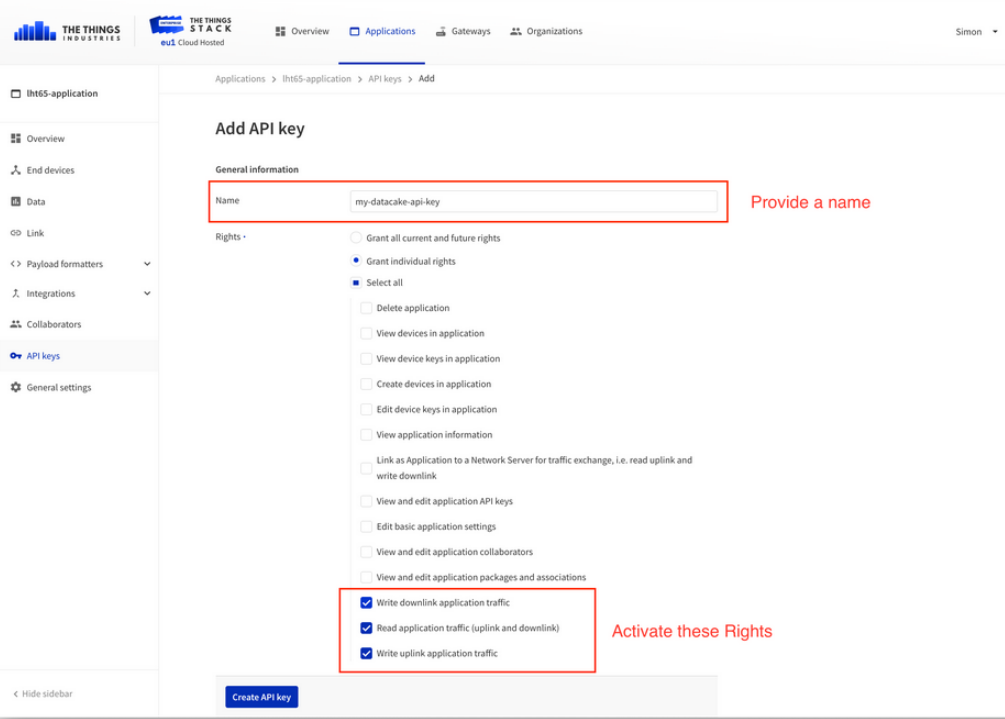
The following dialog will appear:
-
Set a custom name (like "datacake-api-key").
-
Set corresponding rights to allow queuing up downlinks.
-
Create the API Key by clicking on "Create API key".
-
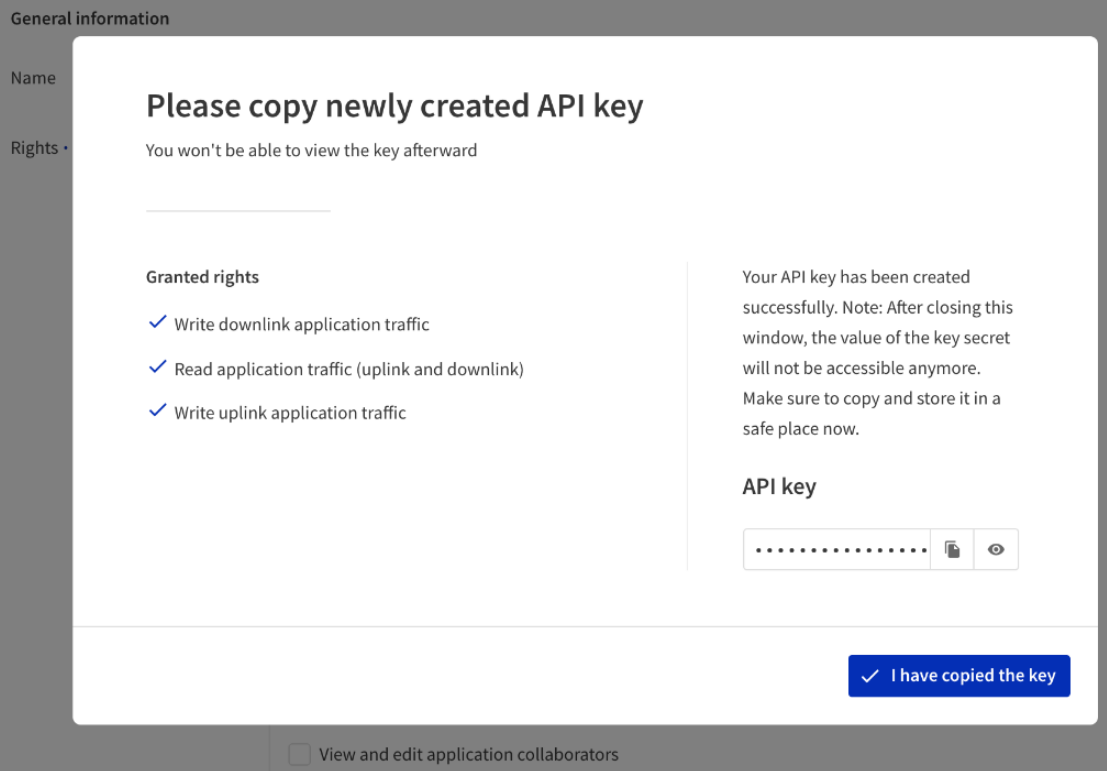
After you created your API Key you will see the above notification. Please copy your key to your clipboard as it will only be shown once!
-
Paste this key into the device settings on Datacake.
-
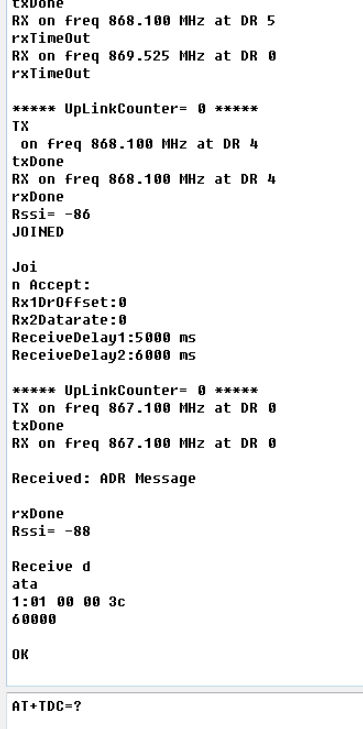
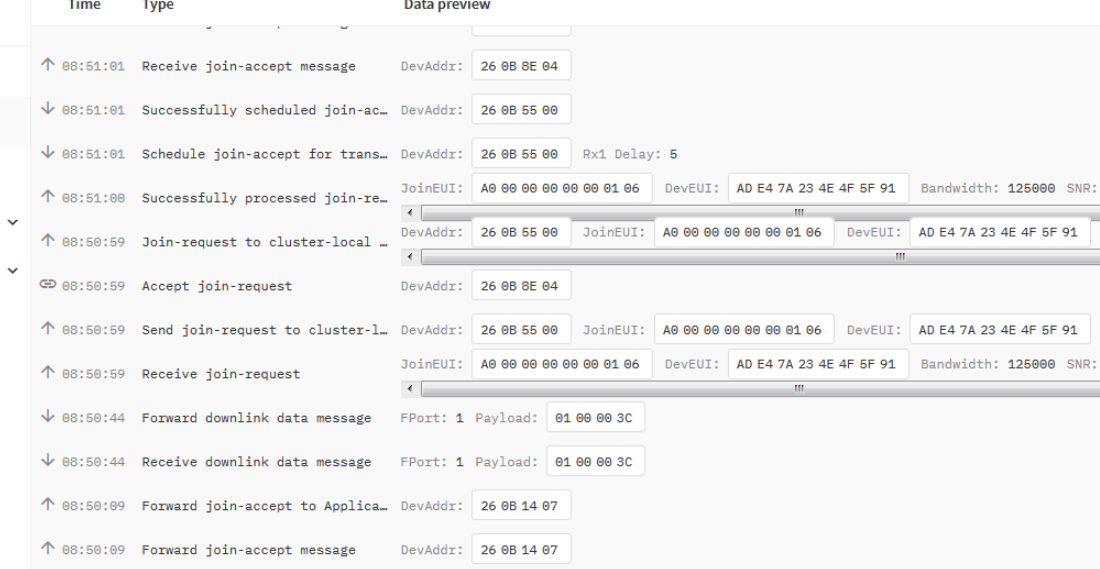
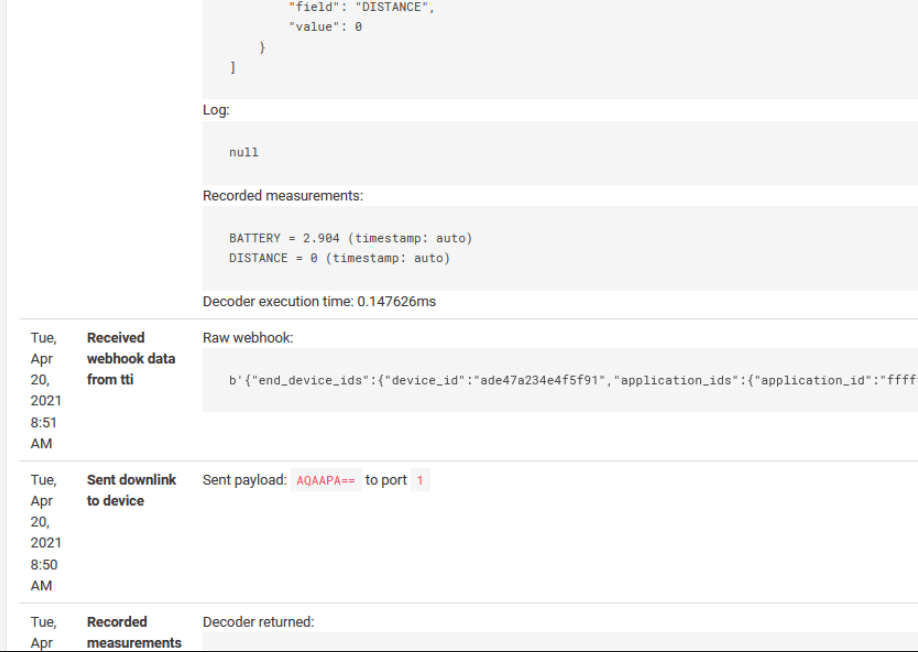
Configure downlink here. Use TDC downlink as an example. 0x01 00 00 3C. Add a function Encoder to encode the hex.
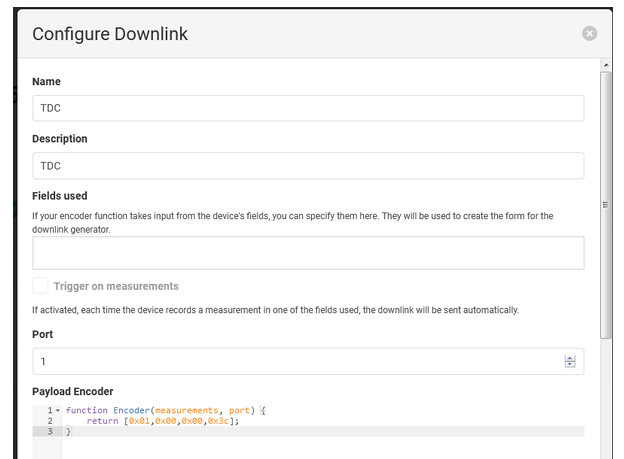
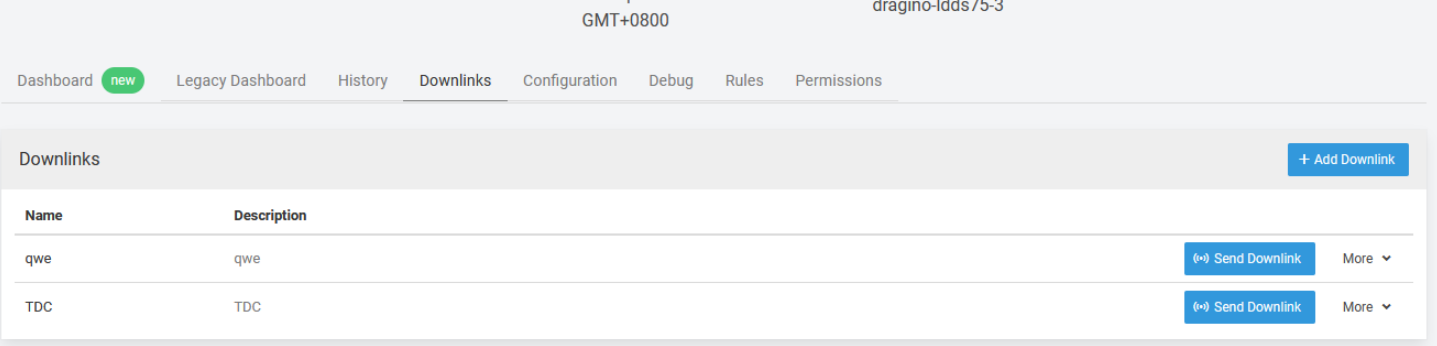
Successfully sent TDC downlink.
8. Example -- Add TrackerD GPS Tracking In DataCake
8.1 Create device in DataCake, Use LGT92 template for TrackerD
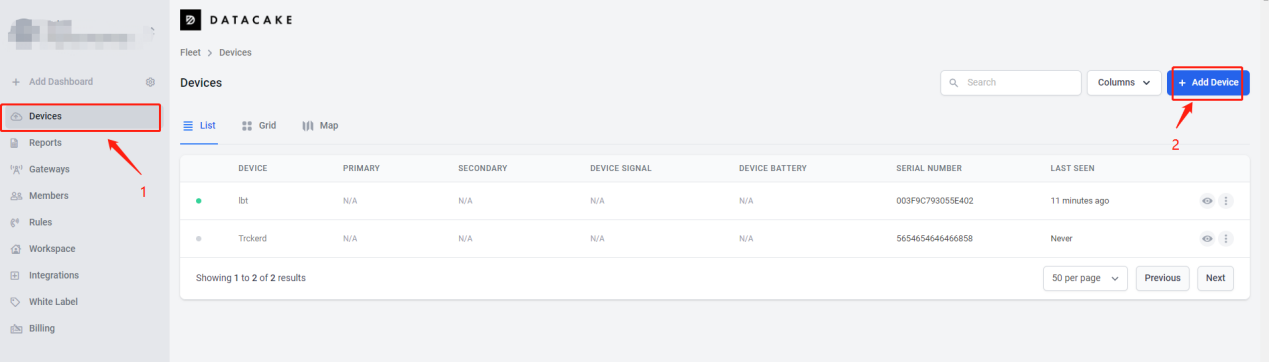
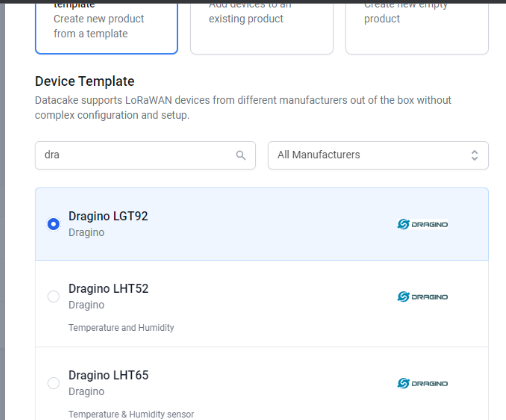
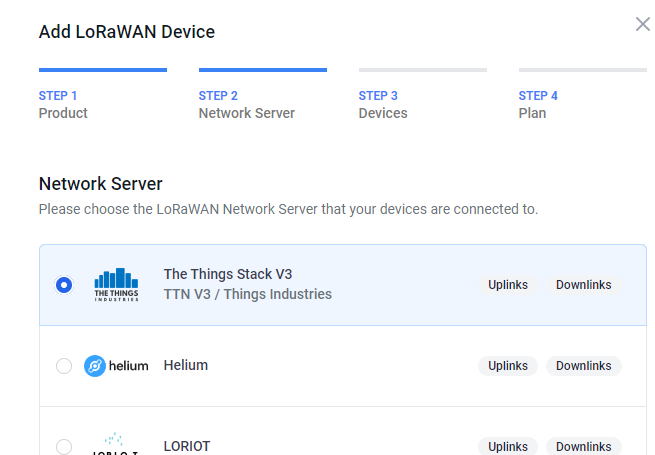
8.2 Choose the platform where your data comes from(TTN)
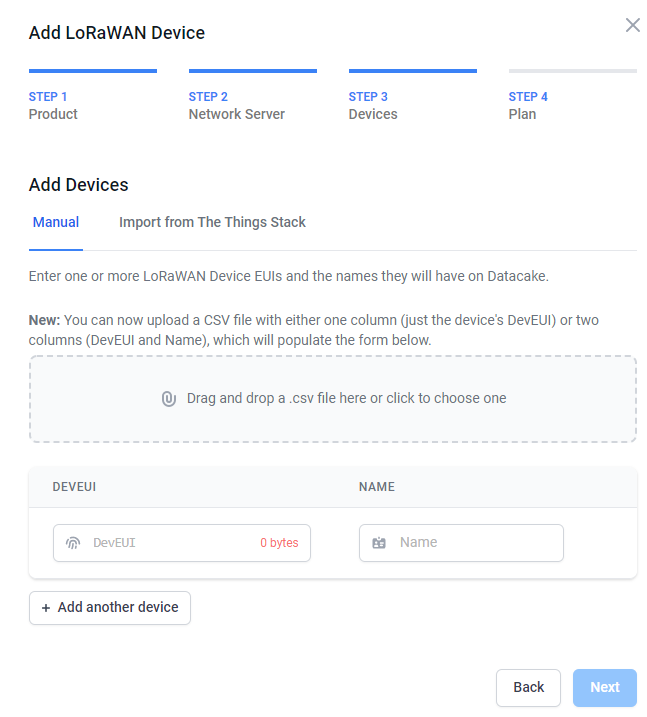
8.3 Fill in your device name and DEVEUI
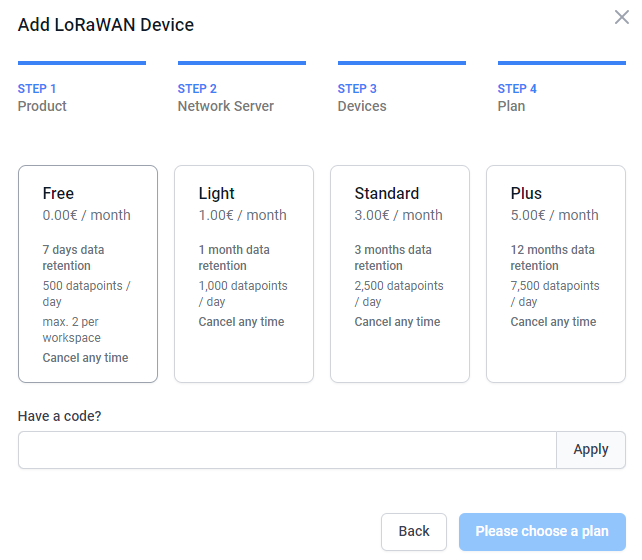
8.4 Choose the plan you need
8.5 Add API User DataCake
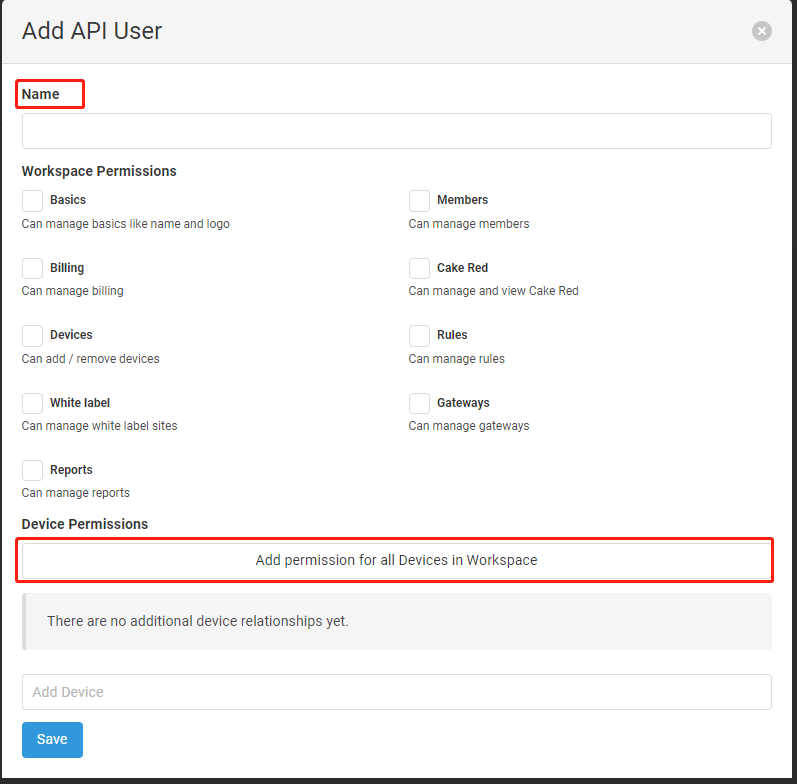
8.6 Copy TTI Webhook API User from DataCake to TTN Webhook Token
Below two pages are in TTI
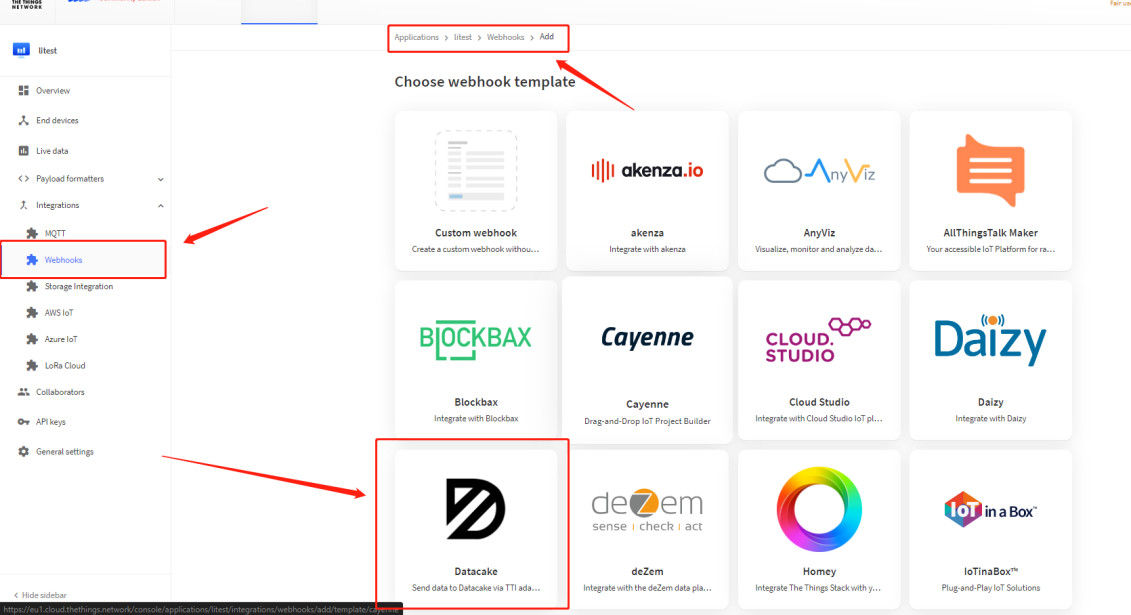
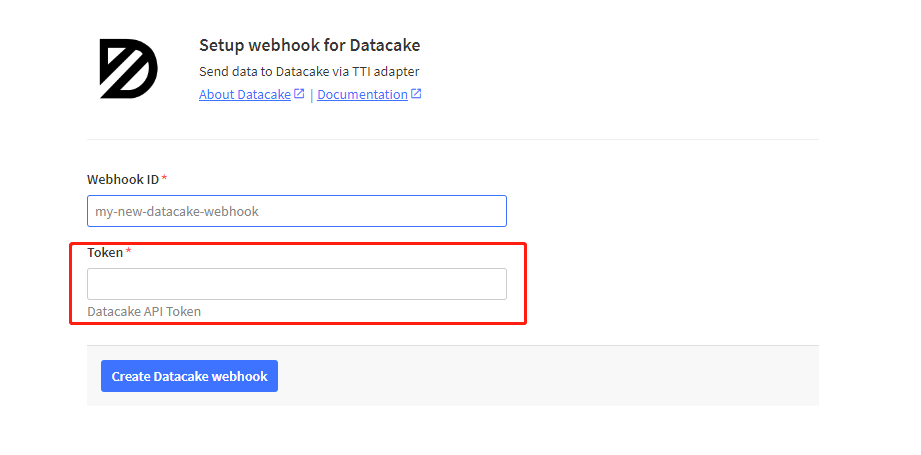
8.7 See Result
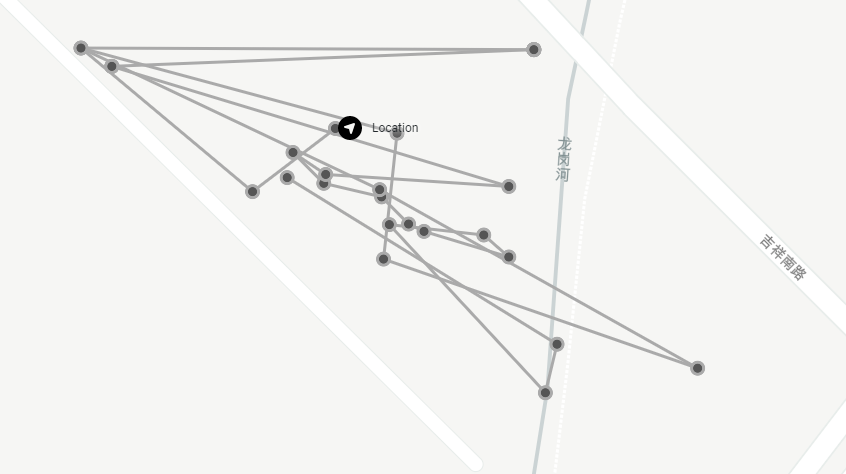
Once TrackerD has new data that comes to TTN, it will be displayed on the DataCake Dashboard and plot the trace.
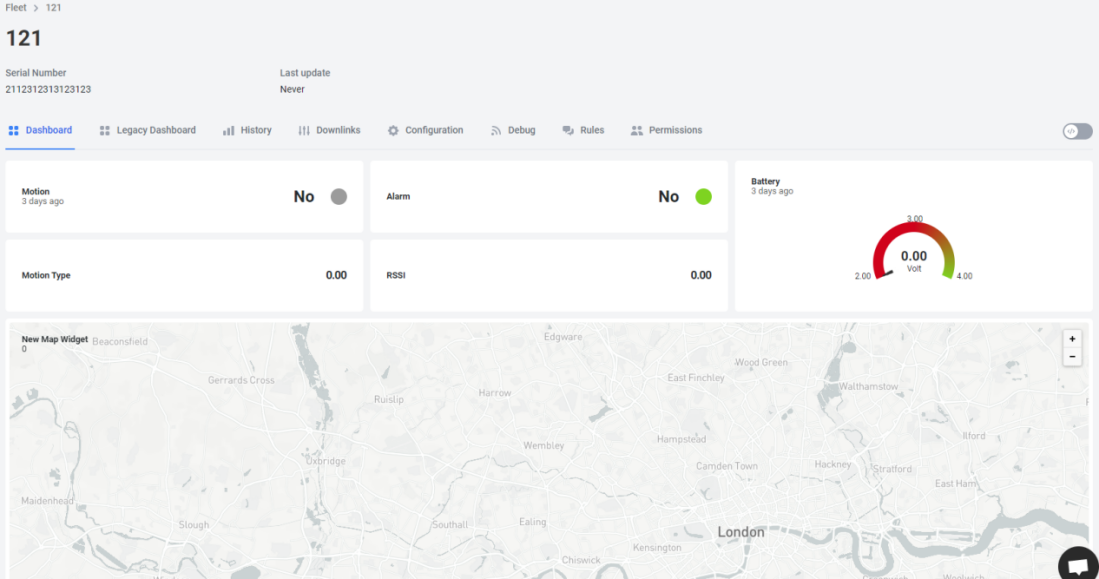
Example: