Remote.it
Remote Access with Remote.it
Remote.it is a third-party commercial remote access service. It is separate from Dragino Remote Manager and may require a Remote.it account or subscription.
Remote.it for remote access is available in the latest Dragino firmware for gateway. For security concern, the remote.it only available base on end user demand.
Important Notice:
-
Remote.it access will give full control of your device to remote support.
-
The Remote.it allows Dragino Support to remote access to the device, If user want to access himself, it need to sign up for an remote.it account.
-
For how to use remote.it for general remote control, please see : Remoteit user instruction for Dragino Gateway.
-
For Quick add remote.it to Dragino for remote debug, please see below:
1. Install the Remote.it software
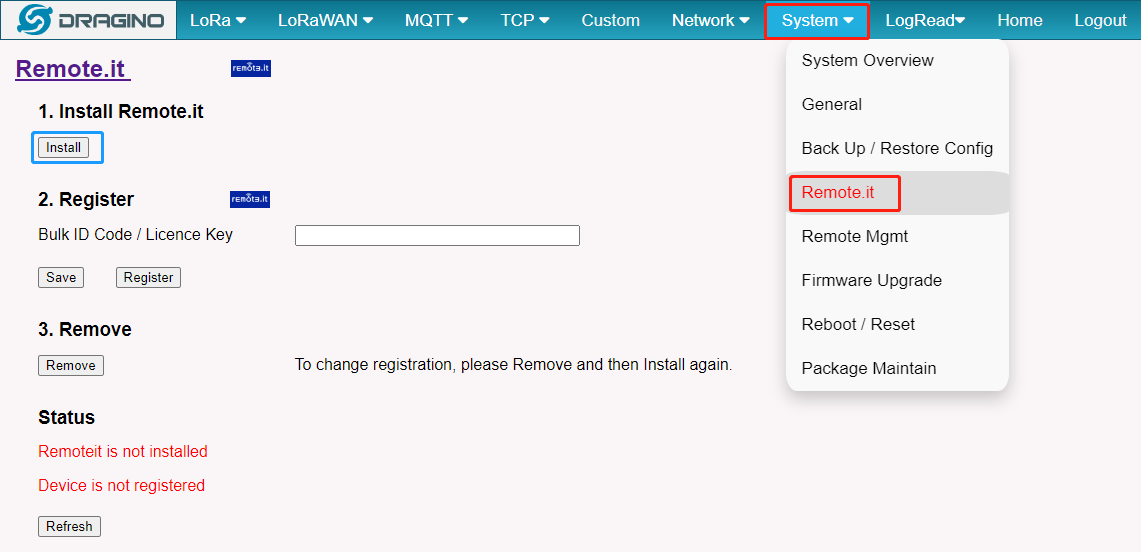
Users can directly click "Install" on the Web UI to install Remote. it.
2. Enter the license key
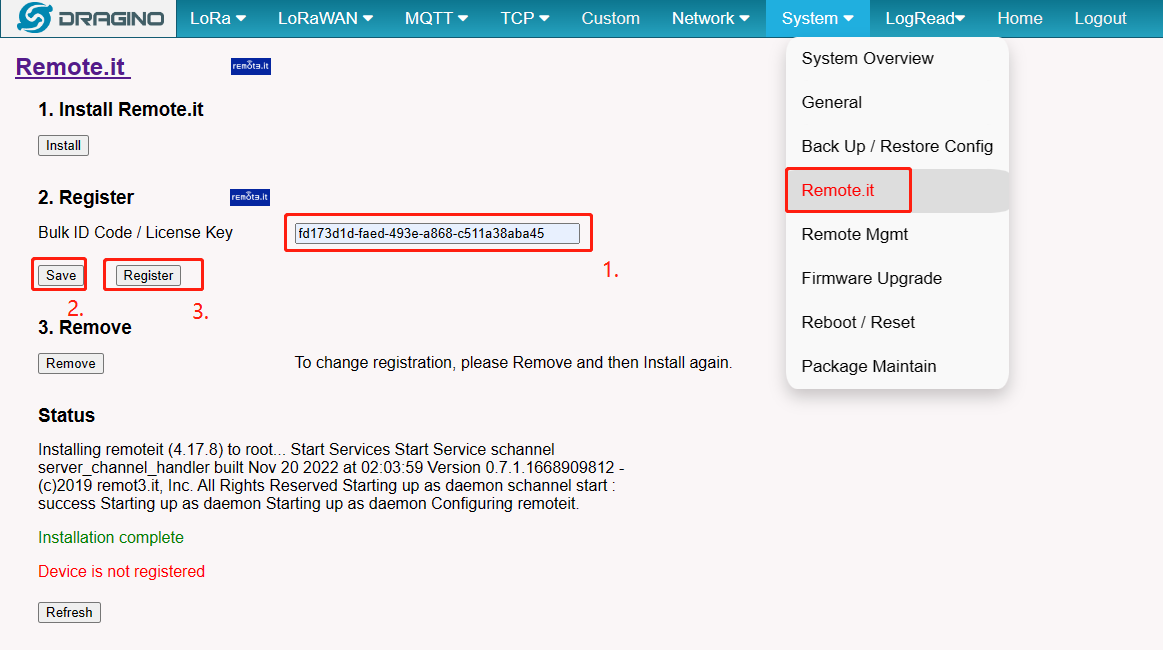
Users need to enter the license key in the box under "2. Register" section and click the "Save" button and "Register" button.
When the user enters this license key, Dragino support will have access to your gateway.
fd173d1d-faed-493e-a868-c511a38aba45
3. Connect and tell us your device ID or Hostname
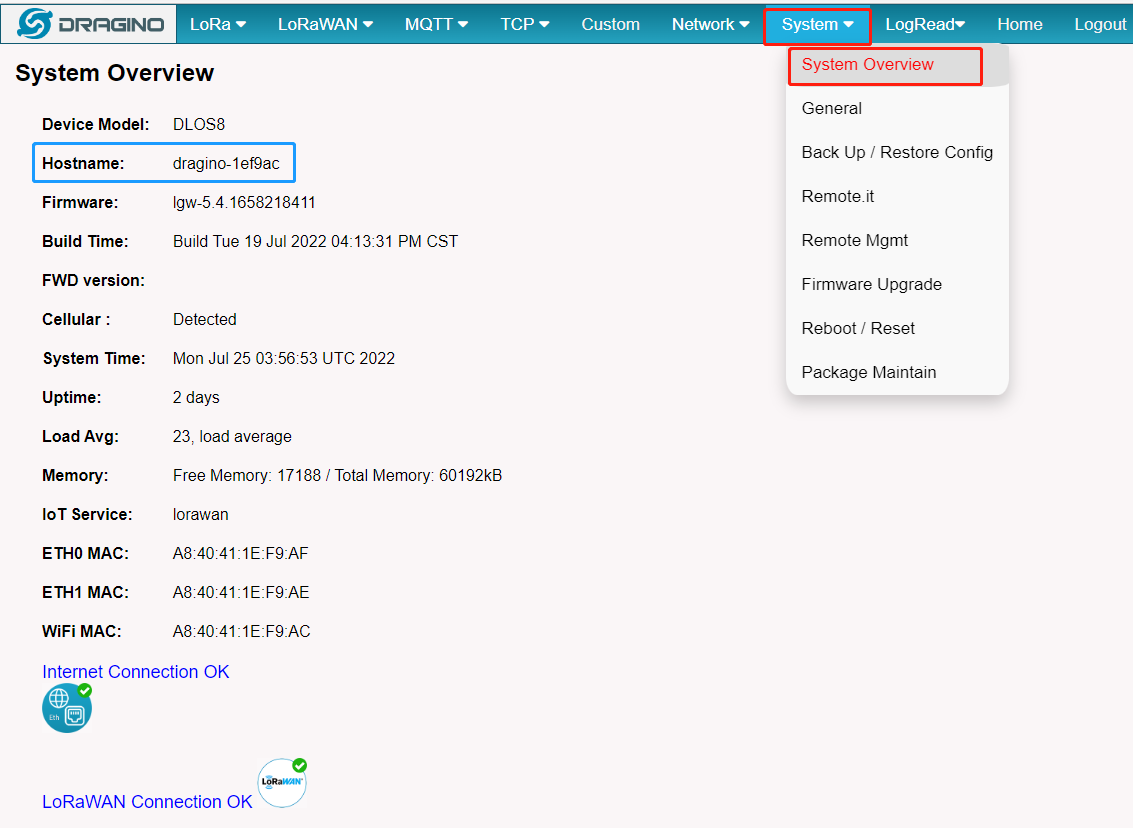
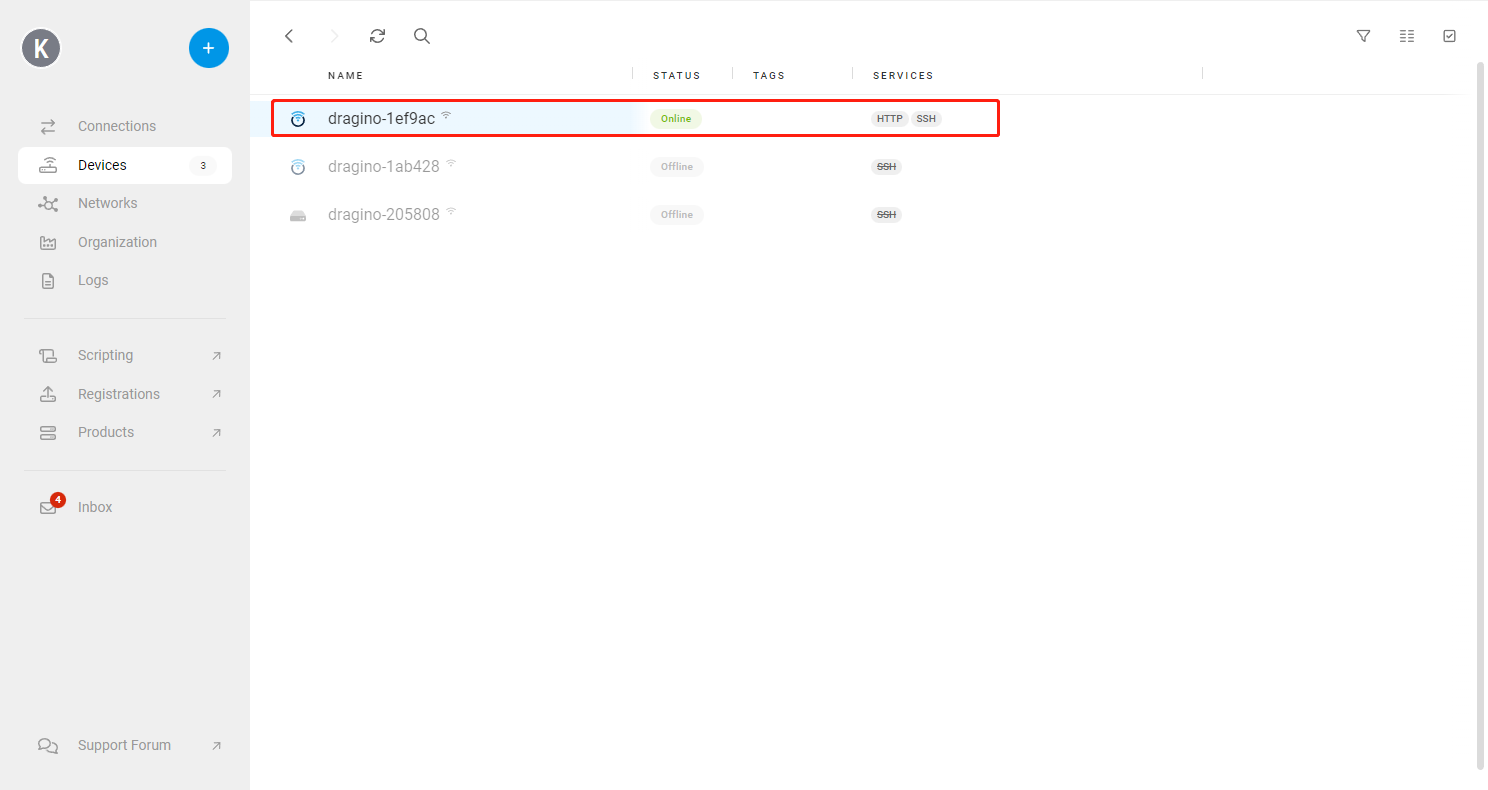
Users can view the device ID or Hostname of the gateway on System --> System Overview interface.Such as : dragino-1ef9ac
Preserve the Remote.it Registration During a Firmware Update
Before version lgw--build-v5.4.1668240318-20221112-1606, once the gateway firmware is upgraded the remote configuration is gone.
This issue is now corrected:
Firmware Earlier Than lgw--build-v5.4.1668240318-20221112-1606
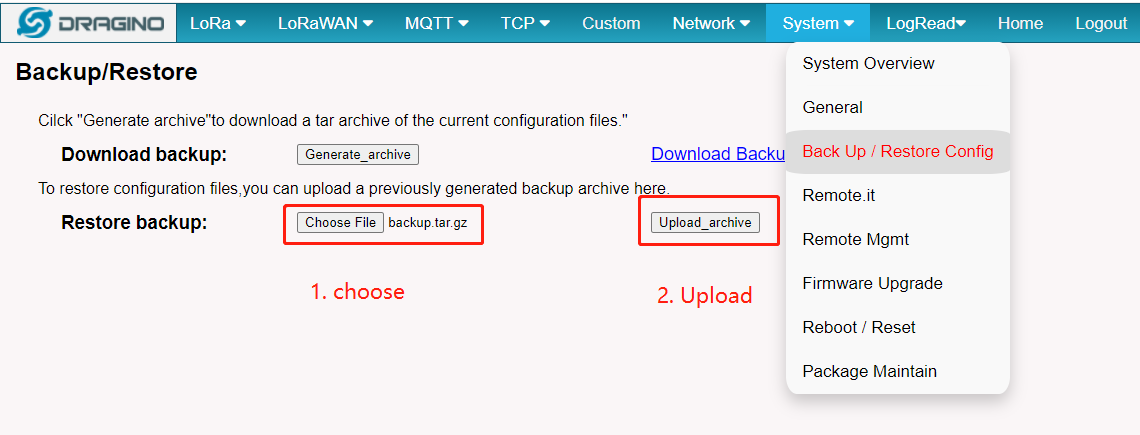
- Upload the backup file to update the configuration.
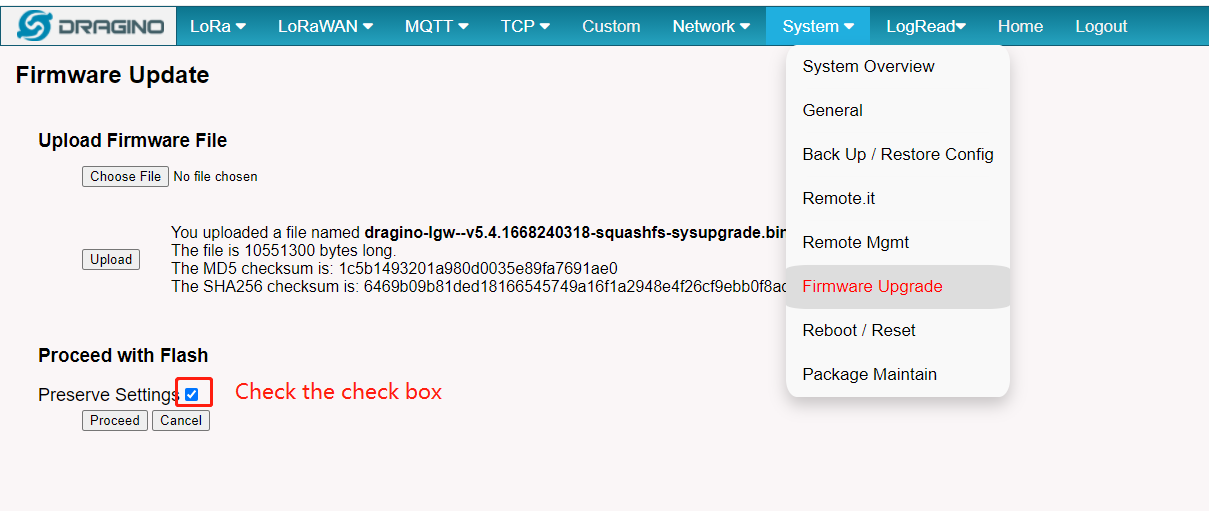
- Check the 'Preserver Settings' check box when you upgrade the gateway with the firmware.
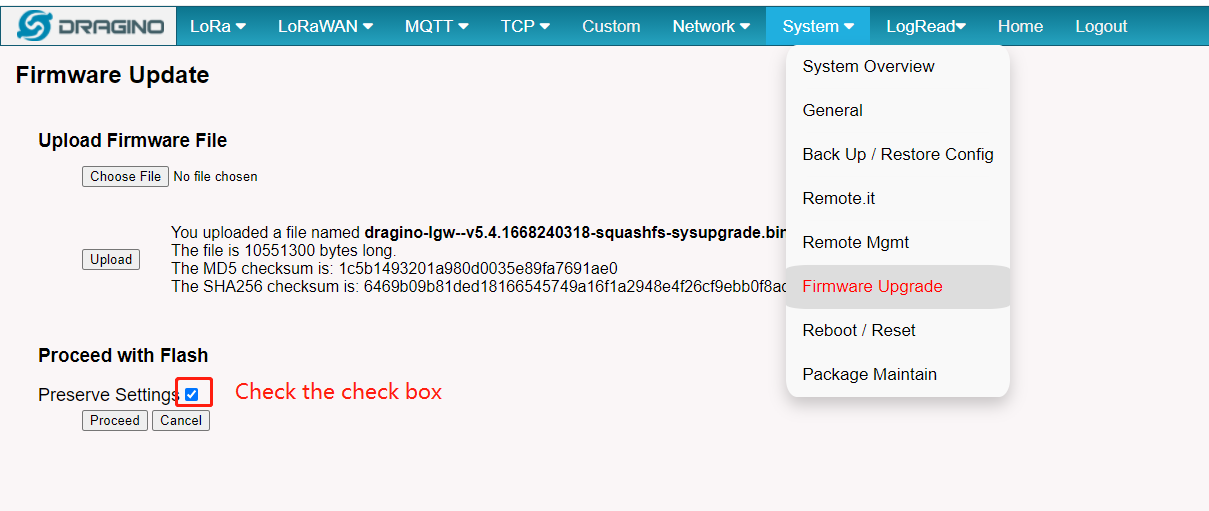
Firmware lgw--build-v5.4.1668240318-20221112-1606 or Later
- Only to do: Check the 'Preserver Settings' check box when you upgrade the gateway with the firmware.
Legacy: Register HP0D with Remote.it
HP0D is a retired gateway model. This section is retained only for existing HP0D deployments.
Prerequisites:
Users must have an account and APP for remote.it
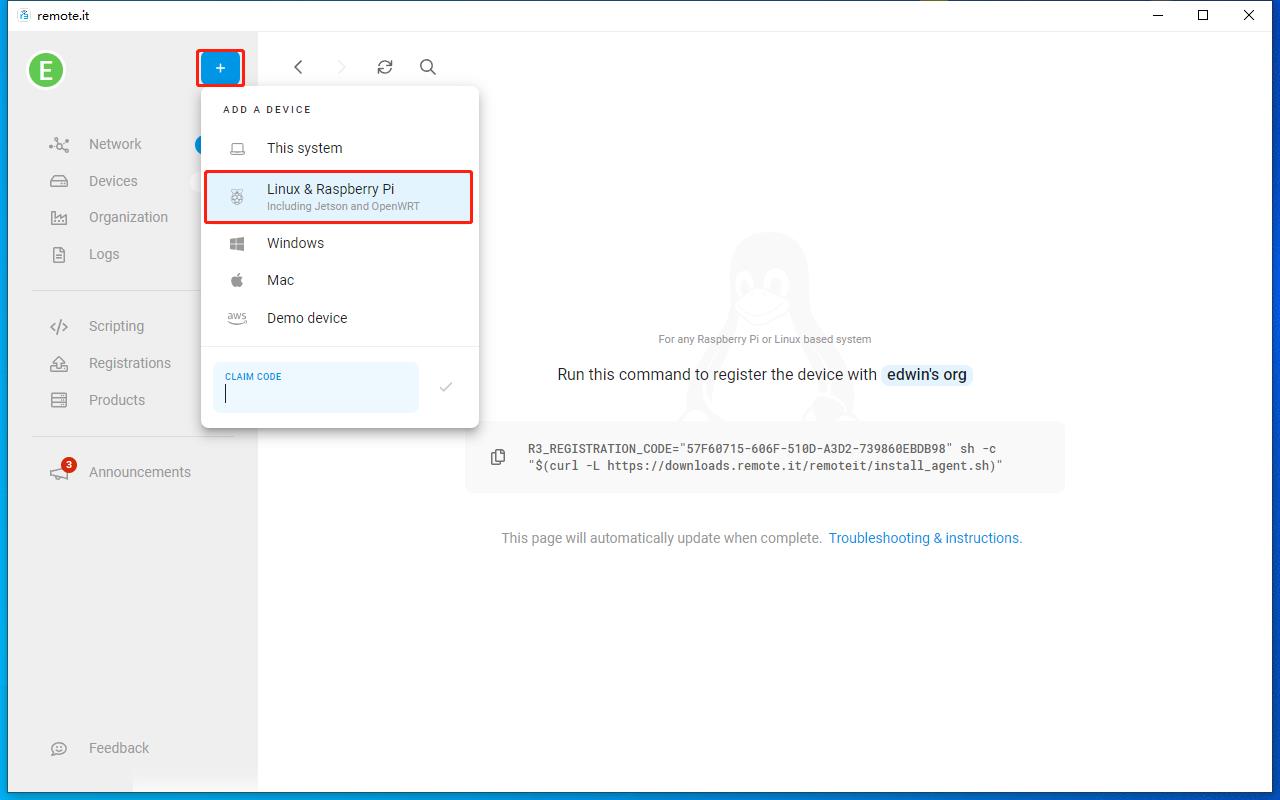
1. Click "+" in the APP to add a device
Then click Add "Linux & Raspberry Pi" and the APP will generate a command to register the device.
2. Copy the register device command
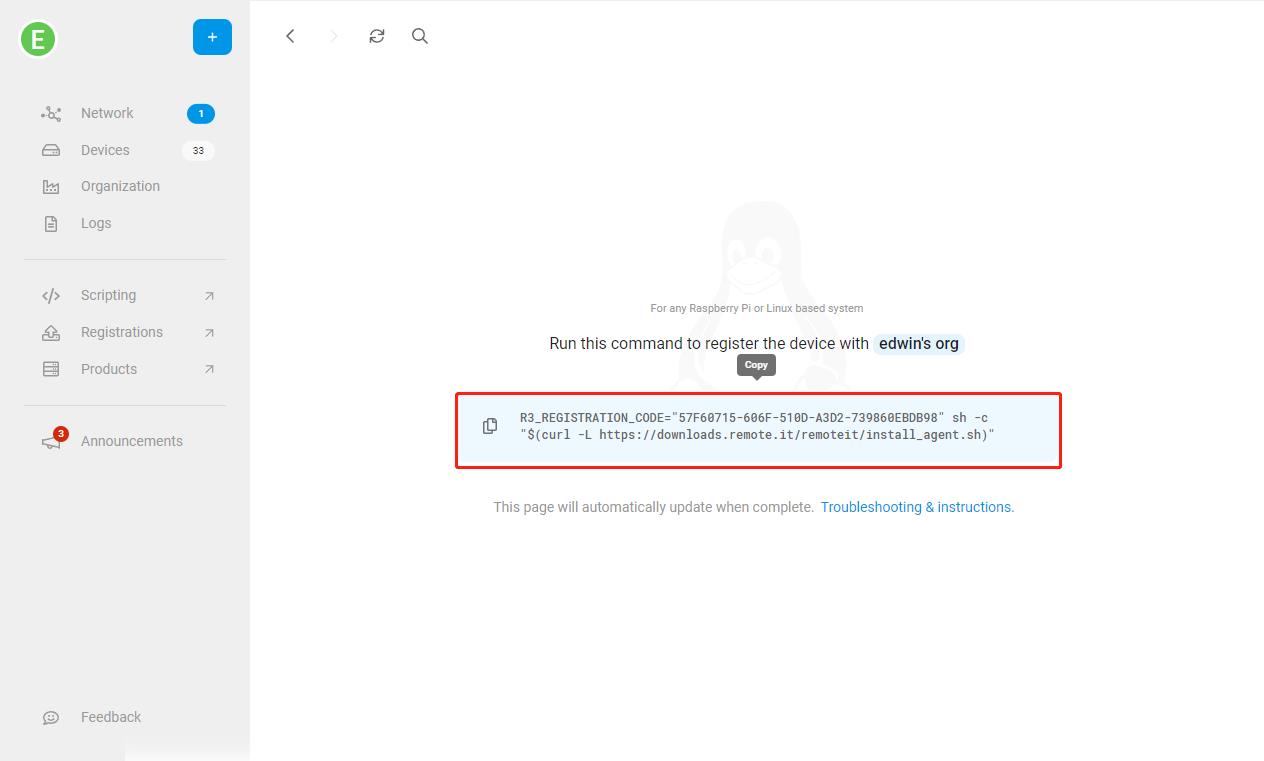
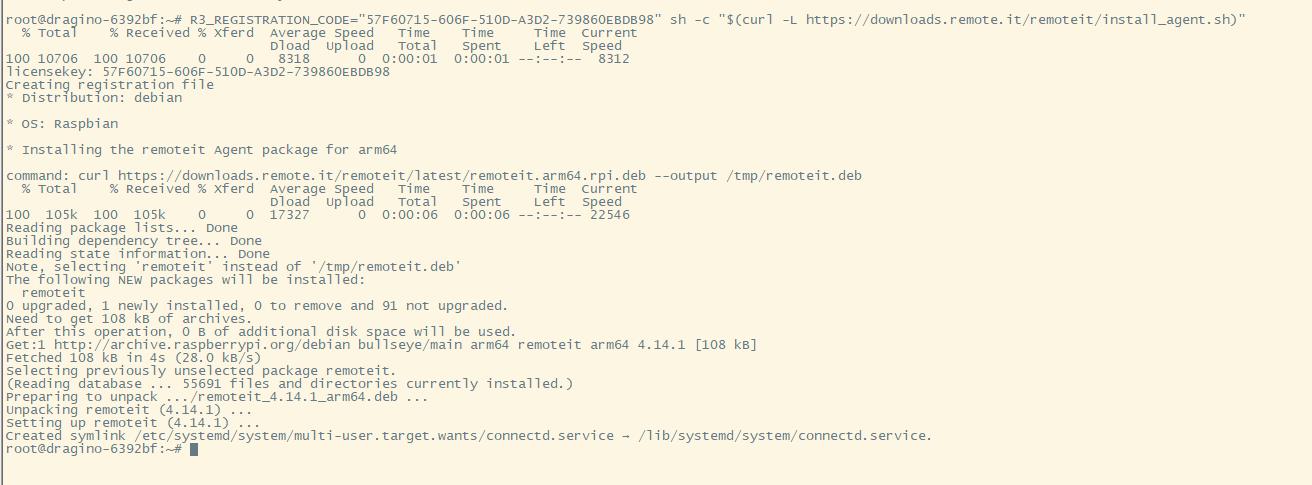
3. Enter the command copied from the previous step on the HP0D Linux command line
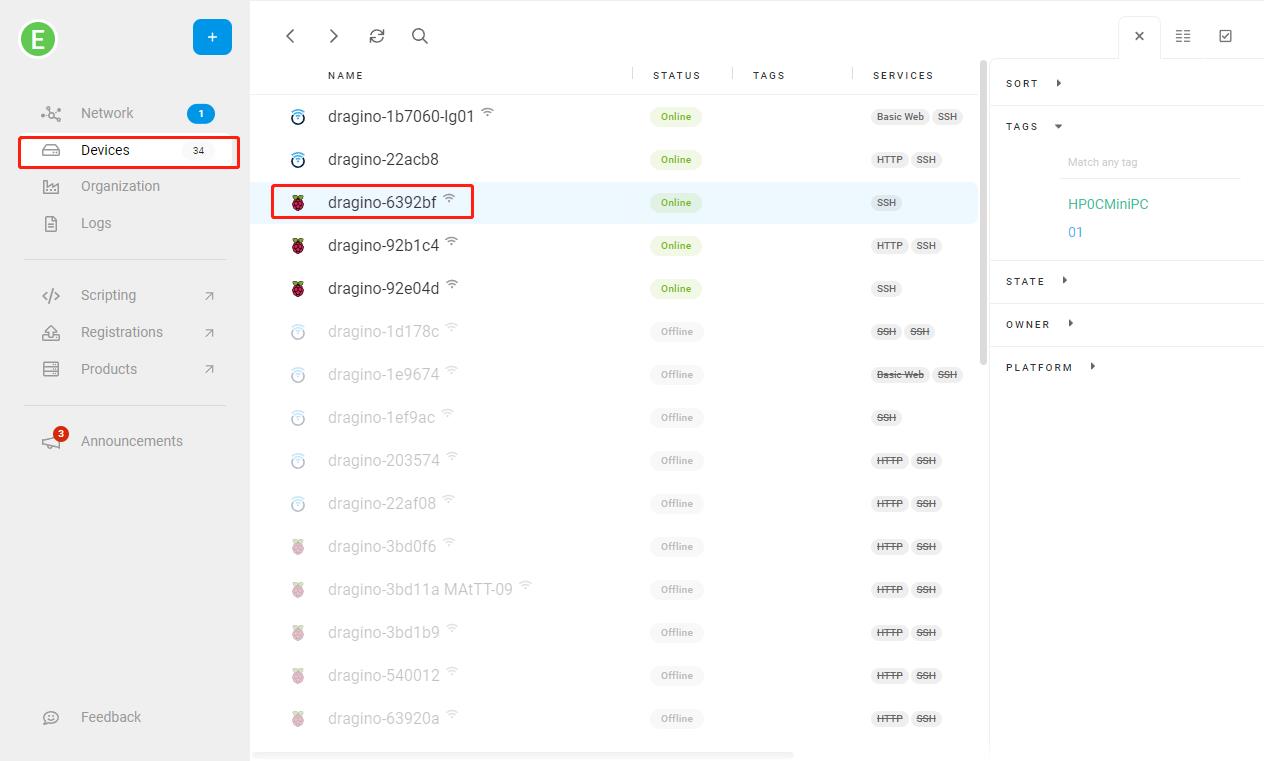
4. Check whether the device is successfully registered on the Remote.it APP
Register a Gateway with Remote.it for Linux Console Access
Prerequisites:
Users must have an account and APP for remote.it
For detailed examples, please see: OpenWrt How to Connect Guide (remote.it)
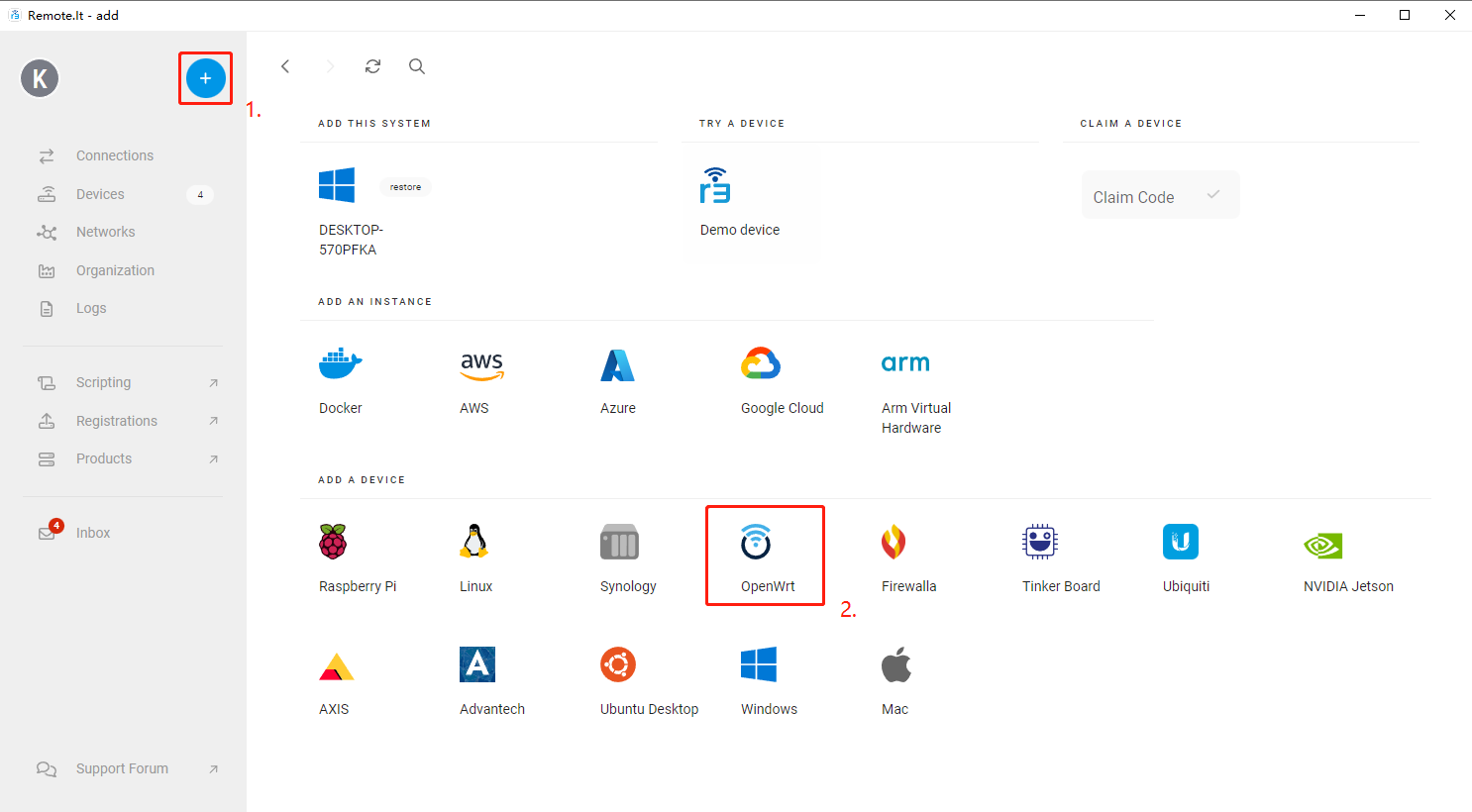
1. Click "+" in the APP to add a device
Then click Add "OpenWrt" and the APP will generate a command to register the device.
2. Copy the register device command
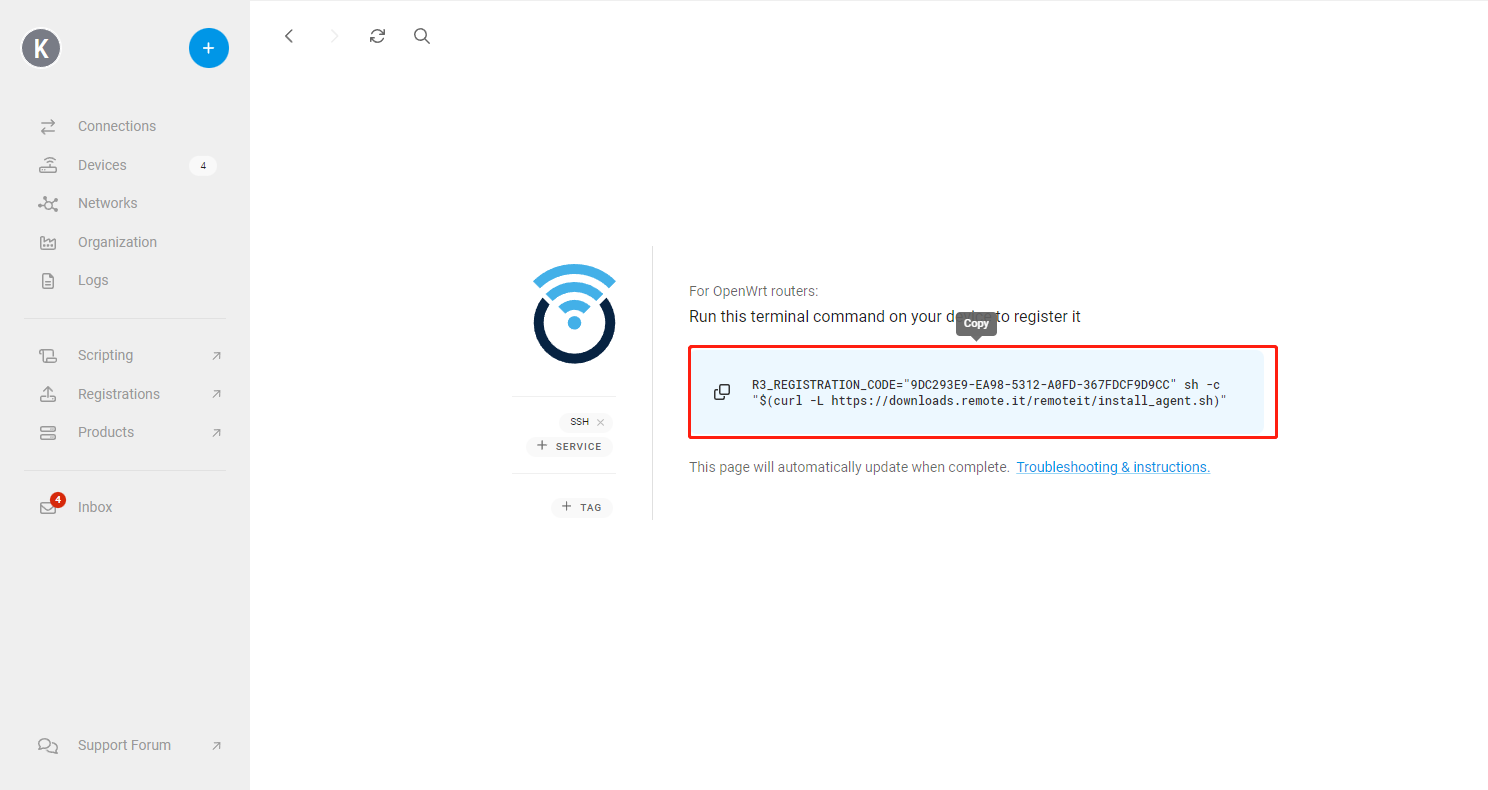
3. Enter the command copied from the previous step on the gateway Linux command line
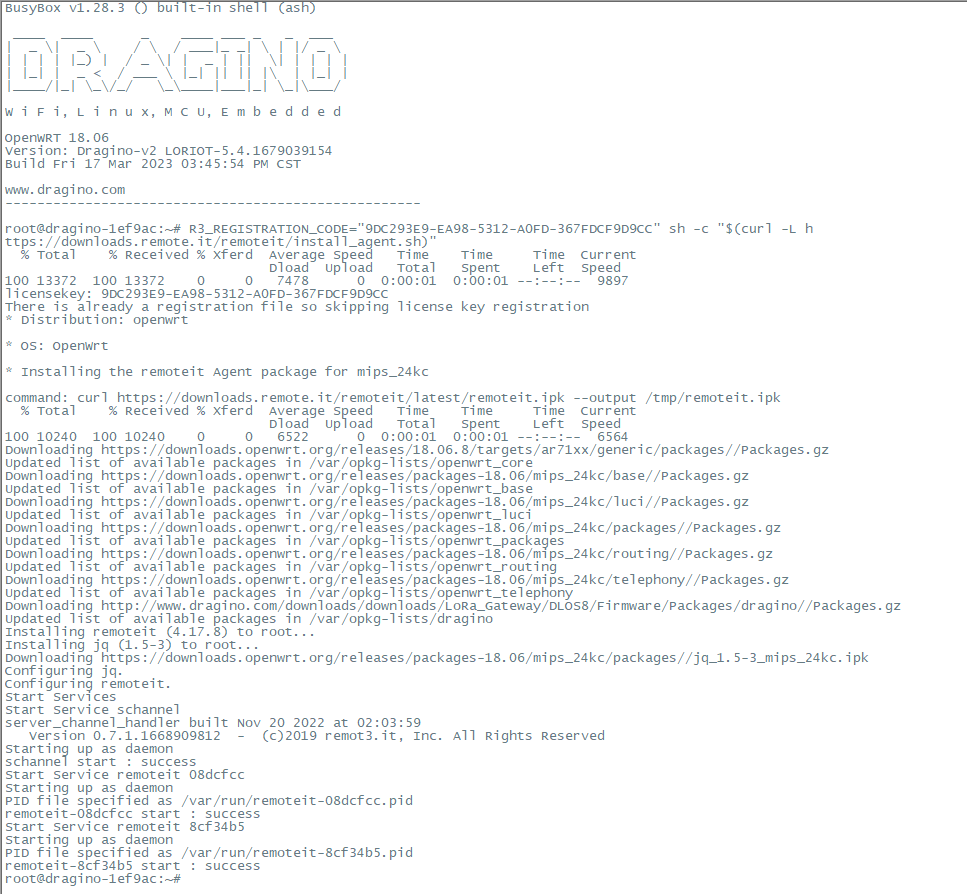
4. Check whether the device is successfully registered on the Remote.it APP
Troubleshooting
1. What should users do when gateway Remote.it installation fails
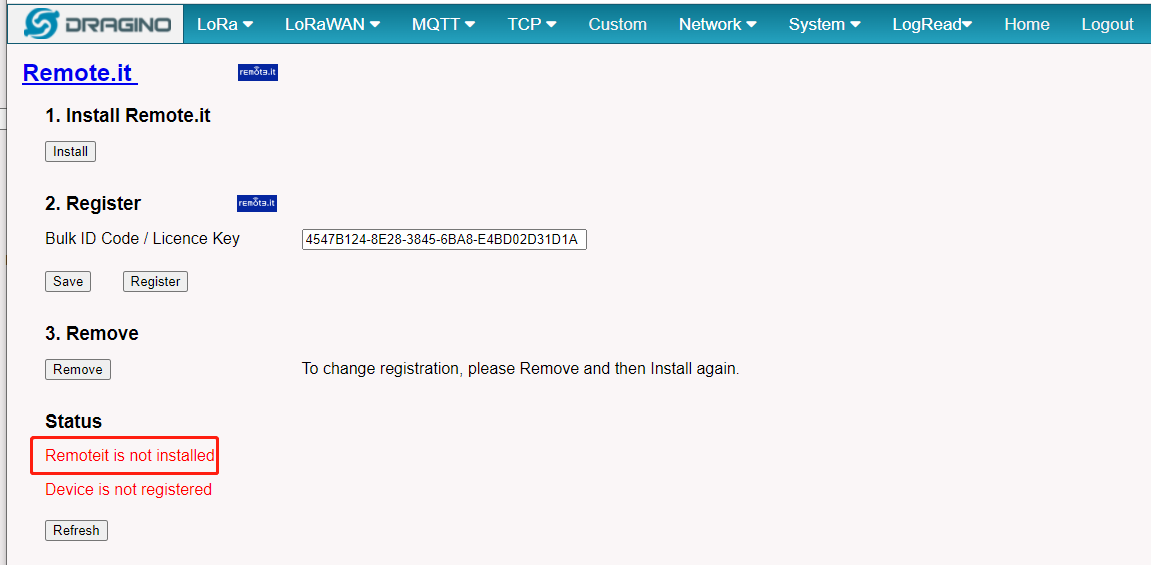
Step 1: Users can download the archive and upload it to the gateway: backup.tar.gz
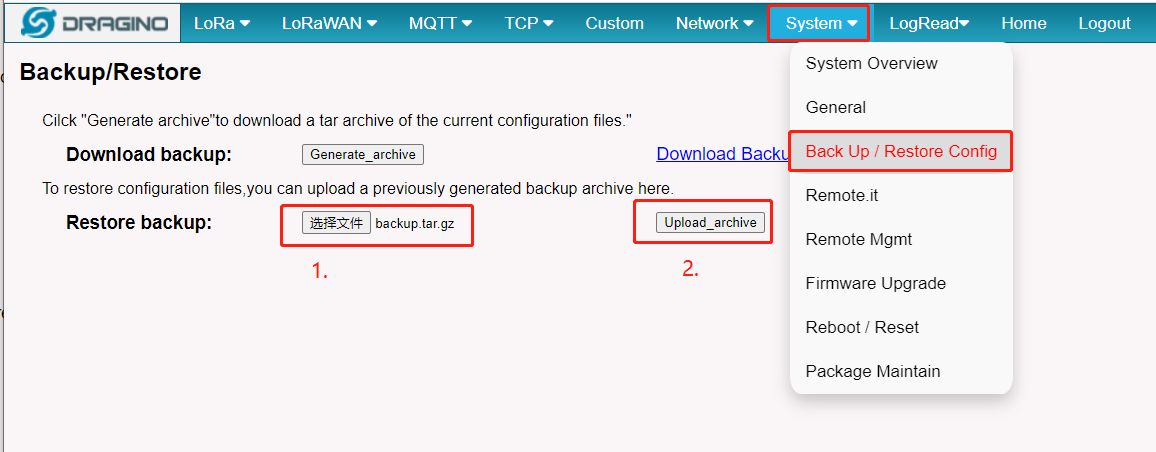
Step 2: Back to the Remote.it screen, and click "Install" again.
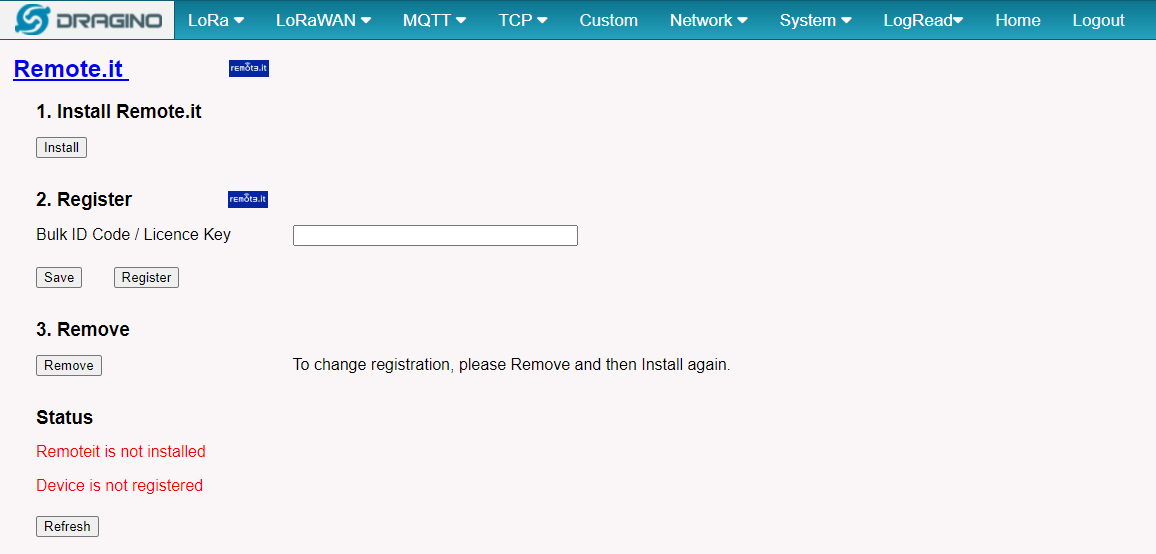
Step 3: Follow the Remoteit user instruction for Dragino Gateway steps to reconfigure