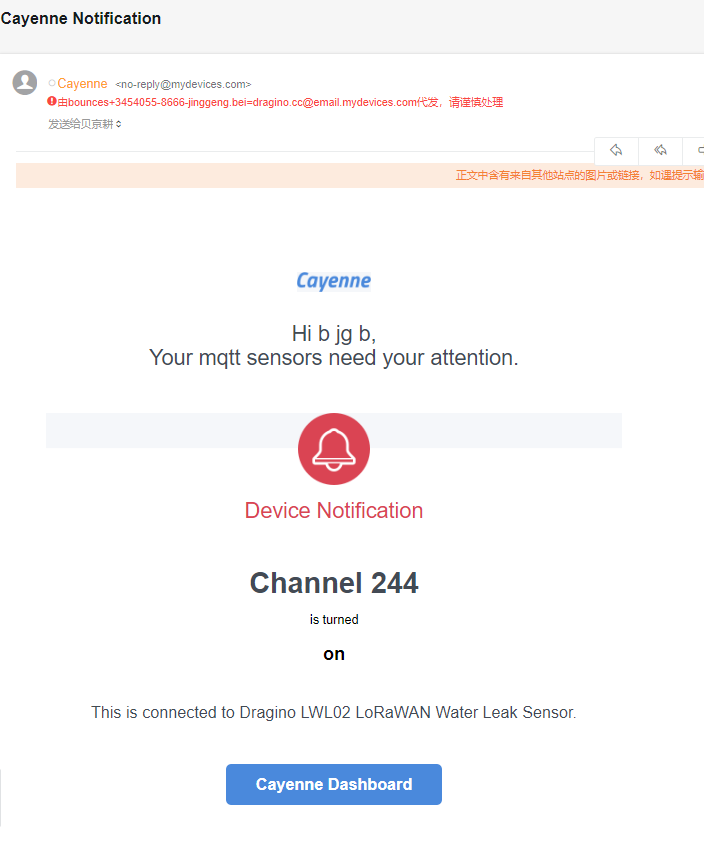
Mydevices / Cayenne
1. Setup Gateway to connect to Mydevices
1.1 Introduction
The Dragino LoRaWAN gateway and end node can communicate with Mydevices LoRaWAN Network Server: Mydevices
1.2 Gateway Registered
- Get the GWID of the gateway and set the correct service address
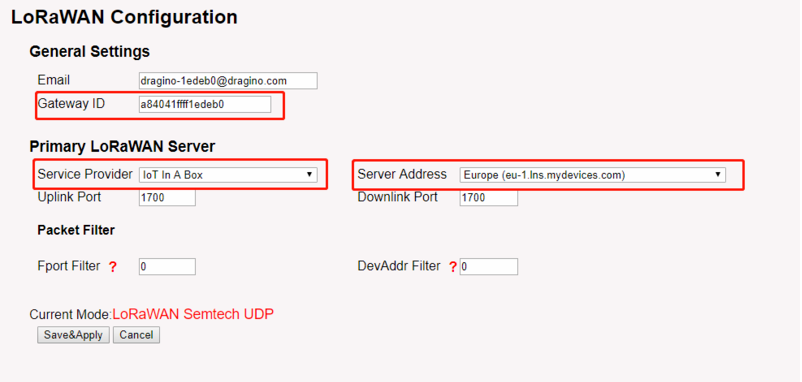
Configure the gateway
- Select Gateway in the mydevice console
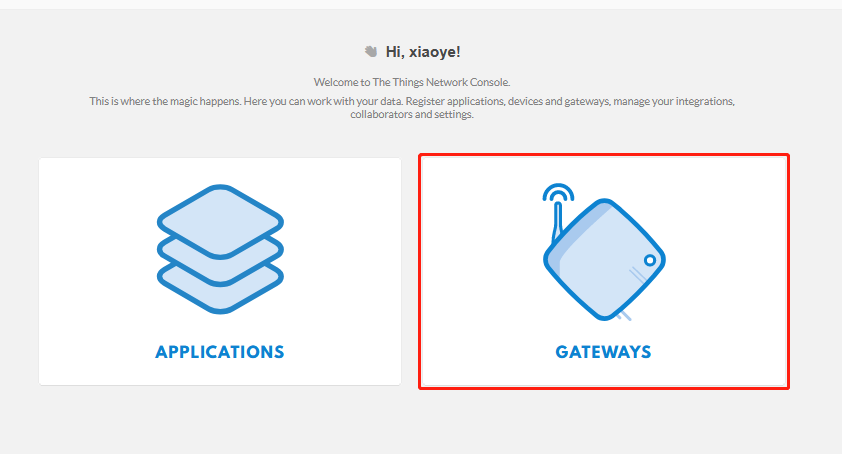
Select Gateway
- Registered gateway for mydevice
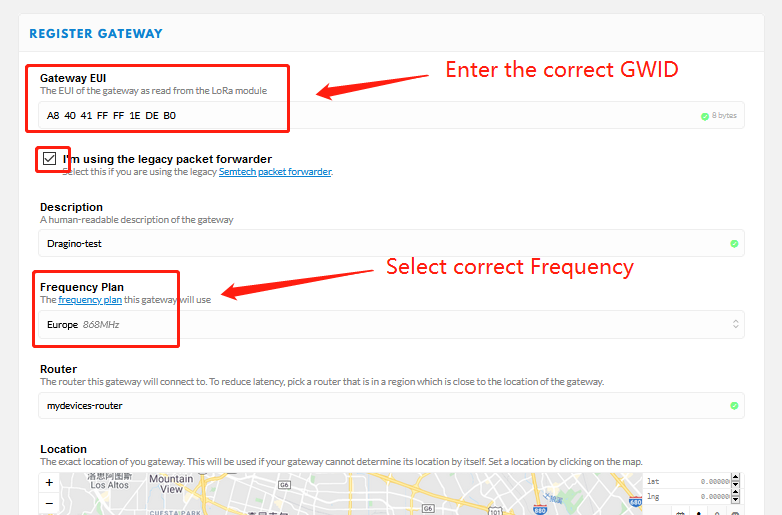
Registered gateway for mydevice
1.3 Check Gateway connection
Users can check if the gateway is properly connected according to 'Status' or check the gateway WEB like below
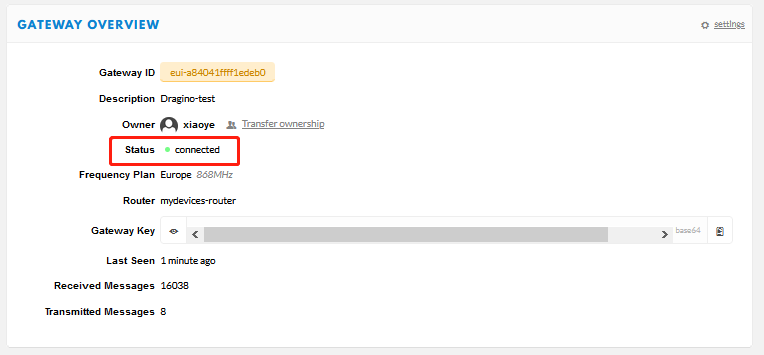
Check Status1
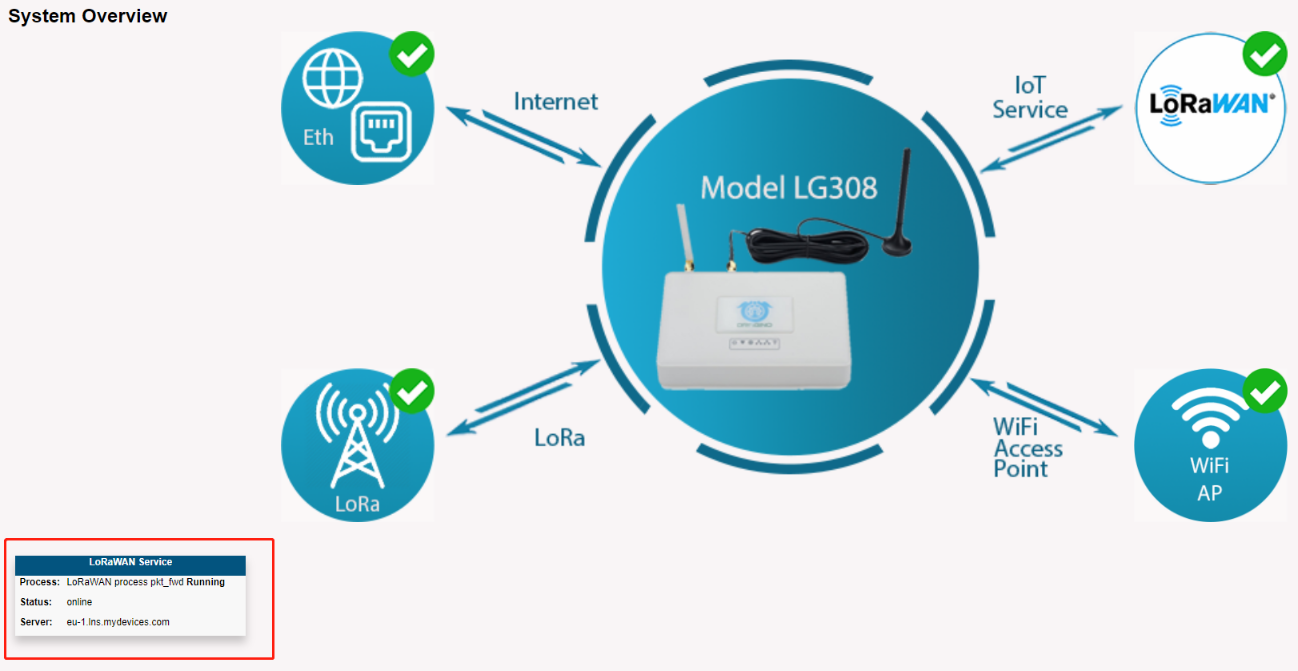
Check status2
1.4 Check Gateway traffic from Mydevice
user can see the gateway traffic
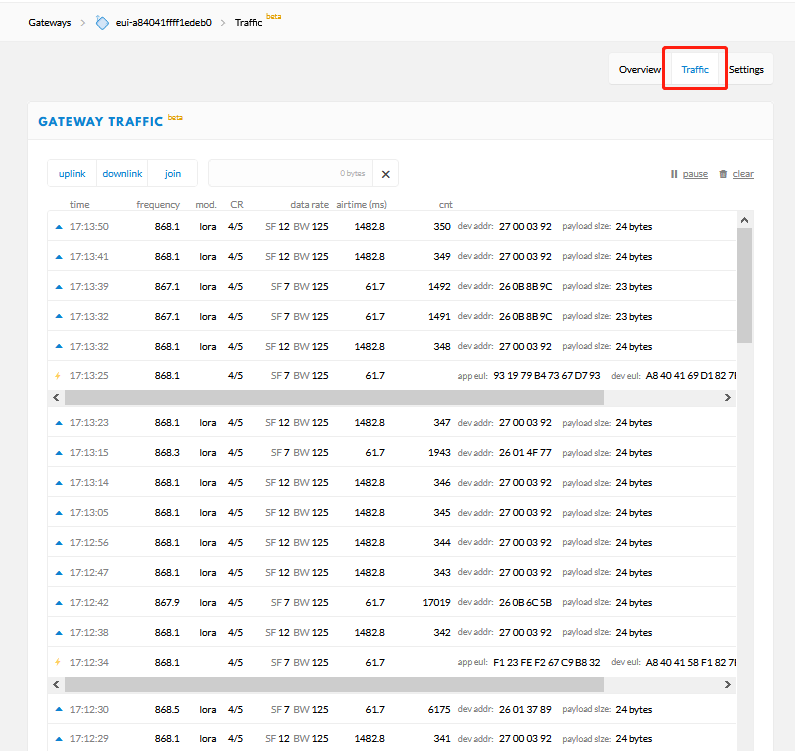
Gateway traffic
1.5 Add up End node for mydevice
- Create a device in TTN with the OTAA keys from LT IO controller. Each end node is shipped with a sticker with the default device EUI as below:
AT+DEUI=a8 40 41 08 01 81 87 49
AT+APPKEY=01 8e e4 c9 b6 c9 d6 86 3a 6f 48 5e db cc 6d 69
AT+APPEUI=70 b3 d5 7e d0 01 5f 25
User can enter this key in their LoRaWAN Server portal. Below is mydevice screen shot: Add APP EUI in the application.
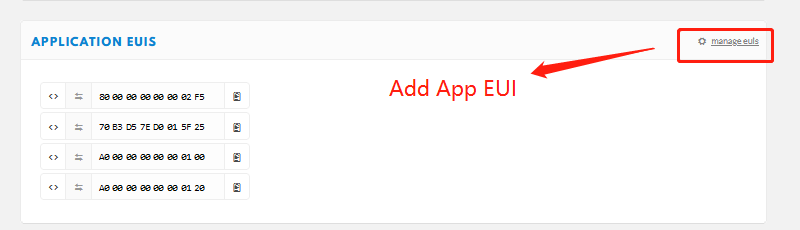
Add App EUI
Add APP KEY and DEV EUI
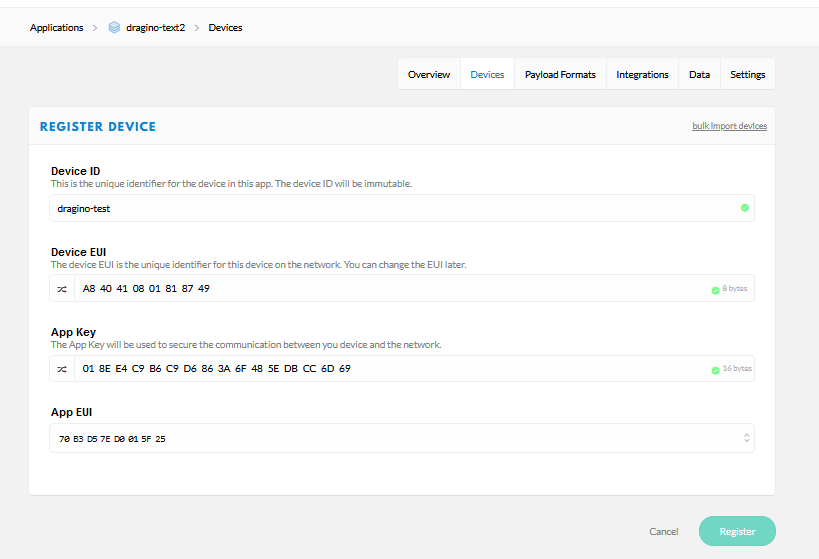
Add App key and App DEUI
- Power on end node and it will auto join to the TTN network. After join success, it will start to upload message to Mydevice and user can see in the panel and analyze the data
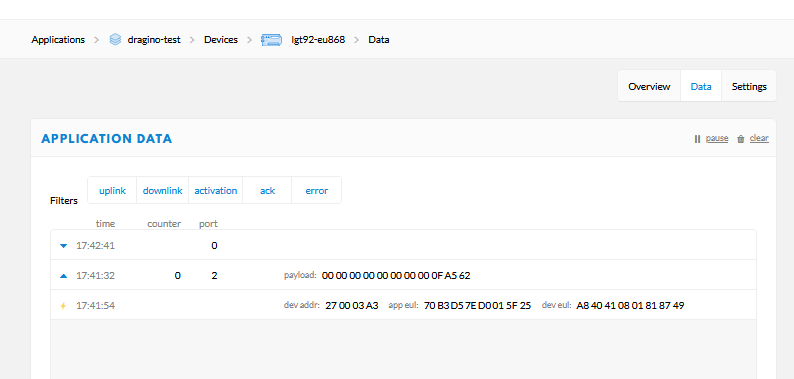
Join mydevice of end node
2. Route a TTN End Node to Cayenne
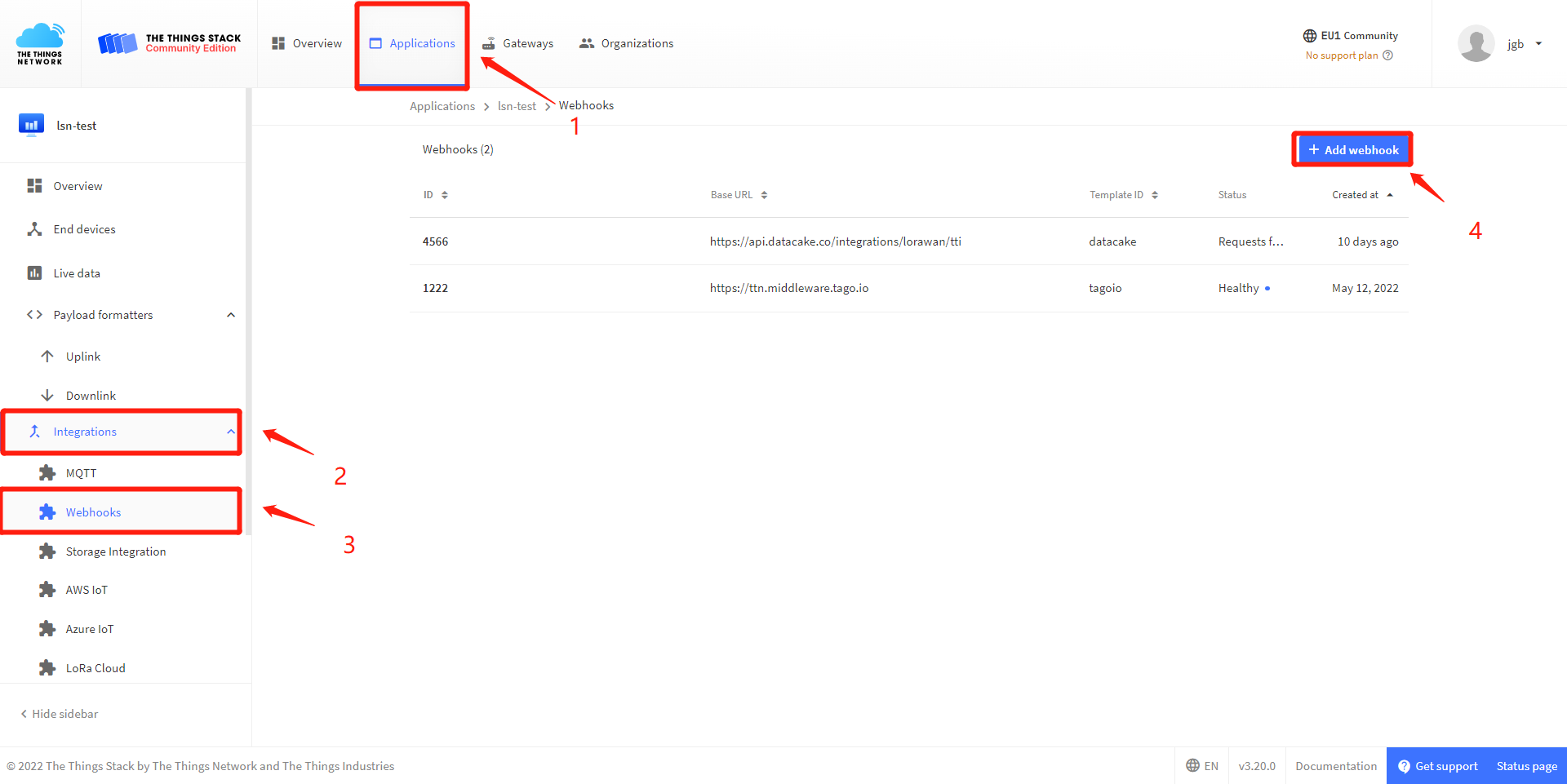
- Add a webhook
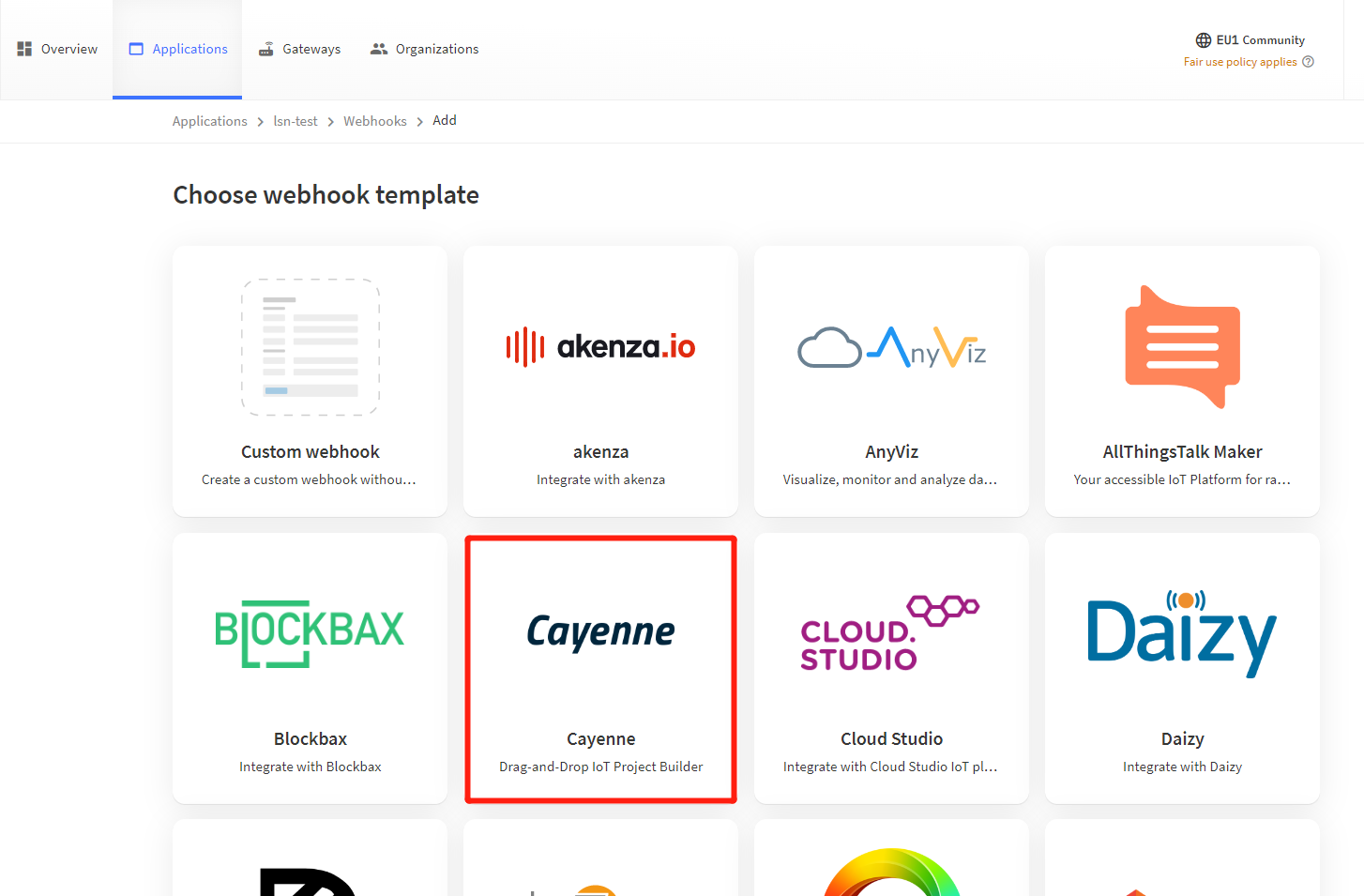
- Choose Cayenne
- Successfully created webhook
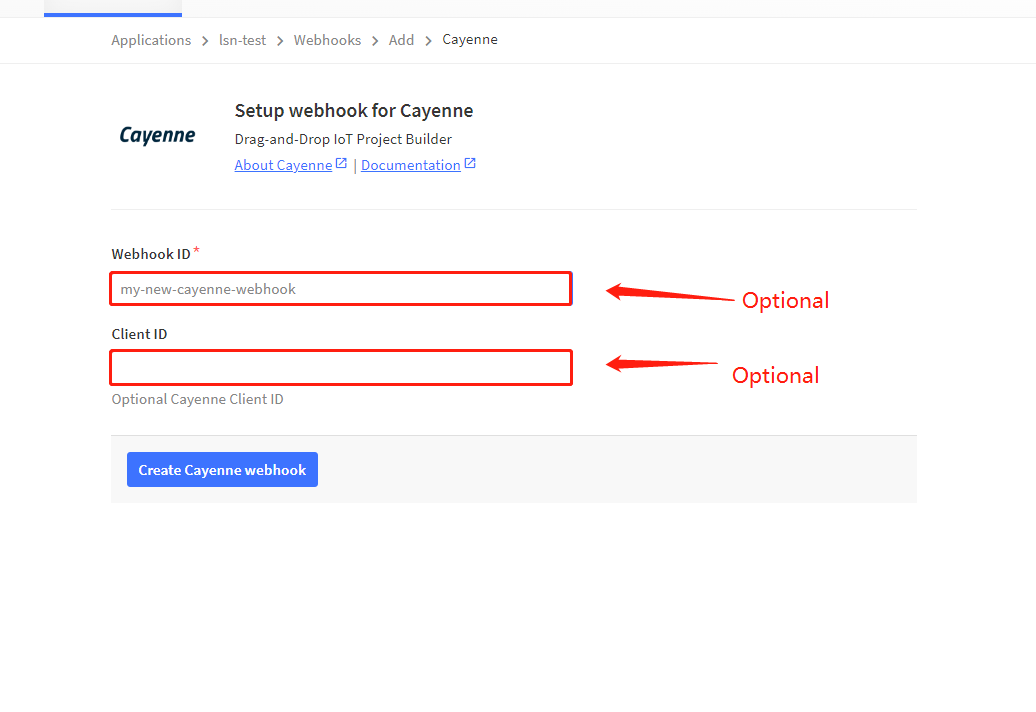
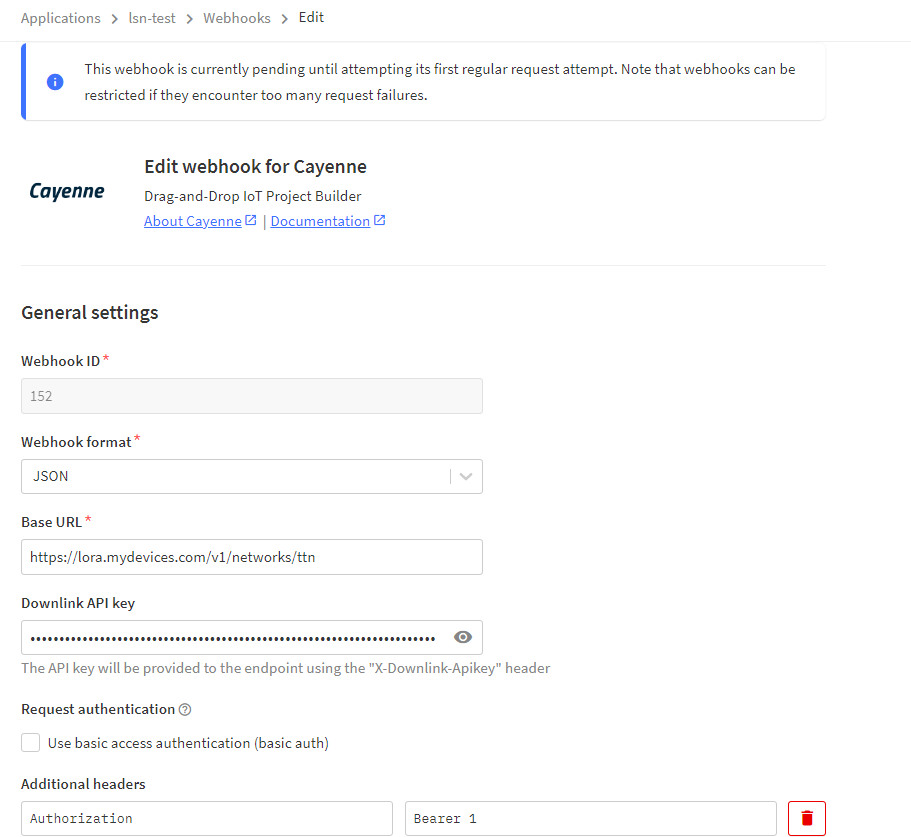
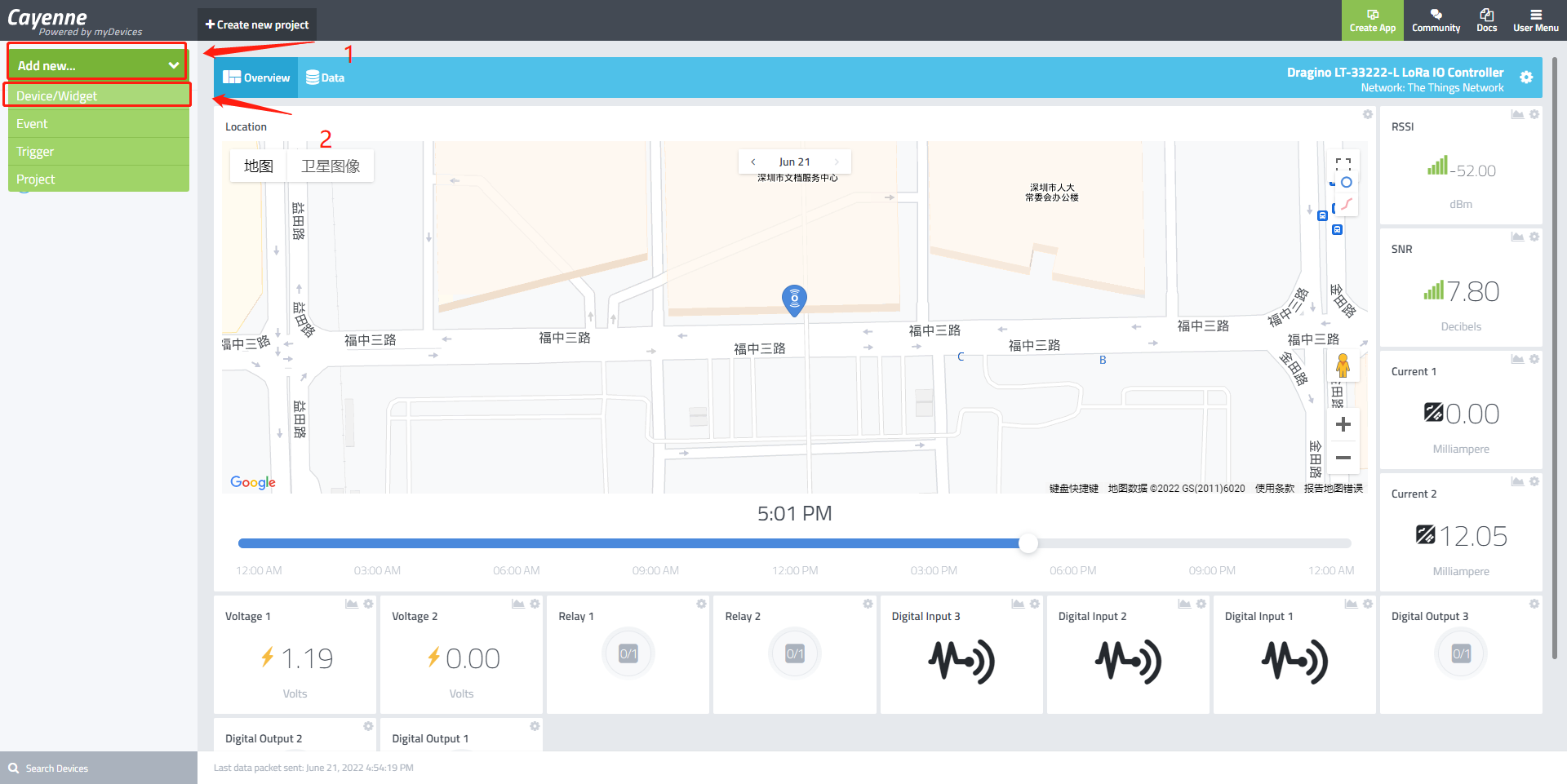
- Add new Device in Cayenne
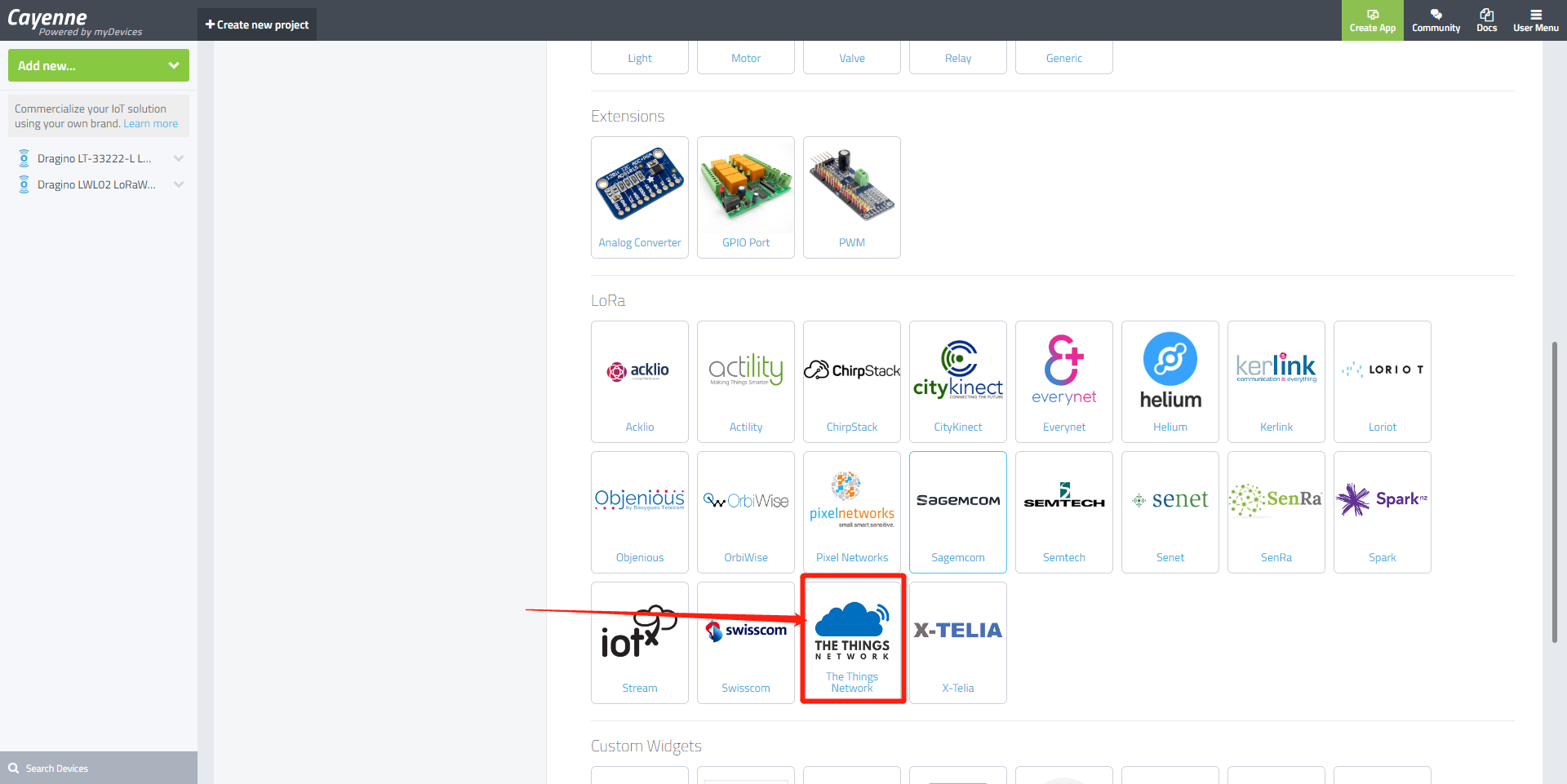
- Select TTN
- Select the device you need
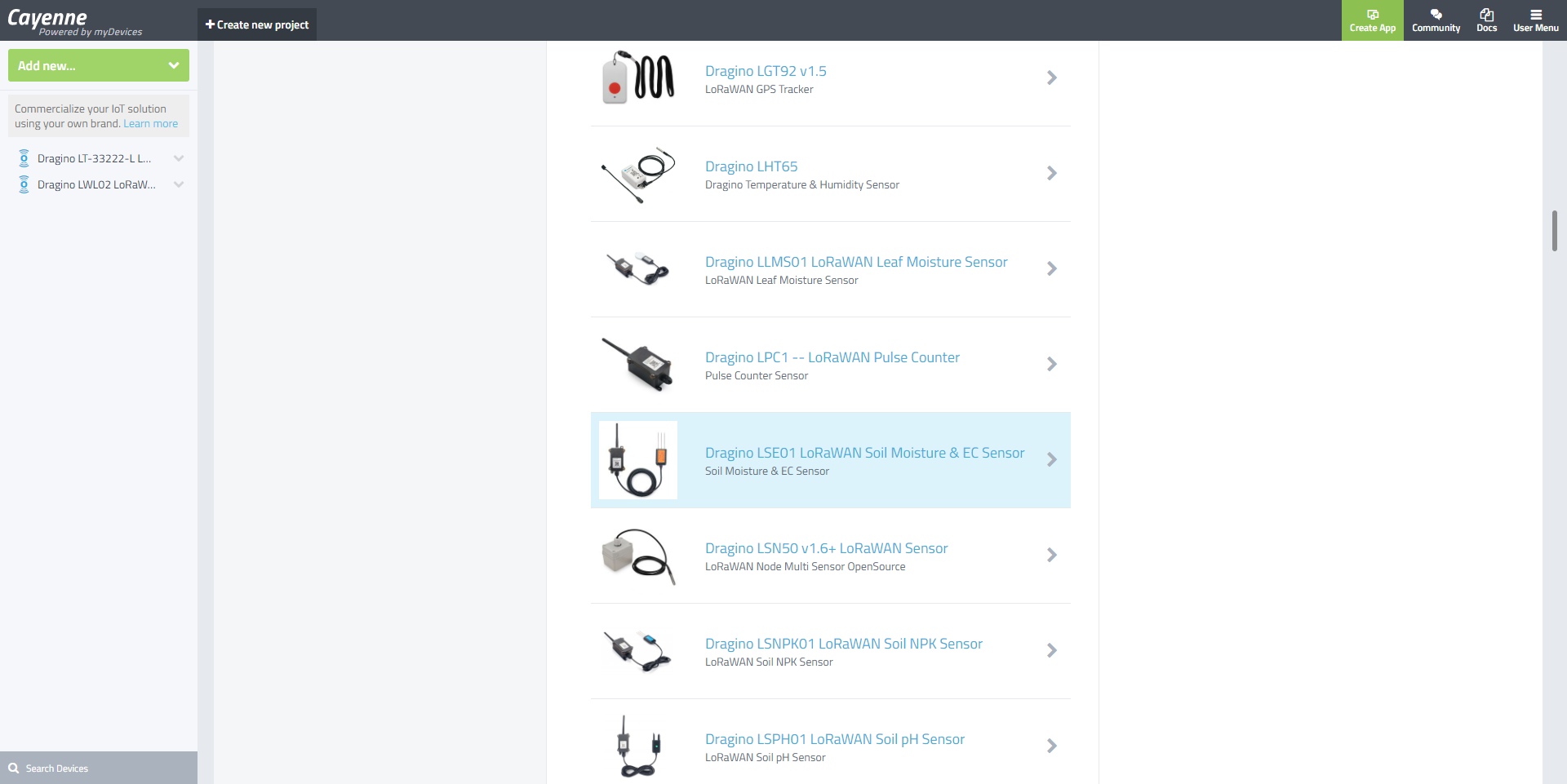
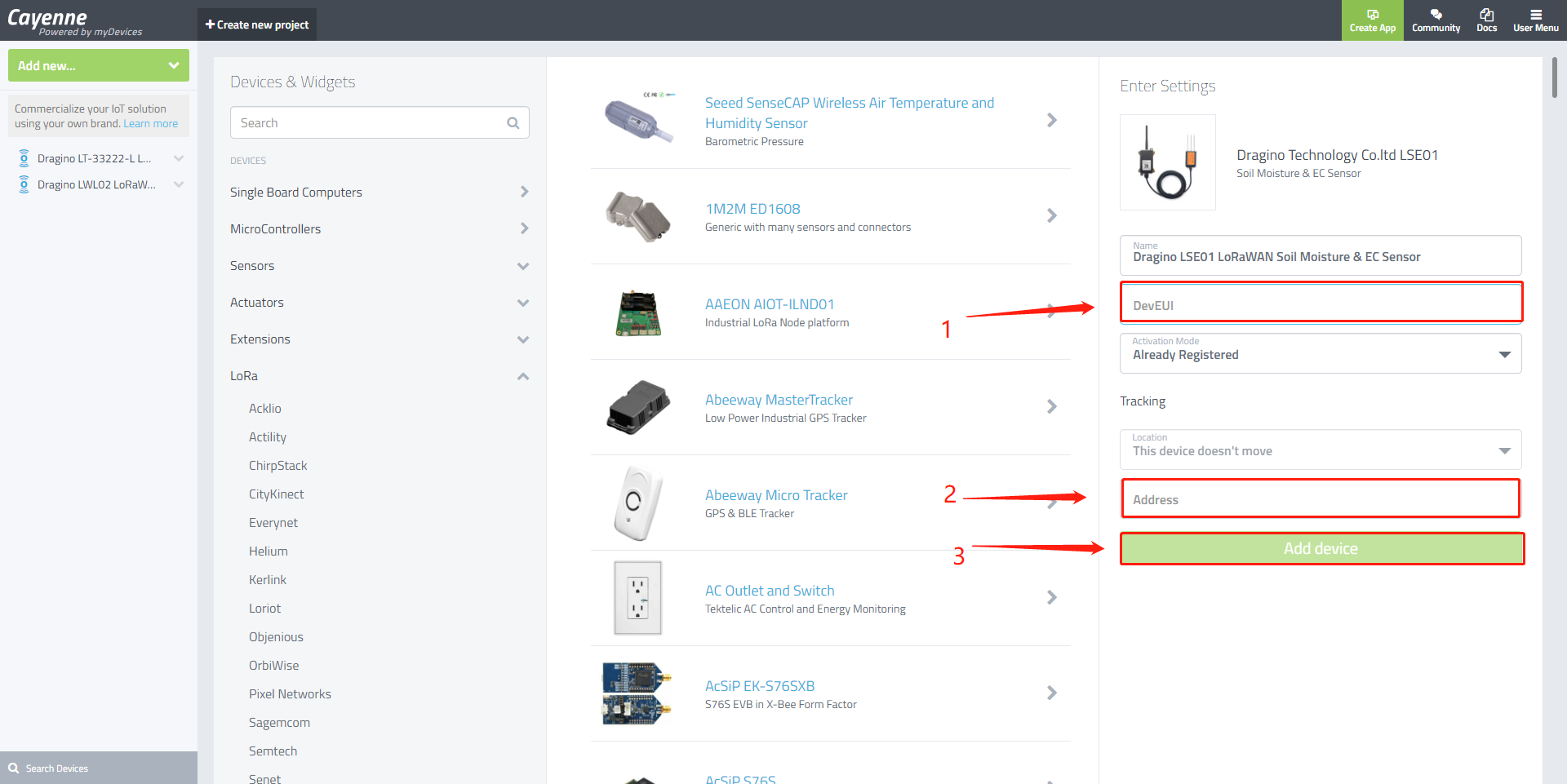
- Enter DevEUI and Location
- Complete connection
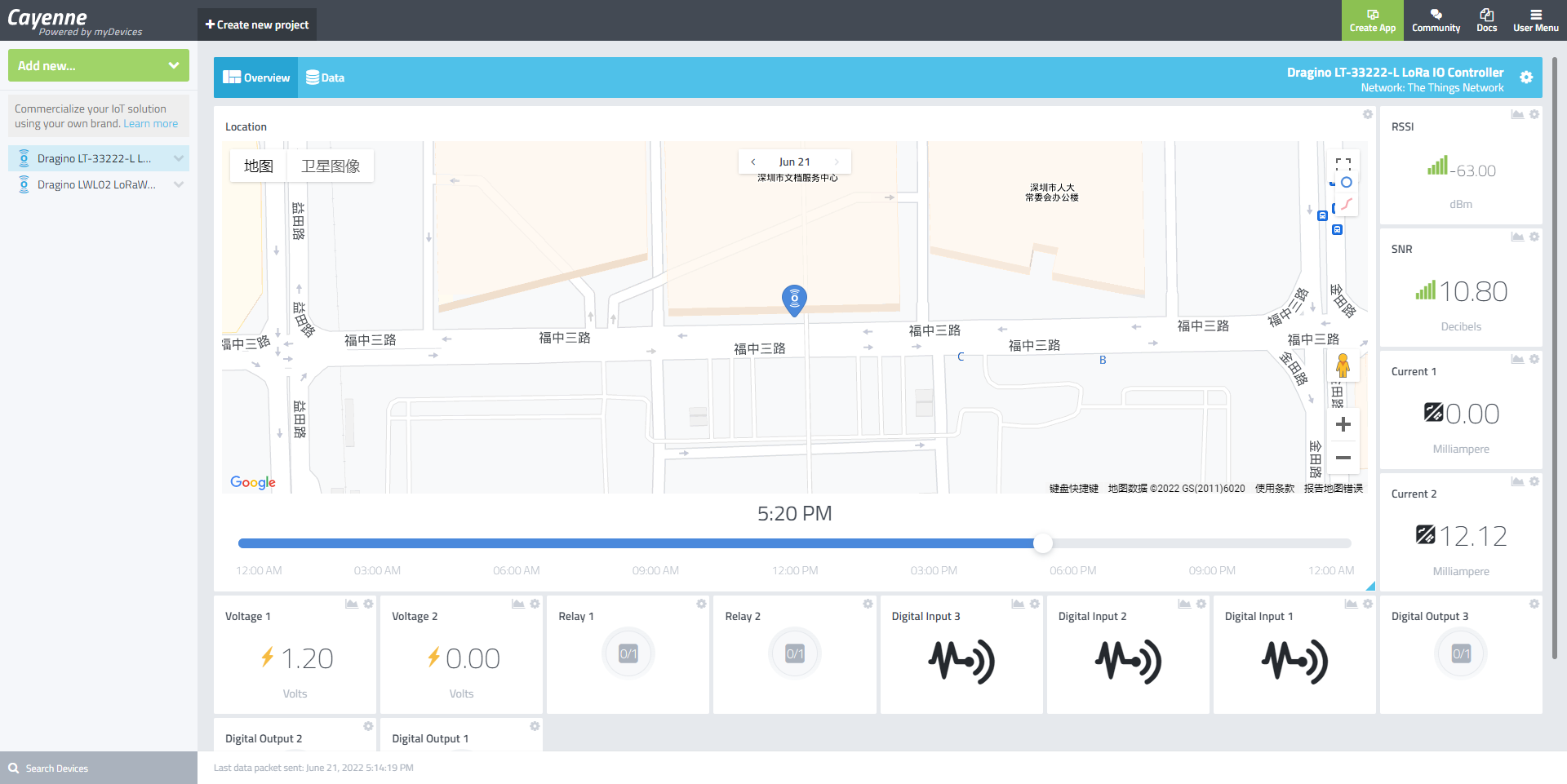
3. Create Alarm event in Cayenne
- Select widget to alarm, Click settings in the upper right corner - trigger
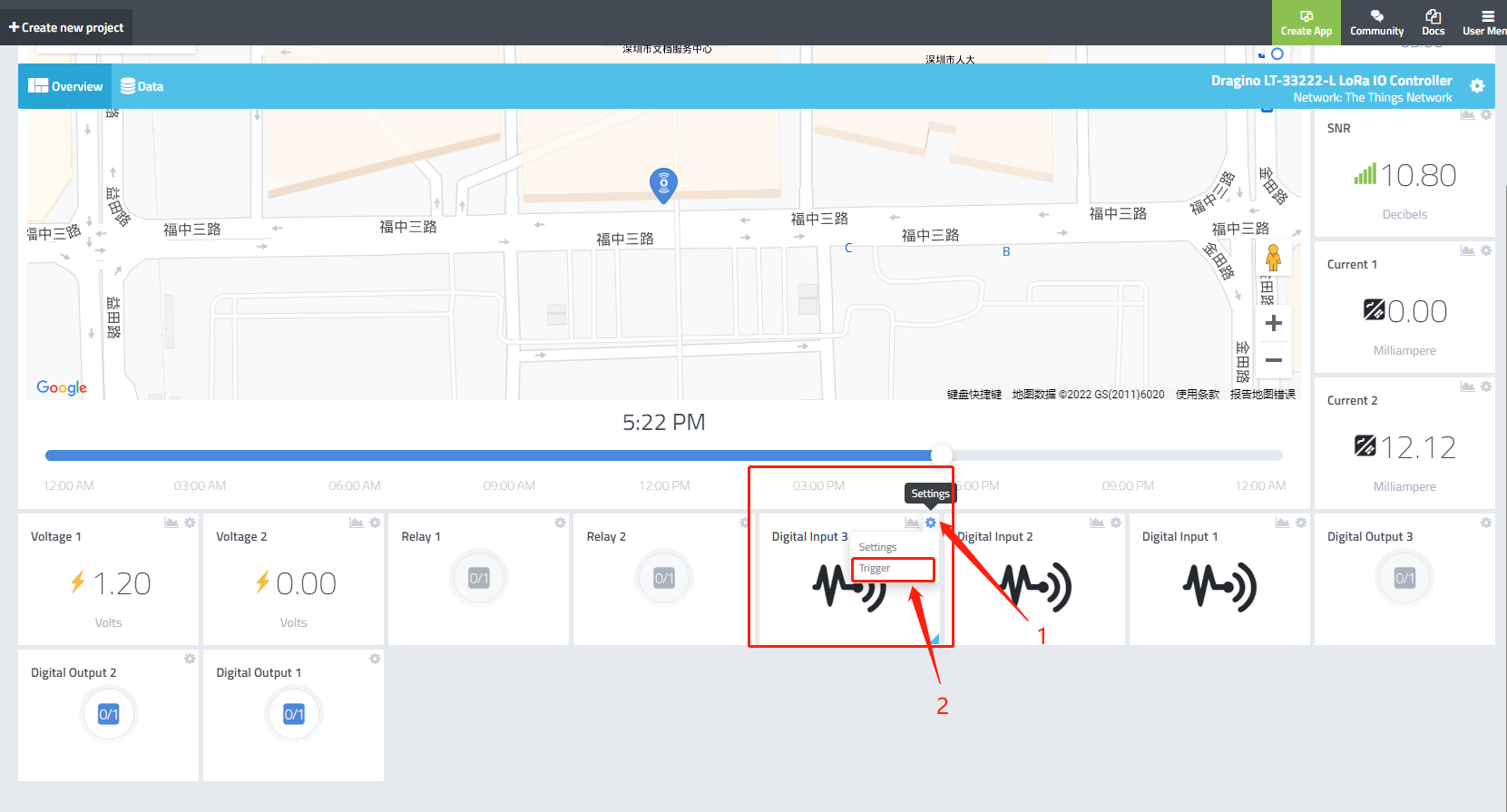
- Set your trigger and alarm address
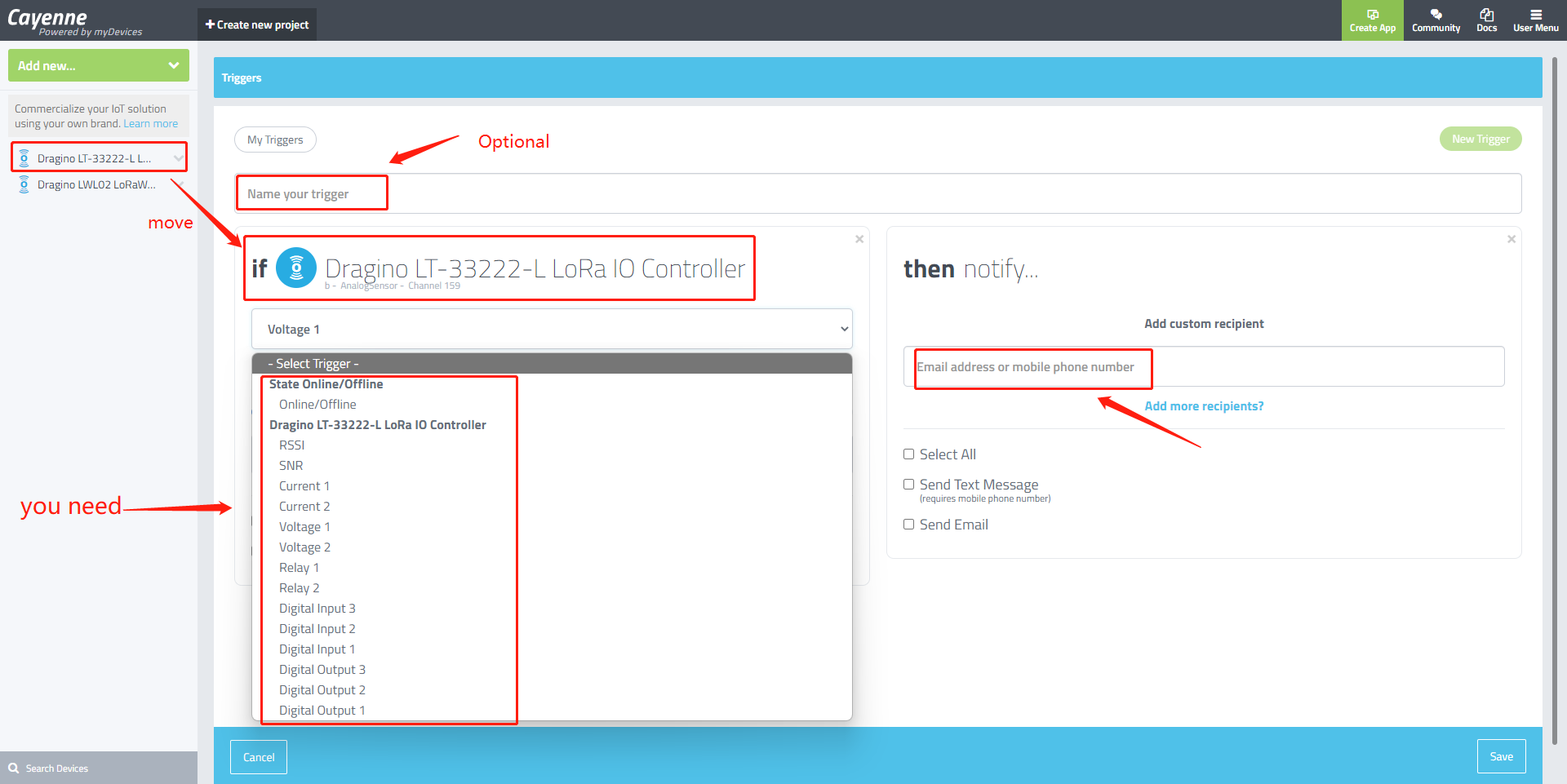
- When an alarm occurs, it will be sent to your email or mobile phone