Listen Before Talk Feature (LBT)
1. Introduction
Dragino Gateways are able to support the Listen Before Talk (LBT) feature when used with the LA66 USB LoRaWAN Adapter. LBT is a channel access mechanism that allows the gateway to detect whether the LoRa channel is occupied before initiating a downlink transmission, thereby reducing signal collisions and improving the reliability of data delivery in congested environments.
The following products support the LBT feature:
| Model | LBT Enable Method |
|---|---|
| LPS8N,DLOS8N,LG308N | Requires firmware upgrade to LBT version |
| LPS8v2 | Enable via configuration file only |
For LPS8v2 users: The LBT feature can be enabled simply by adding a few lines of configuration to the
/usr/local/dragino/generate-config.shscript. No firmware upgrade is needed. Please refer to section 2.4 Configuration LBT for LPS8v2 for detailed instructions. For other models (e.g., LPS8N,DLOS8N,LG308N), please upgrade to the LBT firmware version first:
- Firmware version: LBT--build-v5.4.1658454438
LA66 LBT firmware: USB LoRaWAN Adapter LBT
2. How to use
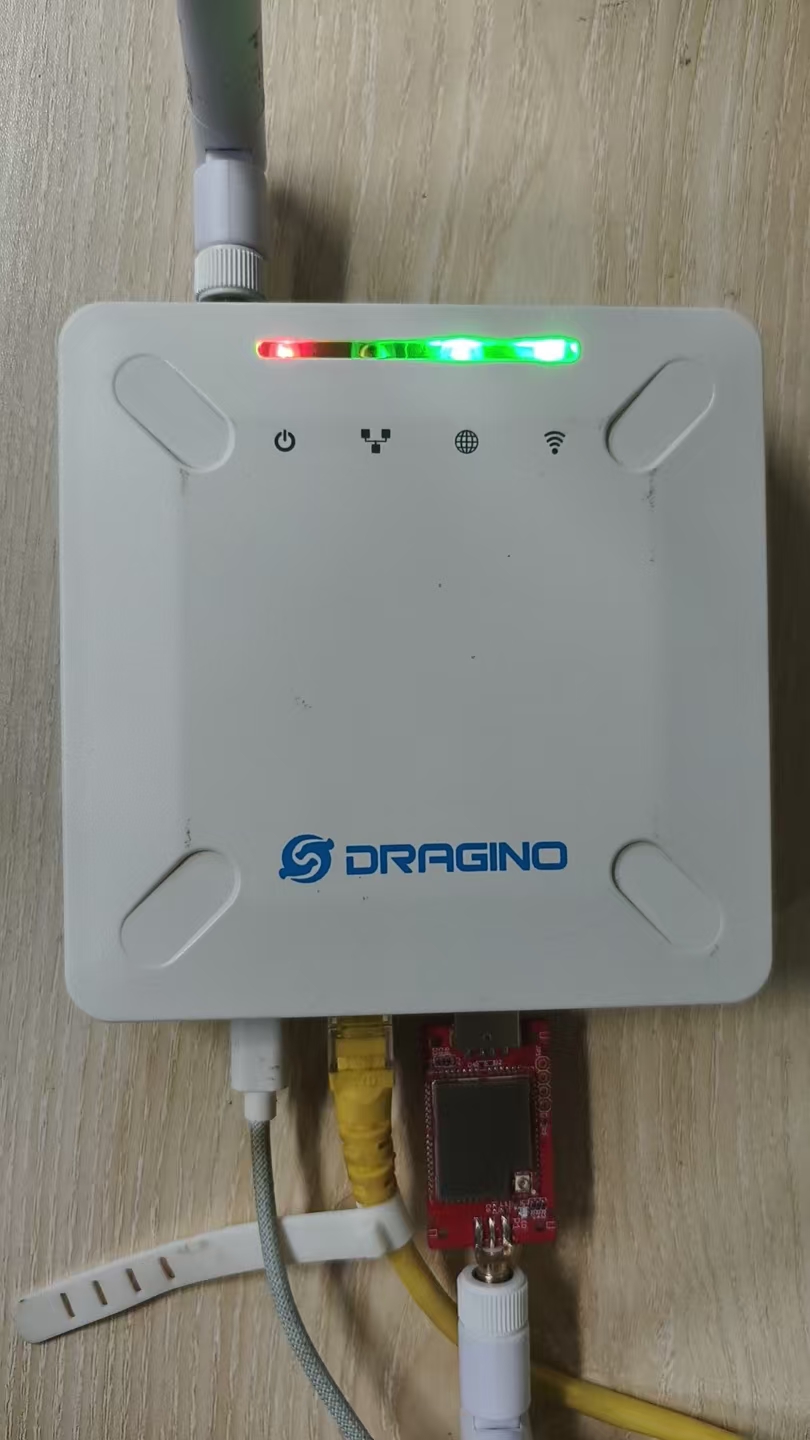
Connect the LA66 module to the USB port on the side of the gateway.
2.1 Configuration LBT for (LPS8N,DLOS8N,LG308N)
Upgrade the gateway firmware to the LBT version for specific device Firmware download. This LBT version firmware support LBT by default, users just need to plug in the LA66 USB LoRaWAN Adapter.
2.2 Debug
Apply and save on the web after the above configure has been made
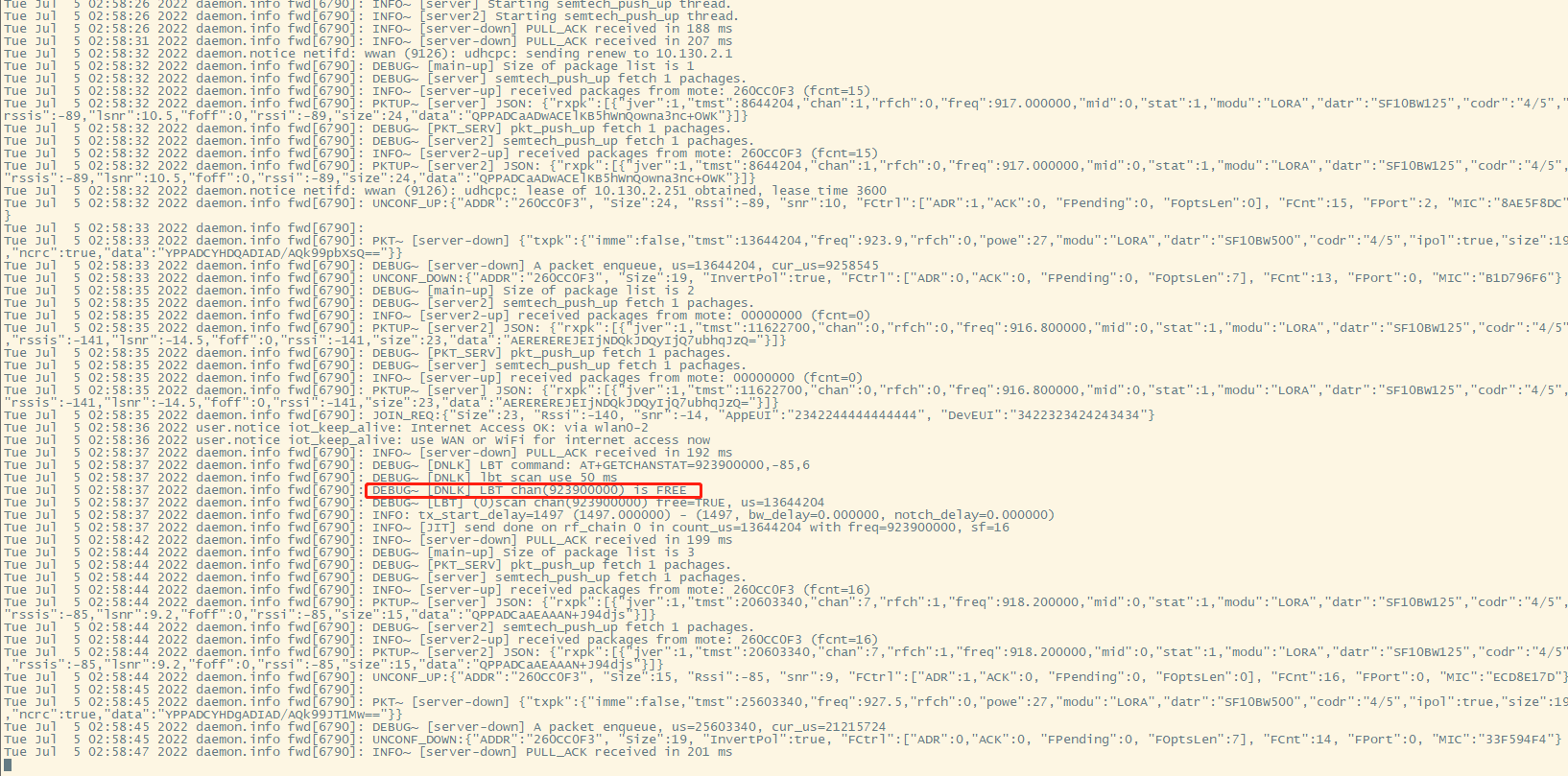
Run logread -f in Linux to check the LBT running status.
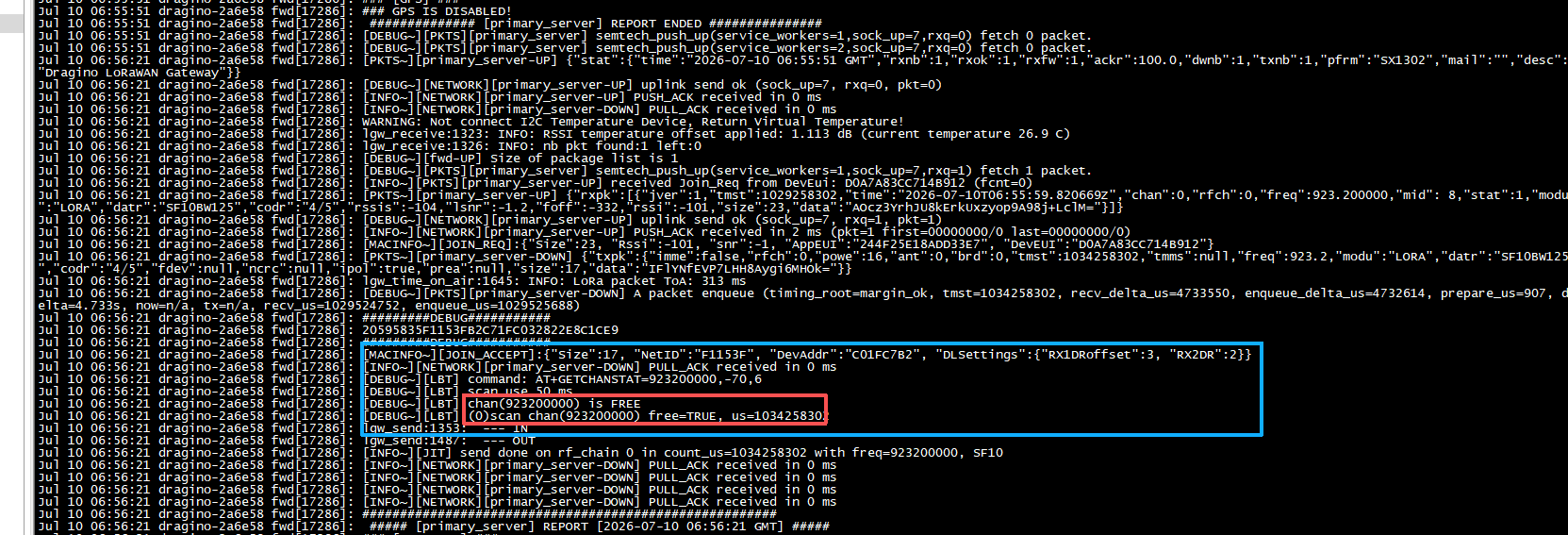
If LA66 module returned the value FREE, indicating that can be downlinked normally.
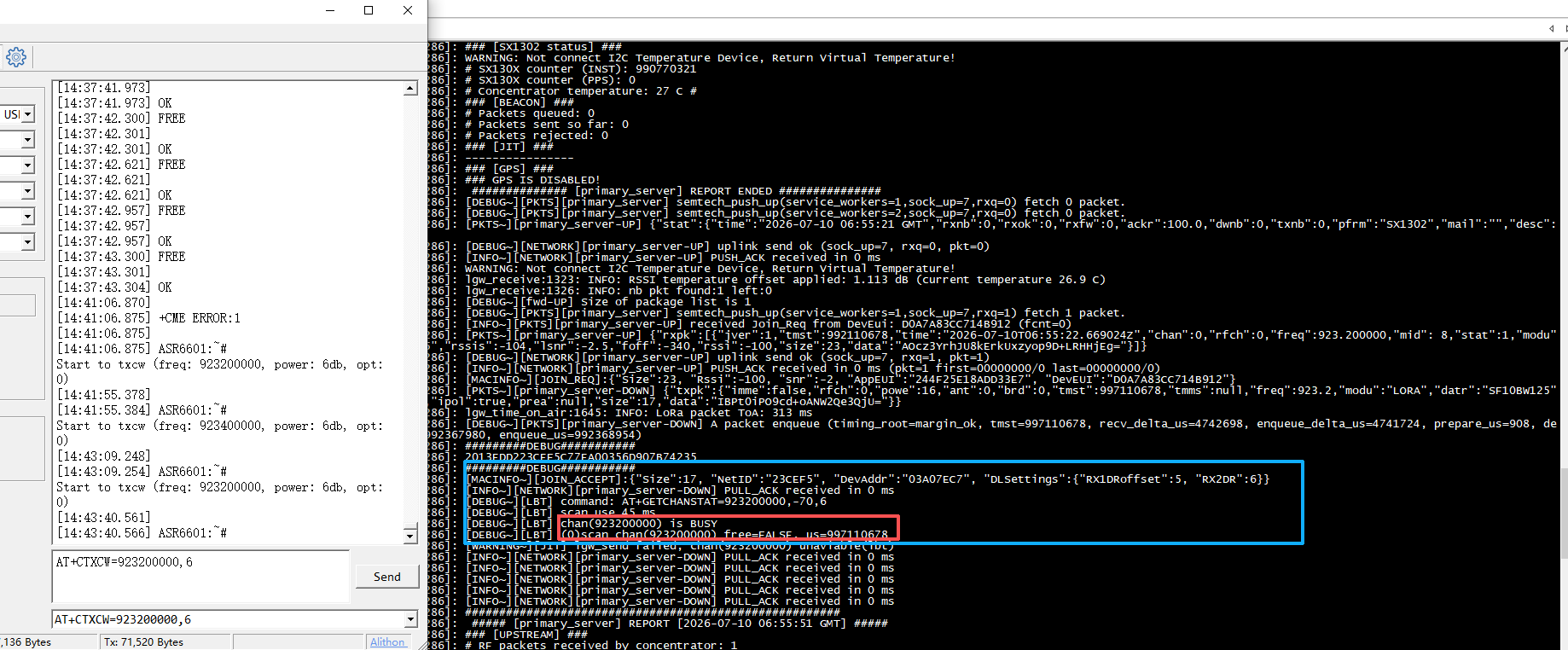
If LA66 module returned the value BUSY, indicates that the downlink can be disturbed.
Received signals greater than -85dBm return BUSY, less than return FREE
2.3 Trouble Shootings
2.3.1 How to debug if LBT does not work
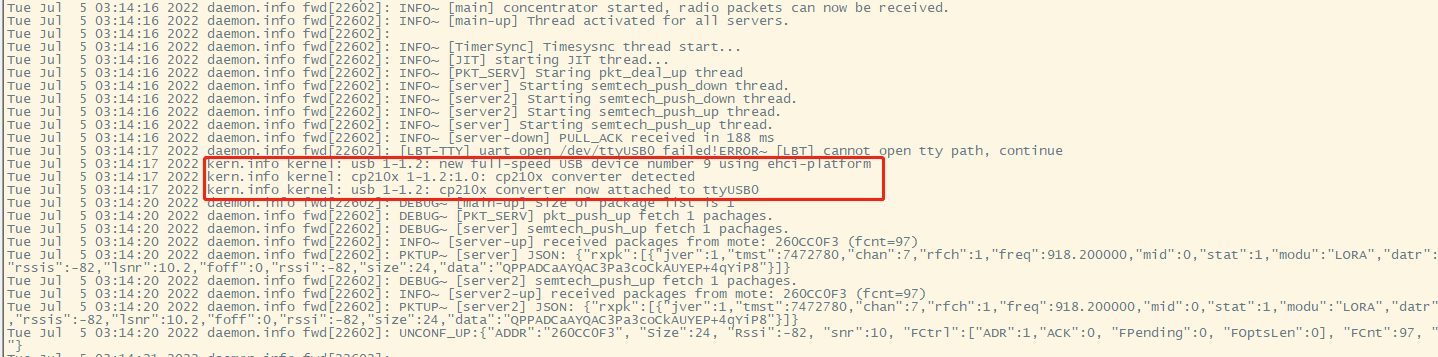
Make sure that the gateway is connected to the LA66 module, Can check by command or via the Web UI.
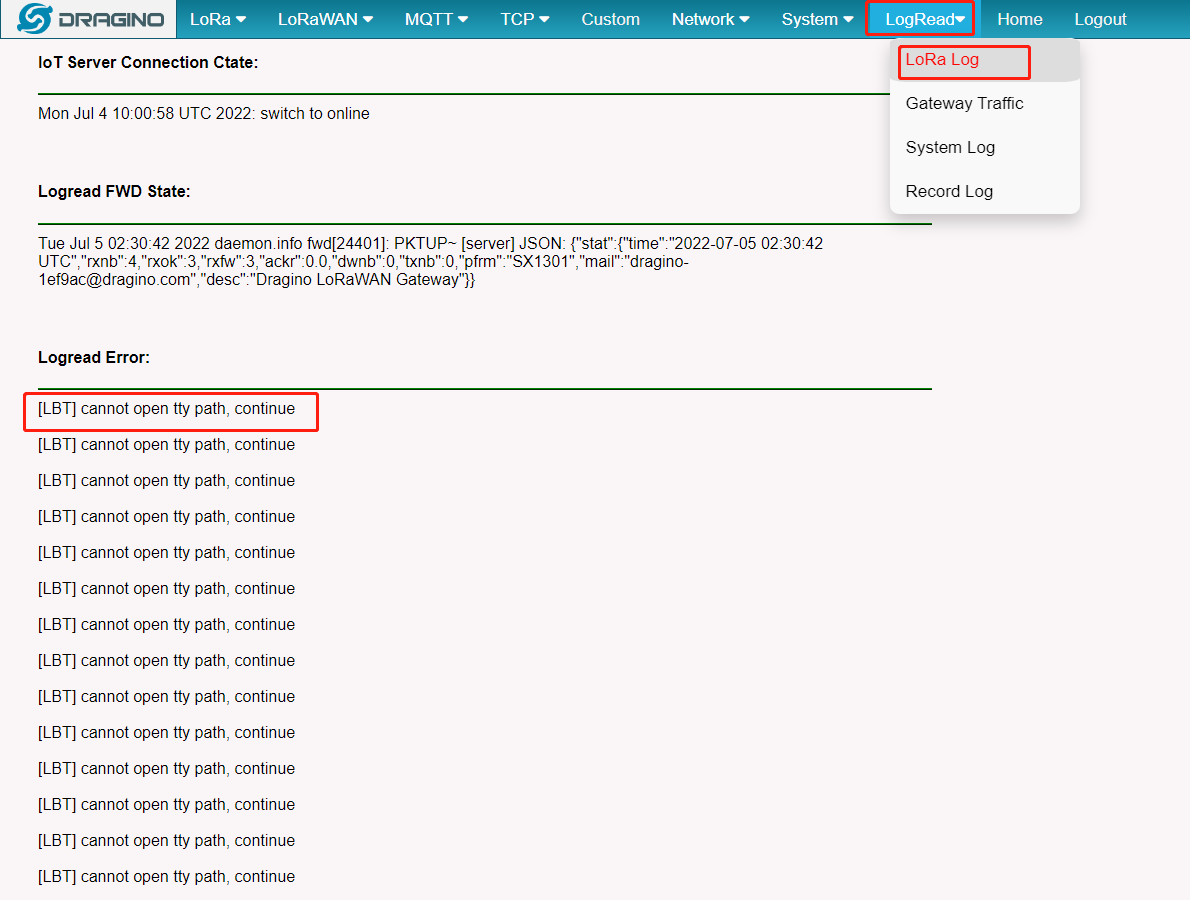
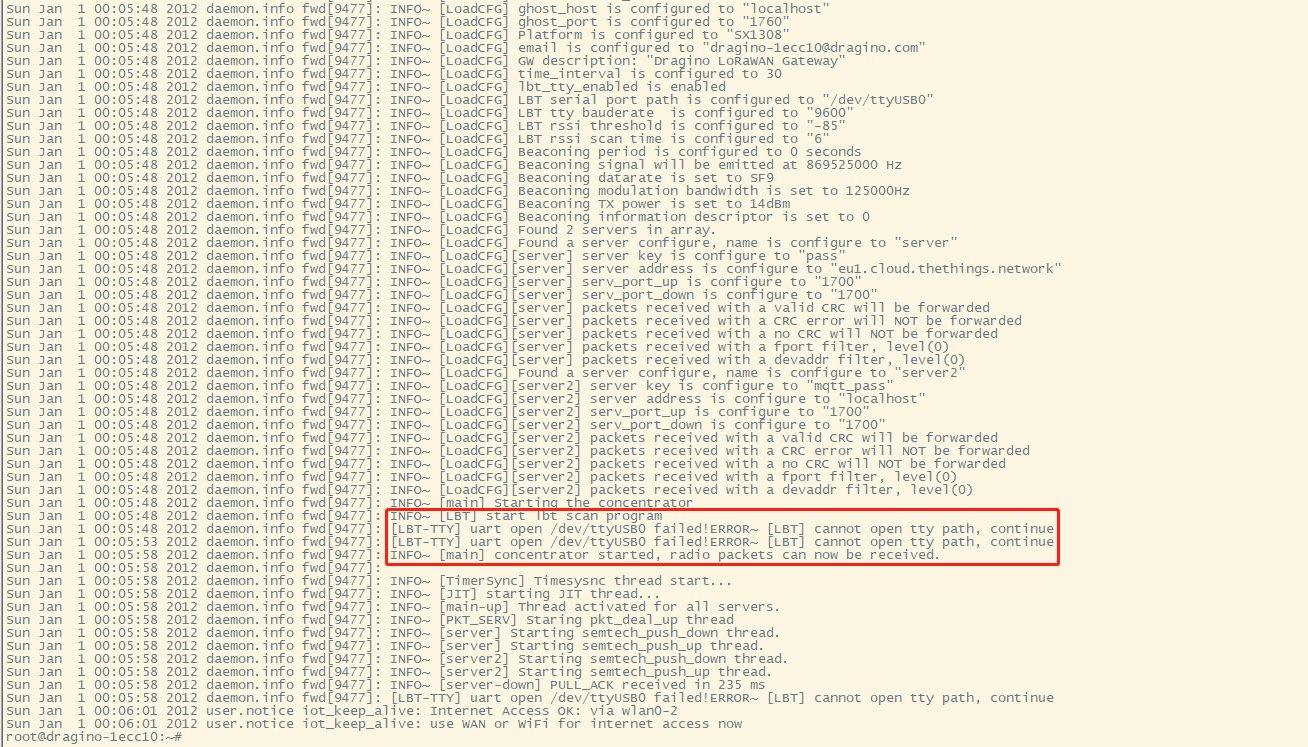
Access LA66 module log will show CP210X Converter Now Attached to ttyUSBX
 LPS8 Requires firmware upgrade to LBT version
2.4 Configuration LBT for LPS8v2
For LPS8v2 models, the LBT feature is supported without firmware upgrade. It is enabled by adding configuration entries to the /usr/local/dragino/generate-config.sh script.
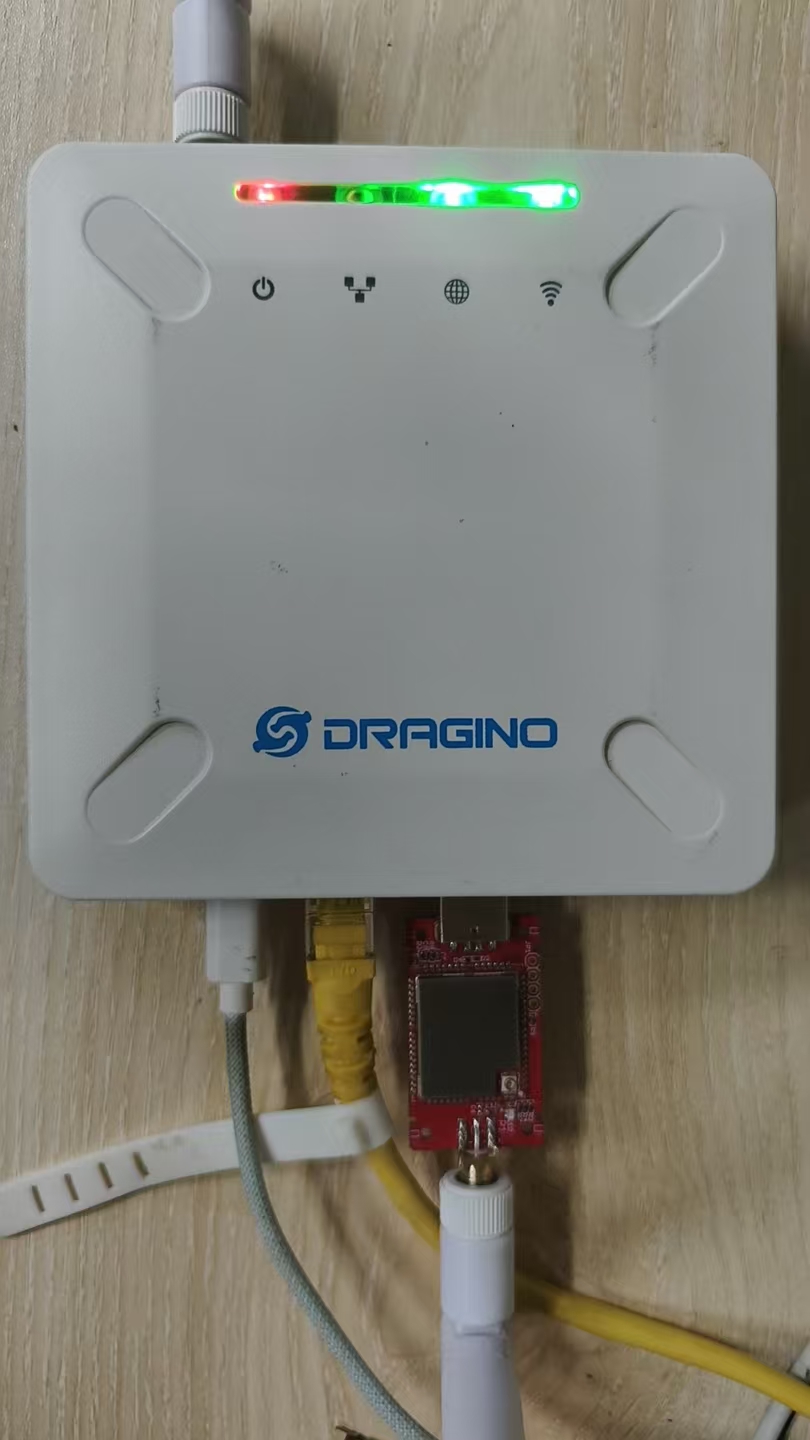
Hardware setup: Connect the LA66 USB LoRaWAN Adapter to the USB port on the gateway.
Configuration to add (the exact location inside the script is typically within the gateway configuration function):
json_add_boolean "lbt_enable" 1
json_add_boolean "lbt_isftdi" 1
json_add_boolean "lbt_tty_enabled" 1
json_add_string "lbt_tty_path" "/dev/ttyUSB0"
json_add_int "lbt_tty_baude" "9600"
json_add_int "lbt_rssi_target" "-70"
json_add_int "lbt_scan_time_ms" "6"
After adding these lines, apply the configuration via the Web UI: go to LoRa-->LoRa, select any frequency band, and click Save&&Applay. Then reboot the gateway for the changes to take effect.
If it is necessary to check the LBT log, the log_mask parameter needs to be modified to debug mode
json_add_string "log_mask" "111111"
Verification: After reboot, run journalctl -u draginofwd -f and check the LBT status:
FREE– channel clear, downlink allowed.BUSY– channel occupied (RSSI > -85 dBm typically triggers BUSY).
Parameter reference:
| Parameter | Type | Value | Description |
|---|---|---|---|
lbt_enable | boolean | 1 | Enable LBT |
lbt_isftdi | boolean | 1 | FTDI interface mode |
lbt_tty_enabled | boolean | 1 | Enable TTY serial |
lbt_tty_path | string | /dev/ttyUSB0 | Serial device path |
lbt_tty_baude | integer | 9600 | Baud rate |
lbt_rssi_target | integer | -70 | RSSI threshold (dBm) |
lbt_scan_time_ms | integer | 6 | Scan time (ms) |
Troubleshooting if LBT does not work:
- Verify the LA66 module is detected:
dmesg | grep ttyshould showCP210X Converter Now Attached to ttyUSBX. - Ensure
lbt_tty_pathmatches the actual device (e.g.,/dev/ttyUSB0,/dev/ttyUSB1). - Confirm the seven lines were added correctly and the Web UI save was performed.
- Check logs with
journalctl -u draginofwd -ffor any LBT-related errors during startup or downlink attempts.