MQTT TLS Certificate Configuration for -KN/-KS
1. Overview
This document describes how to write TLS certificates to Dragino -KN/-KS series devices for a secure MQTT connection.
A dedicated -KN/-KS certificate-provisioning firmware is required. After writing the certificates, restore the device's working firmware.
Applicable Device Models:
- -KN series
- -KS series
This document covers certificate writing only. Platform setup and MQTT connection configuration are not included.
2. Prepare Certificate Files and Serial Port Tool
2.1 Prepare Certificate Files
Prepare the following files in PEM format:
- CA certificate: The root CA certificate required by your MQTT server.
- Client certificate: The device certificate used for client authentication.
- Client private key: The private key matching the client certificate.
Open each file in a text editor. Use the complete file content, including its BEGIN and END lines, and preserve the original line breaks.
2.2 Configure the Serial Port Tool
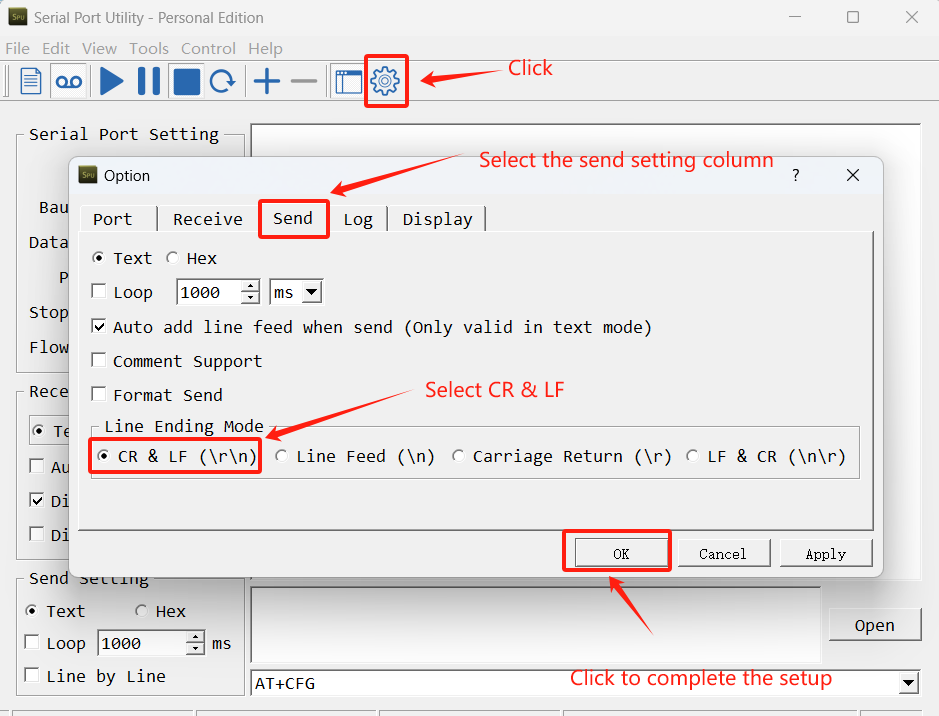
Note: To avoid certificate writing failures, configure the serial port tool to automatically append a newline character when sending commands. Certificates written without the required newline will be invalid.
Using the Serial Port Utility as an example:
3. Upgrade to the Dedicated Certificate-Provisioning Firmware
Before writing certificates, upgrade the device to the dedicated -KN/-KS certificate-provisioning firmware.
Firmware download reference:
EG800-NGFF certificate.hex - Dropbox
Firmware update instruction reference:
Update through UART TTL interface
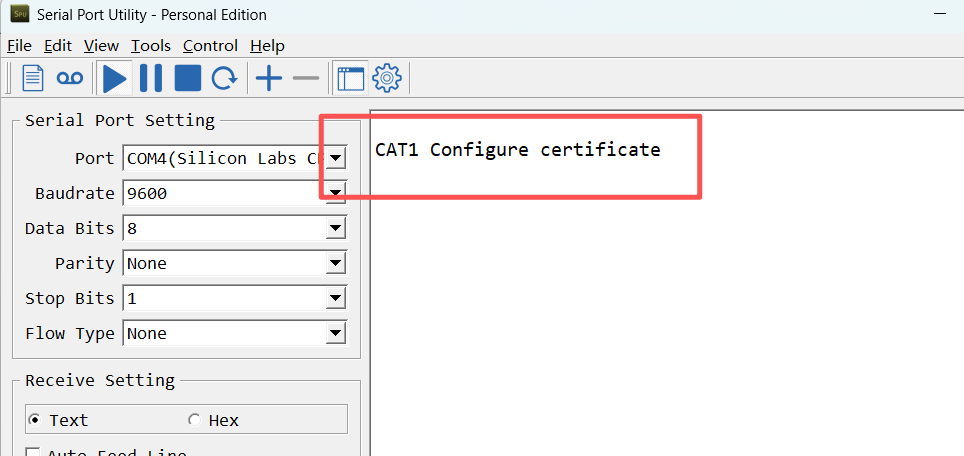
After upgrading, the serial port displays the certificate-provisioning firmware startup output, as shown in the following reference image.
4. Write TLS Certificates to the -KN/-KS Device
- Place the complete PEM content directly after the command's equals sign.
- Preserve the BEGIN/END lines and the original line breaks.
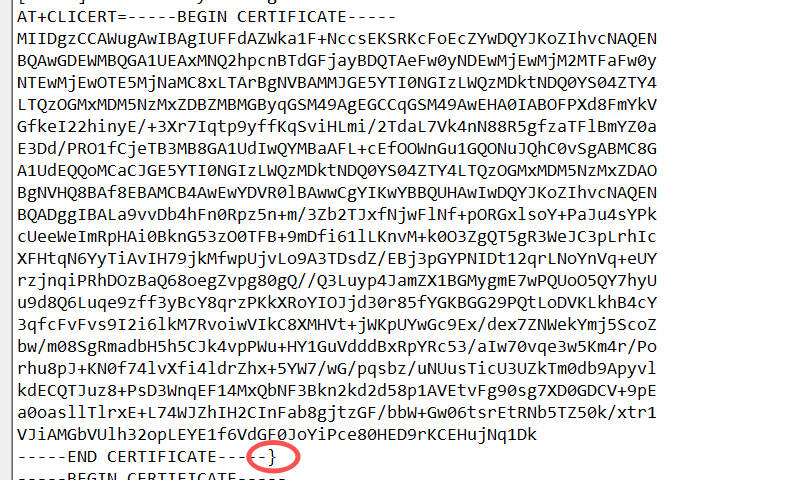
- Append a closing curly brace } immediately after the PEM END line. Otherwise, the command will not execute successfully.
- Send each complete command and wait for its success response before sending the next command.
- Replace the placeholders in the examples with the actual file contents. Do not send the placeholder text.
- Use the command format shown below. Do not send a bare AT+CACERT, AT+CLICERT, or AT+CLIKEY.
4.1 Configure CA Certificate
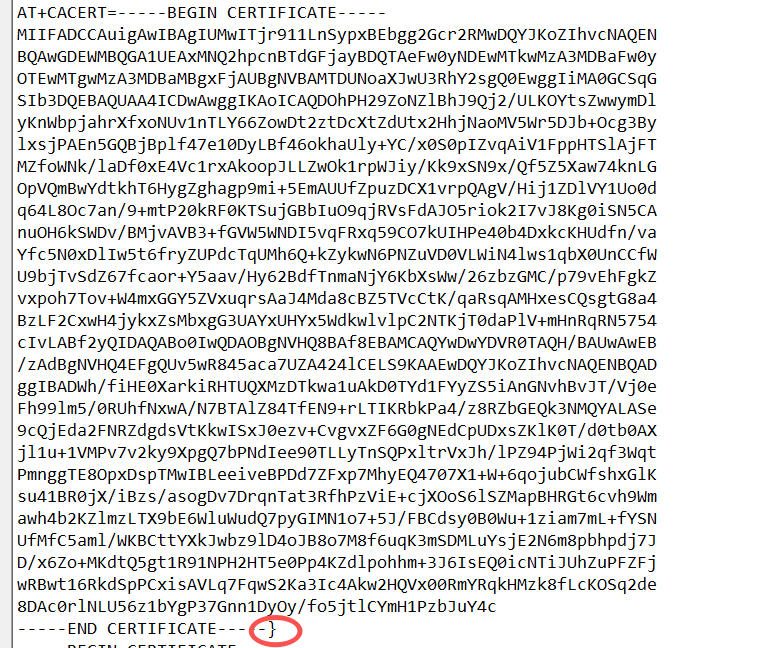
Open the CA certificate file. Use AT+CACERT with the complete CA certificate content:
AT+CACERT=-----BEGIN CERTIFICATE-----
<Complete CA certificate content from your PEM file>
-----END CERTIFICATE-----}
Note: Be sure to append the terminator "}" after "-----END CERTIFICATE-----".
After successful execution, the device will respond with:
Successfully configured CA certificate.
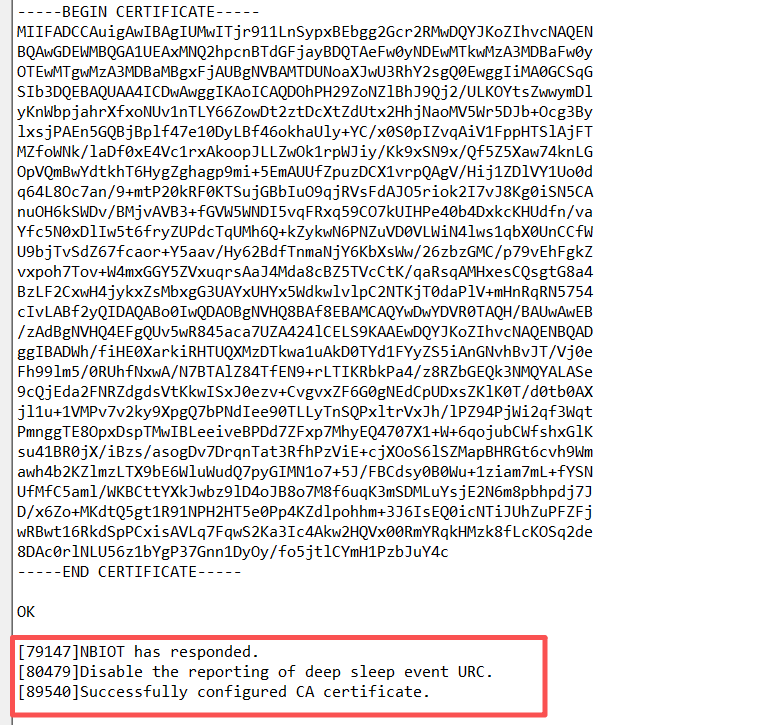
If this success message is not displayed, the configuration has not been confirmed successful. Check the certificate content, line breaks, and terminator, then retry.
4.2 Configure Client Certificate
Open the client certificate file. Use AT+CLICERT with the complete client certificate content:
AT+CLICERT=-----BEGIN CERTIFICATE-----
<Complete client certificate content from your PEM file>
-----END CERTIFICATE-----}
Note: Be sure to append the terminator "}" after "-----END CERTIFICATE-----".
After successful execution, the device will respond with:
Successfully configured client certificate.
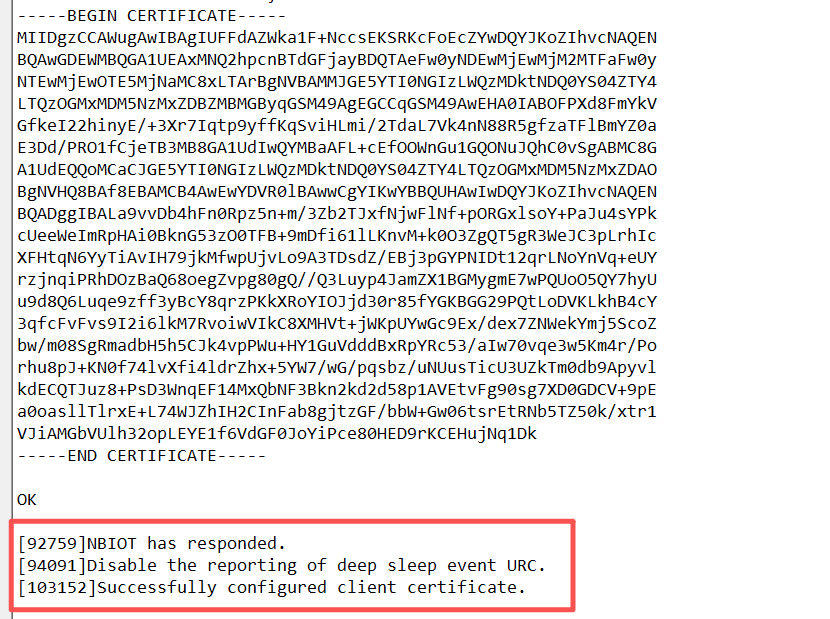
If this success message is not displayed, the configuration has not been confirmed successful.
4.3 Configure Client Private Key
Open the private key file matching the client certificate. Use AT+CLIKEY with the complete private key content:
AT+CLIKEY=-----BEGIN PRIVATE KEY-----
<Complete client private key content from your PEM file>
-----END PRIVATE KEY-----}
- The example shows an private key. Preserve the actual BEGIN/END labels from your file; do not change them.
- Append } immediately after the END line.

After successful execution, the device will respond with:
Successfully configured client private key.
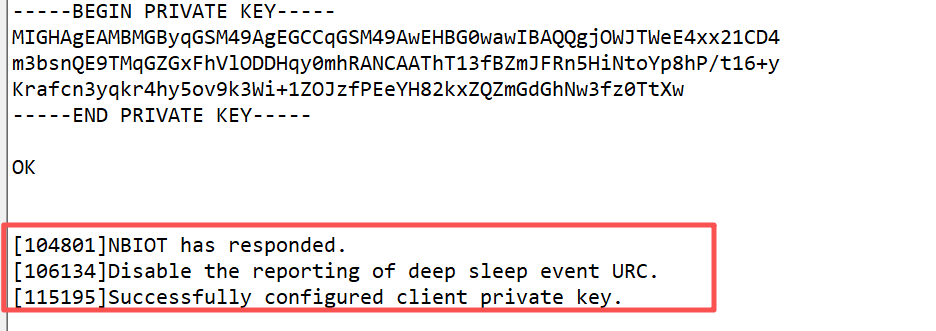
If this success message is not displayed, the configuration has not been confirmed successful.
4.4 Certificate Setting Error / Change Certificate
When you set the wrong certificate or need to replace an existing certificate, use the following three commands to delete the current certificates before writing new ones:
AT+DELCLIKEY}
AT+DELCLICERT}
AT+DELCACERT}


Note:
- When there is no certificate on the device, a deletion error will be displayed.
- When the device already has a certificate, using the command to configure the certificate again will display a configuration error.
5. Restore the Working Firmware
After all three certificate-writing operations succeed, restore the device firmware using the same sequence as the legacy -NB procedure:
- Flash the bootloader corresponding to the -KN/-KS device.
- Flash the original working firmware corresponding to the -KN/-KS device.
The certificate-provisioning firmware is used for writing certificates, not for normal device operation.
Bootloader download reference:
Working firmware download reference:
Note: The -KN/-KS devices use the same bootloader as the -NB/-CB products. Therefore, simply click the links above to download the latest version of the DRAGINO NB bootloader.bin.
Certificate writing is complete after restoring the working firmware. Refer to your device and platform documentation separately for MQTT connection settings.
6. Configure Device for MQTT Connection
After restoring the working firmware, configure the following AT commands. Set the server address, port, topics, and authentication mode according to your MQTT platform's requirements.
6.1 Set Data Format
AT+PRO=3,0 // Use MQTT Connection & hex Payload
AT+PRO=3,5 // Use MQTT Connection & Json Payload
6.2 Set Server Address
AT+SERVADDR=<server_address>,<port>
Replace <server_address> with your platform's MQTT server hostname or IP address, and
MQTT over TLS commonly uses port 8883; use the port specified by your platform.
6.3 Set MQTT Topics
AT+SUBTOPIC=<subscribe_topic>
AT+PUBTOPIC=<publish_topic>
- AT+SUBTOPIC: Sets the topic the device subscribes to for receiving messages from the platform.
- AT+PUBTOPIC: Sets the topic the device uses to publish uplink data.
Replace the placeholders with the topic names required by your platform.
6.4 Set TLS Mode
The AT+TLSMOD command configures the TLS authentication mode:
- AT+TLSMOD=1,0 - No authentication.
- AT+TLSMOD=1,1 - Server authentication only.
- AT+TLSMOD=1,2 - Server and client authentication if requested by the remote server.
For a platform requiring both server and client certificate authentication, use:
AT+TLSMOD=1,2
6.5 Set MQTT QoS
AT+MQOS=<qos>
Sets the MQTT Quality of Service (QoS) level. Replace
6.6 Restart Device
After completing the configuration, restart the device using one of the following methods:
- Send the AT command: ATZ.
- Press the ACT button for more than 3 seconds.
The device will reboot and apply the configuration changes.